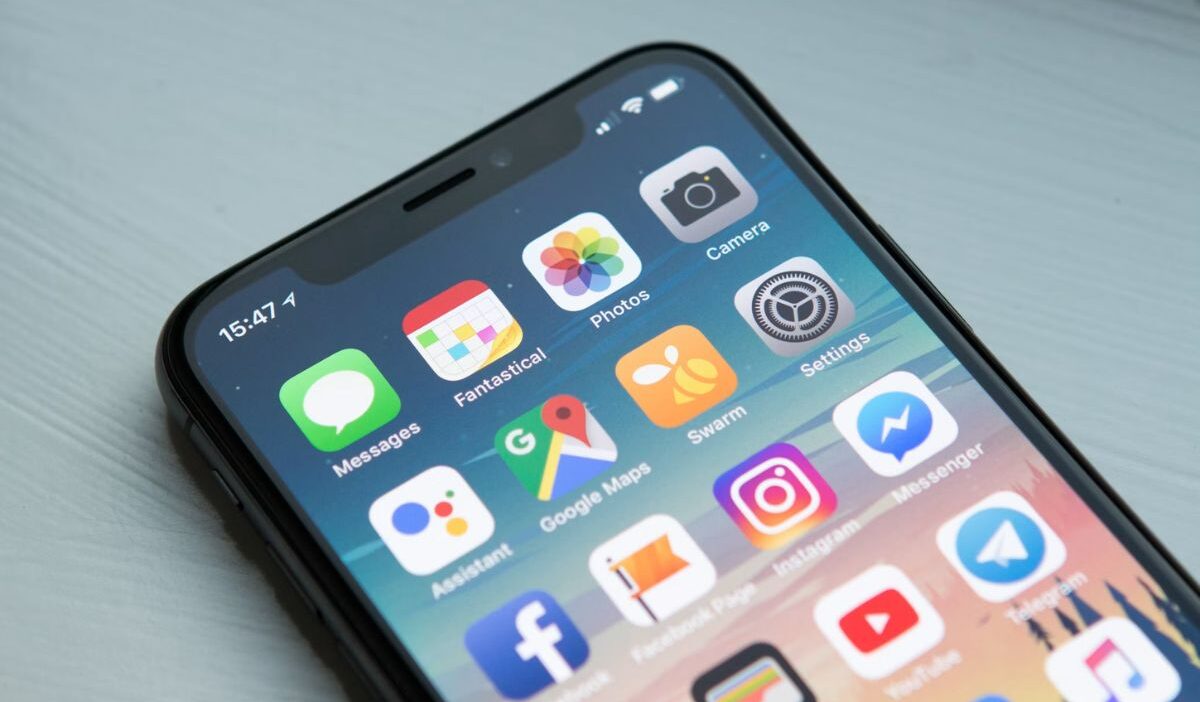
A personalized Home Screen adds both style and convenience to your iPhone experience. Whether you’re creating a minimalist layout, matching a favorite wallpaper, or organizing apps by color, custom icons can completely change the look of your device.
If you’re searching for how to change app icons iPhone, you can do it using Apple’s built-in Shortcuts app without installing additional software. This guide walks through the setup process, common issues, and ideas for creating a cleaner Home Screen.
1. How to Change App Icons iPhone
If you’ve never customized your Home Screen before, how to change app icons iPhone may seem complicated.
In reality, the process only takes a few minutes once you know where the settings are located.
Custom Shortcut-Based Method (iOS 13+)
This method uses Apple’s Shortcuts app to create a custom icon that launches the app. It’s compatible with older iOS versions and offers full flexibility in design.
The steps are as follows:
Step 1: Open the Shortcuts app
- Use Spotlight Search if you can’t locate it.
Step 2: Create a new shortcut
- Tap the + icon → Add Action
- Search and select Open App
- Choose the target app (e.g., Instagram, Spotify, Gmail)
Step 3: Customize the icon
- Tap the shortcut name -> Add to Home Screen
- Tap the icon preview -> Choose Photo
- Select your custom icon image
Step 4: Add the shortcut to Home Screen
- Enter a custom name (optional)
- Tap Add
Step 5: Hide the original app icon (optional)
- Move it to App Library or a hidden folder
Important Notes:
- Custom icons do not display notification badges; they appear only on the original app in the App Library.
- There may be a slight delay when launching the app through a shortcut.
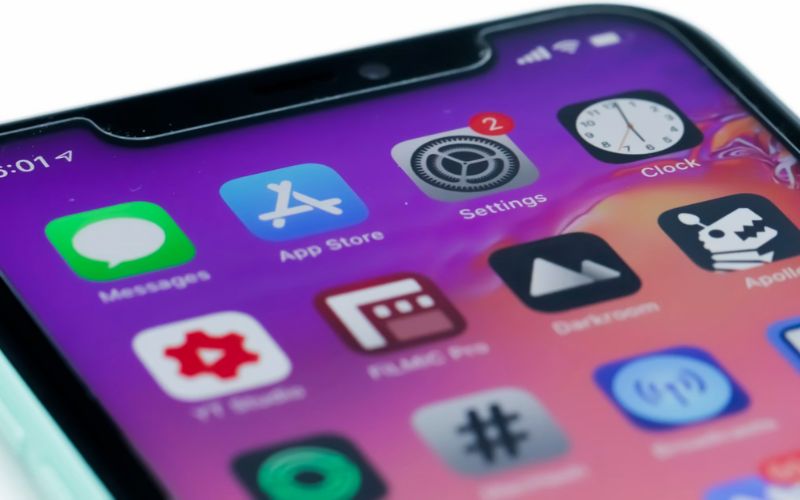
Built-In iOS 18+ Method
With iOS 18 and newer, Apple provides a native way to customize icons without Shortcuts.
You can refer to the steps below:
Step 1: Long-press any app icon
- Tap Edit Home Screen -> App Settings
Step 2: Select “Change Icon”
- Choose from Apple’s built-in icon options or upload your own image
Step 3: Apply the change
- Tap Done to save the new icon
2. What to Know Before Customizing App Icons Through Shortcut App
Before continuing with how to change app icons iPhone by using the Shortcut app, it’s helpful to understand how the system actually works.
Custom icons are actually shortcuts
The custom icon isn’t replacing the original app. Instead, it creates a shortcut that launches the app when tapped. This distinction explains why certain behaviors may differ slightly from standard app icons.
Notifications and shortcut behavior
Notification badges do not appear on the custom shortcut icon itself. Instead, they continue to show on the original app stored in the App Library. For example, your custom Mail icon may not show unread email counts even though the app still receives notifications.
Limitations of the method
There are a few limitations:
- Notification badges may not appear.
- Some icon packs require manual setup.
- The original app still exists on the device.
- Certain visual behaviors can change after iOS updates.
- Slight delay when opening apps, since they launch through the Shortcuts app instead of directly
Understanding these trade-offs helps set realistic expectations.
>>> Read more: How to Sign a Document on iPhone: Complete Guide in 2026
3. Fixing Common App Icon Issues
After learning how to change app icons iPhone using Shortcut app, you may encounter occasional issues. Most are easy to fix.
Changes not appearing on the Home Screen
If the icon doesn’t appear:
- Confirm the shortcut was added successfully.
- Restart the device.
- Check whether the shortcut was saved.
- A quick refresh often resolves the issue.
Low-quality icon images
Blurry icons usually result from low-resolution images. Ideally, use square images with at least 1024×1024 resolution for sharper results..
Shortcut settings problems
If tapping the icon doesn’t open the correct app:
- Open Shortcuts.
- Edit the shortcut.
- Verify the selected application.
A small configuration error is often the cause.
iOS update conflicts
If you’re learning how to change app icons iPhone, keep in mind that iOS updates can occasionally affect shortcut behavior. If your icons stop working after an update:
- Rebuild the shortcut
- Check for iOS updates
- Restart the device
Most issues are temporary and resolved through updates.
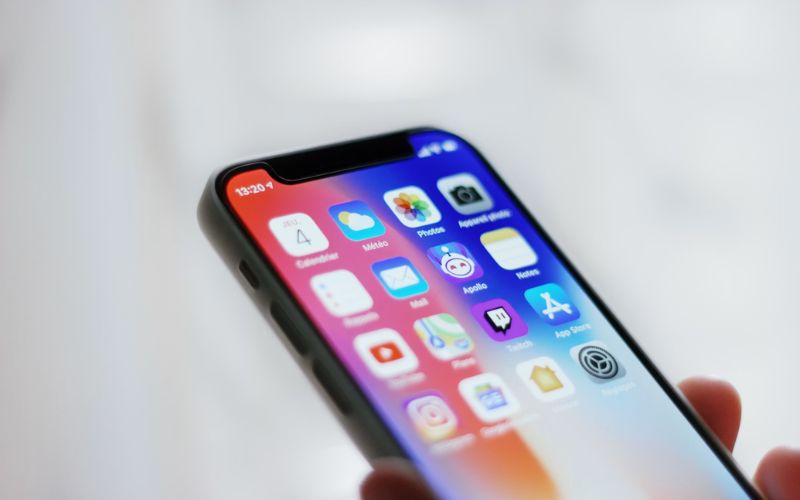
4. Popular Home Screen Styles
Once you’ve mastered how to change app icons iPhone, you can experiment with different Home Screen designs.
Minimalist designs
Minimalist layouts use:
- Simple icons
- Neutral colors
- Fewer visible apps
This style creates a cleaner appearance.
Dark mode themes
Dark-themed icon packs work particularly well with OLED displays and dark wallpapers. Many users choose black, gray, or monochrome icon sets.
Color-coordinated layouts
Some people organize icons by color to create a consistent visual theme.
For example:
- Blue productivity apps
- Green finance apps
- Red entertainment apps
Productivity-focused setups
A productivity layout prioritizes frequently used apps while reducing distractions. Work, calendar, notes, and communication tools often remain on the first screen.
5. Building a More Organized Home Screen
Custom icons become even more effective when paired with a well-organized layout. After learning how to change app icons iPhone, these techniques can improve the overall experience.
Using widgets
Widgets let you view important information at a glance without opening an app. Popular widget choices include:
- Calendar
- Weather
- Reminders
- Battery status
Creating app folders
Folders reduce clutter and make navigation easier.Examples include:
- Work
- Travel
- Shopping
- Social Media
Matching icons and wallpapers
A cohesive design often combines:
- Matching wallpapers
- Coordinated widgets
- Consistent icon styles
This creates a more polished Home Screen.
Reducing visual clutter
Consider removing apps you rarely use from the Home Screen. The App Library stores your apps neatly while keeping the Home Screen uncluttered.
>>> Read more: iPhone Hotspot: Easy Set Up, Connect and Troubleshoot
6. FAQs
Will custom icons affect app functionality?
No. The original app continues to function normally. The custom icon simply launches the app through a shortcut.
Can I restore the original app icons?
Yes. You can delete the shortcut icon and return to using the original app icon at any time.
Do app updates change custom icons?
Usually no. App updates usually do not affect custom icons, but major iOS updates can occasionally reset or change shortcut behavior.
Is it possible to customize icons for all iPhone apps?
Yes. Any app can be opened through a shortcut; you can create a custom Home Screen icon for it.
Conclusion
Learning how to change app icons iPhone is one of the easiest ways to personalize your device without installing special software.
Using the Shortcuts app, you can replace standard icons with custom designs, create themed layouts, and build a Home Screen that better matches your preferences.