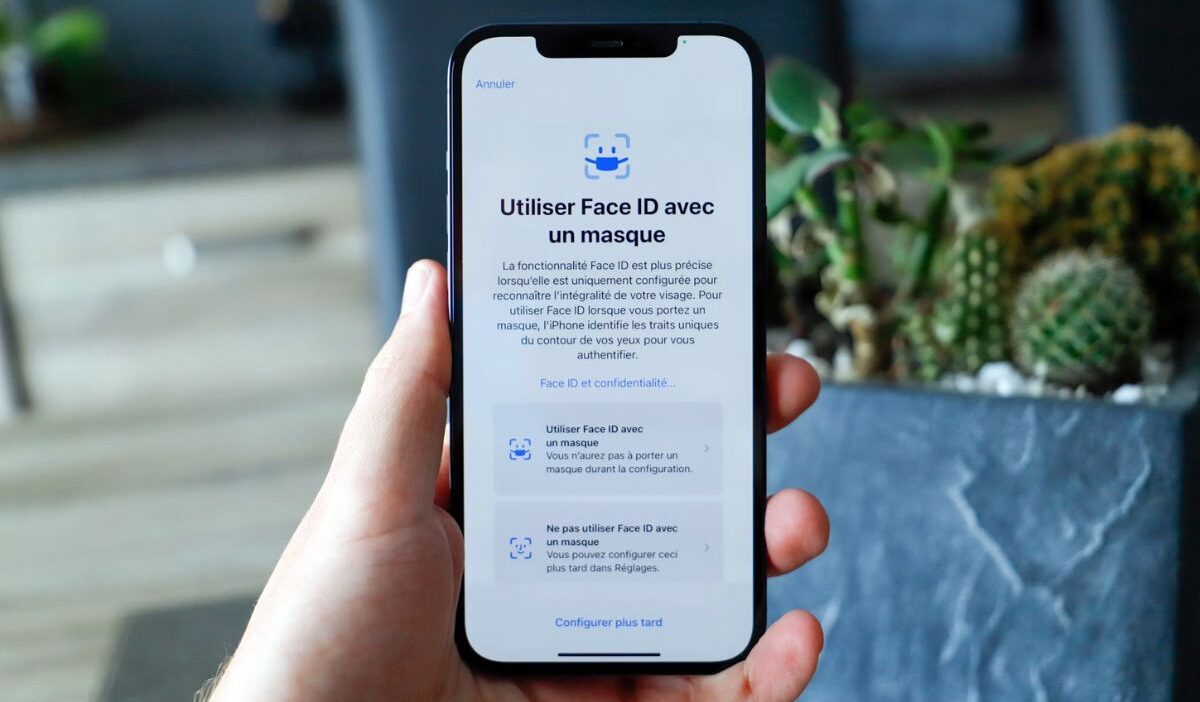
Typing a passcode every time you unlock your iPhone can feel unnecessary when Face ID is available. Whether you’ve just purchased a new device or never finished the setup process, Face ID offers a faster way to access your phone while keeping your data protected.
If you’re wondering how to set up Face ID on iPhone, the process only takes a few minutes. This guide explains the setup steps, common problems, and ways to improve recognition accuracy over time.
1. What You Need Before Setting Up Face ID
Before learning how to set up Face ID on iPhone, it’s worth understanding how the feature works and what conditions are required for a successful setup.
How Face ID works
Face ID uses Apple’s TrueDepth camera system to create a detailed depth map of your face. Instead of relying on a simple photo, the system analyzes facial features and compares them each time you unlock your device.
Compatible iPhone models
Face ID is available on most modern iPhones that include the TrueDepth camera system, including:
- iPhone X
- Phone 11 series
- iPhone 12 series
- iPhone 13 series
- iPhone 14 series
- iPhone 15 series
- Newer supported models
Older iPhones with a Home button typically use Touch ID instead.
Preparing your device
Before starting how to set up Face ID on iPhone, make sure:
- Your front camera is clean
- Your face is clearly visible
- The device is updated to the latest iOS version
- You have already created a passcode
Face ID cannot be enabled without a device passcode.
When Face ID may not be available
Face ID setup may be unavailable if:
- The device doesn’t support Face ID
- Screen Time or device management restrictions prevent biometric enrollment
- Hardware issues affect the TrueDepth camera
- Face ID has been disabled in Settings
Checking these factors first can save time during setup.
2. Step-by-Step Face ID Setup
Once your device is ready, how to set up Face ID on iPhone becomes a straightforward process.
Step 1: Open Face ID settings
- Open Settings.
- Tap Face ID & Passcode.
- Enter your current passcode.
- Select Set Up Face ID.
The setup screen will appear.
Step 2: Create your initial face scan
Hold the iPhone in front of your face. Position your face inside the frame and slowly move your head in a circle when prompted. This first scan collects the initial facial data.
Step 3: Complete the second scan
Apple requires a second scan to improve recognition accuracy. Repeat the circular head movement until the scan finishes. For example, if you normally wear glasses, you may want to perform setup while wearing them so Face ID can learn those features.
Note: Hold your iPhone at arm’s length or 10–20 inches from your face, and move your head slowly in a circular motion to ensure all angles are captured.
Step 4: Confirm successful setup
Once both scans are complete, Face ID becomes active.
You can now use it for:
- Unlocking your iPhone
- App authentication
- Apple Pay purchases
- Password autofill
At this point, you’ve successfully completed how to set up Face ID on iPhone.
>>> Read more: How to Change Country on iPhone: A Complete Guide 2026
3. How to Improve Face ID Accuracy
After learning how to set up Face ID on iPhone, a few habits can help improve performance in everyday use.
Proper face positioning
Hold the device naturally and keep your face within the camera’s view. Face ID works best when the iPhone is positioned at a comfortable viewing angle.
Lighting considerations
Face ID works across many lighting conditions, but extremely bright glare or obstructions can sometimes reduce accuracy. Avoid covering parts of your face during authentication.
Keeping the camera area clean
Dust, fingerprints, and smudges around the front camera can interfere with sensor performance. Regular cleaning helps maintain reliable recognition.
Updating face data over time
Face ID adapts to gradual appearance changes. However, if your appearance changes significantly, such as growing a beard or switching to different glasses, adding an alternate appearance may improve results.
4. How to Fix Face ID Issues
Even after completing how to set up Face ID on iPhone, occasional problems can occur. Most issues can be fixed with a few simple troubleshooting steps.
Restart the device
A simple restart can fix temporary software issues affecting Face ID. Turn the device off and back on before testing again.
Check for software updates
Apple periodically releases updates that address bugs and performance issues.
To check:
- Open Settings.
- Tap General.
- Select Software Update.
Install any available updates.
Reset Face ID
If you’re learning how to set up Face ID on iPhone and recognition becomes unreliable, try these troubleshooting steps:
- Open Face ID & Passcode settings.
- Tap Reset Face ID.
- Complete the setup process again.
A fresh scan often resolves persistent recognition problems.
Verify hardware functionality
If Face ID still won’t set up, the issue may be related to the device’s hardware. Common indicators include:
- TrueDepth camera errors
- Face ID unavailable messages
- Setup interruptions
In these cases, professional service may be required.
5. Tips for Getting the Best Face ID Experience
Once you’ve mastered how to set up Face ID on iPhone, these habits can help keep it working smoothly:
- Review Face ID settings regularly.
- Enable Face ID for banking and authentication apps when supported.
- Keep the front camera area clean.
- Install iOS security updates promptly.
- Add an alternate appearance if your look changes frequently.
Small maintenance habits often prevent larger issues later.
6. FAQs
Can I use Face ID with glasses?
Yes. If you’re learning how to set up Face ID on iPhone, wearing your glasses during setup can help Face ID recognize you more consistently.
Does Face ID work in the dark?
Yes. Face ID works in complete darkness. Unlike a traditional camera that relies on visible light, Face ID uses Apple’s TrueDepth camera system, which projects and reads thousands of invisible infrared dots across your face.
How many faces can Face ID store?
Face ID supports one primary appearance and one alternate appearance. This is often enough for significant appearance variations.
Is Face ID more secure than a passcode?
Not necessarily. A strong passcode remains highly secure. Face ID adds convenience and strong protection, but Apple recommends using both together.
Conclusion
Learning how to set up Face ID on iPhone only takes a few minutes, but it can make daily use of your device much more convenient. Once configured properly, Face ID allows quick access to your phone, apps, and purchases without repeatedly entering a passcode.