
Knowing how to restart iPhone properly can solve many common issues, from frozen screens to slow performance. A simple restart refreshes your system without deleting any data, making it one of the safest troubleshooting steps you can try first.
In this guide, we explain how to restart iPhone for every model, including Face ID devices, Home Button versions, and force restart methods when your phone becomes unresponsive.
1. Why You Might Need to Restart Your iPhone
There are many situations where knowing how to restart iPhone can quickly fix everyday problems. Restarting your device refreshes the operating system, clears temporary memory, and stops background processes that may be causing glitches.
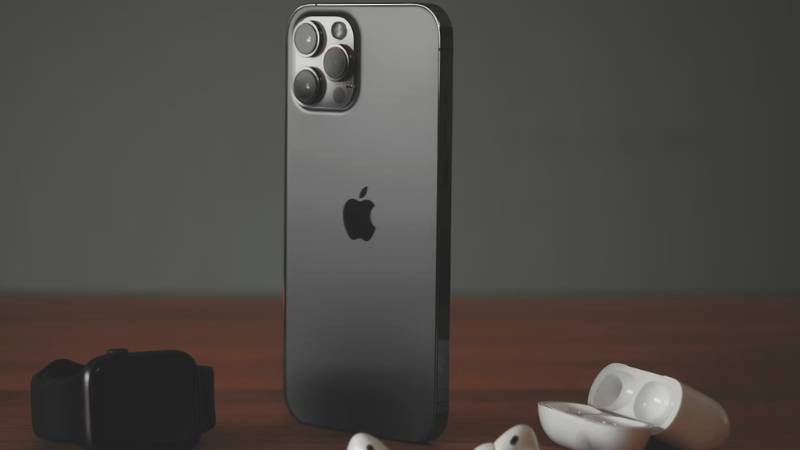
You might need to restart your iPhone if:
- The screen is frozen or unresponsive
- Apps keep crashing or won’t open
- The device feels unusually slow
- Wi-Fi, Bluetooth, or cellular data stops working
- The phone overheats or drains battery faster than normal
A regular restart does not delete your photos, apps, or settings. It simply reboots the system, which often resolves minor software issues in seconds.
2. How to Restart iPhone With Face ID (iPhone X and Later)
If you have an iPhone X, XR, XS, 11, 12, 13, 14, 15, or later model with Face ID, the restart process is slightly different from older versions with a Home button. Follow these steps carefully.
Step 1: Press and Hold Side Button + Volume Button
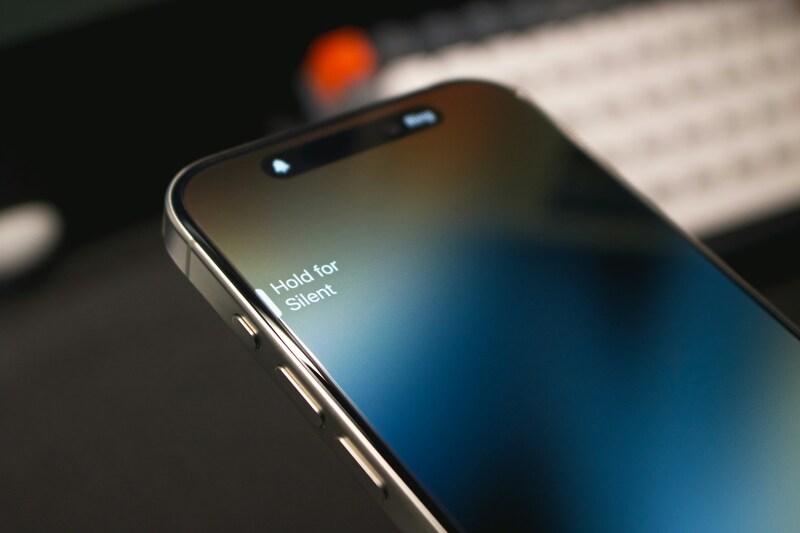
Press and hold the Side button and either Volume Up or Volume Down at the same time. Keep holding both buttons until the power-off slider appears on your screen.
Step 2: Slide to Power Off
When you see the “slide to power off” option, drag the slider from left to right. Your screen will go dark, indicating that the device is shutting down. Wait about 20 to 30 seconds to ensure it fully powers off.
Step 3: Turn It Back On
Press and hold the Side button again until the Apple logo appears. Once the logo shows, release the button and wait for your iPhone to restart completely.
That’s it. You have successfully completed the standard method for how to restart iPhone on Face ID models.
3. How to Restart iPhone With a Home Button (iPhone 8, 7, 6, SE)
If you are using an older model with a physical Home button, the steps for how to restart iPhone are slightly different but just as simple. This method works for iPhone 8, 7, 6, and iPhone SE models.
Press and Hold the Side or Top Button
Press and hold the Side button (or the Top button on older models) until the power-off slider appears on the screen. You do not need to press the Home button during this process.
Slide to Power Off
When the “slide to power off” option appears, drag the slider from left to right. Your device will shut down. Wait around 20 to 30 seconds to make sure the phone is fully powered off before turning it back on.
Turn the Device Back On
Press and hold the Side or Top button again until you see the Apple logo. Release the button and allow the device to boot up normally.
That completes the standard restart process for iPhones with a Home button.
4. How to Force Restart iPhone When It’s Frozen
Sometimes your screen may become completely unresponsive, and the normal restart method will not work. In that case, you may need to perform a force restart. This does not erase your data. It simply forces the system to reboot.
The button sequence depends on your model.
Force Restart on iPhone 8 and Later
- Quickly press and release the Volume Up button.
- Quickly press and release the Volume Down button.
- Press and hold the Side button until the Apple logo appears.
Release the button once you see the logo. Your iPhone will restart.
Force Restart on iPhone 7 and 7 Plus
- Press and hold the Volume Down button and the Side button at the same time.
- Keep holding both buttons until the Apple logo appears.
Release both buttons and wait for the device to reboot.
Force Restart on iPhone 6s and Earlier
- Press and hold the Home button and the Side or Top button at the same time.
- Continue holding until the Apple logo appears.
Once the logo is visible, release the buttons and allow the phone to restart.
If your device frequently freezes or requires force restarts often, it may indicate a deeper software or hardware issue that needs further troubleshooting.
5. Restart vs Reset: What’s the Difference?
Many people confuse restarting and resetting, but they are very different actions. Understanding the difference helps you avoid unnecessary data loss.
A restart simply turns your iPhone off and back on. It refreshes the system and clears temporary glitches without affecting your apps, photos, or personal data. This is the safest first step when troubleshooting minor issues.
A reset, on the other hand, changes settings or removes data depending on the type of reset you choose. For example:
- Reset All Settings restores system settings but keeps your data.
- Erase All Content and Settings completely wipes the device.
If you only need to fix slow performance, frozen apps, or connectivity problems, restarting is usually enough. Resetting should only be used when basic troubleshooting does not work.
6. What to Do If Your iPhone Won’t Restart
If your iPhone does not respond to a normal or force restart, try the following steps:
- Charge your device for at least 20 to 30 minutes. A drained battery may prevent it from powering on.
- Check your charging cable and adapter to ensure they are working properly.
- Connect to a computer and attempt recovery mode using iTunes or Finder.
- Update iOS if the phone turns on but keeps crashing.
If your device frequently freezes, restarts randomly, or fails to power on, it may indicate deeper software corruption or hardware damage.
If you are using wireless service through a provider such as AirTalk Wireless, you may contact their technical support team for guidance about device troubleshooting options available under your plan.
If your phone is physically damaged or no longer functional, and it was not originally obtained through your current provider, you may need to apply for a replacement device through an eligible assistance program if you qualify.
For example, through the federal Lifeline program, participating providers such as AirTalk Wireless may offer eligible applicants access to a smartphone along with monthly service benefits, depending on availability and program rules. This can be especially helpful if your device is no longer usable and you rely on your phone for work, school, or healthcare communication.
Before applying, make sure you meet eligibility requirements and understand that device models and availability may vary.
Persistent restart issues should not be ignored, especially if your phone is essential for work, school, or healthcare communication.
7. Conclusion
Learning how to restart iPhone correctly is one of the simplest yet most effective troubleshooting skills you can have. Whether you use a Face ID model, a Home button device, or need to perform a force restart, following the correct steps can resolve many common software issues without risking your data. If problems continue after restarting, further troubleshooting or professional support may be necessary.
You can follow Botlanta for more practical tech tips, device troubleshooting guides, and easy step-by-step solutions to help you get the most out of your smartphone.
8. FAQs
Does restarting an iPhone delete anything?
No. Restarting your iPhone does not delete apps, photos, messages, or settings. It simply refreshes the system.
How often should I restart my iPhone?
There is no strict rule, but restarting once every week or two can help maintain smooth performance, especially if you use many apps daily.
What should I do if my iPhone keeps restarting by itself?
This could be caused by outdated software, a failing battery, or system corruption. Update iOS first. If the issue continues, consider contacting technical support or visiting an authorized repair center.
Is force restart safe for my iPhone?
Yes. A force restart does not erase data. It only forces the system to reboot when the screen is unresponsive. It should be used only when the normal restart method does not work.