
There are times when your iPhone may need a complete fresh start. Whether the device is running slowly, experiencing persistent errors, or preparing for resale, understanding how to factory reset iPhone helps you handle the process correctly and securely.
A factory reset removes all personal data, apps, and settings from your device. Because this action is permanent, it is important to follow the correct steps and prepare in advance. Below, you will find clear instructions for different reset scenarios, including options if you no longer have access to your passcode.
1. When Should You Factory Reset Your iPhone?
A factory reset is not something you should do casually. Since it permanently erases all data, you should only proceed when necessary. Understanding how to factory reset iPhone also means knowing when it is truly appropriate.
You may consider a factory reset if:
- You are selling or giving away your iPhone
- The device has serious software issues that basic troubleshooting cannot fix
- You forgot your passcode and cannot access the phone
- Your iPhone keeps crashing, freezing, or malfunctioning after updates
- You want to remove all personal data before trading it in
In most minor situations, a simple restart or reset of settings is enough. A factory reset should be reserved for more significant problems or ownership changes.
2. Before You Factory Reset: Important Things to Do
Before starting the process of how to factory reset iPhone, take a few precautionary steps. Skipping these steps could lead to permanent data loss or activation problems later.
Back Up Your Data
A factory reset erases everything, including photos, messages, apps, and contacts.
To avoid losing important information:
- Back up to iCloud by going to Settings > Your Name > iCloud > iCloud Backup > Back Up Now
- Or connect your device to a computer and create a backup using Finder or iTunes
Make sure the backup finishes completely before moving forward.
Sign Out of Apple ID
Signing out of your Apple ID is essential, especially if you plan to sell or transfer the device.
Go to Settings > Your Name > Scroll Down > Sign Out. Enter your Apple ID password to confirm.
This step disables Activation Lock, preventing issues for the next user.
Make Sure Your Device Is Charged
A factory reset may take several minutes. If your battery dies during the process, it could cause complications.
Ensure your iPhone has at least 50 percent battery or keep it connected to a charger while resetting.
3. How to Factory Reset iPhone Through Settings
If your device is working normally and you know your passcode, the easiest way to complete how to factory reset iPhone is directly through the Settings app. This method works for all recent iPhone models.
Follow these steps carefully:
Open Settings
Unlock your iPhone and open the Settings app from your home screen.
Tap General
Scroll down and tap General. This section contains system management options.
Select Transfer or Reset iPhone
Scroll to the bottom and select Transfer or Reset iPhone. This option allows you to prepare your device for a new user or completely erase it.
Tap Erase All Content and Settings
Choose Erase All Content and Settings. You may see a summary of what will be removed, including apps, data, and Apple ID information.
Tap Continue to proceed.
Confirm and Wait
Enter your passcode if prompted, then confirm your decision. The device will begin erasing all content.
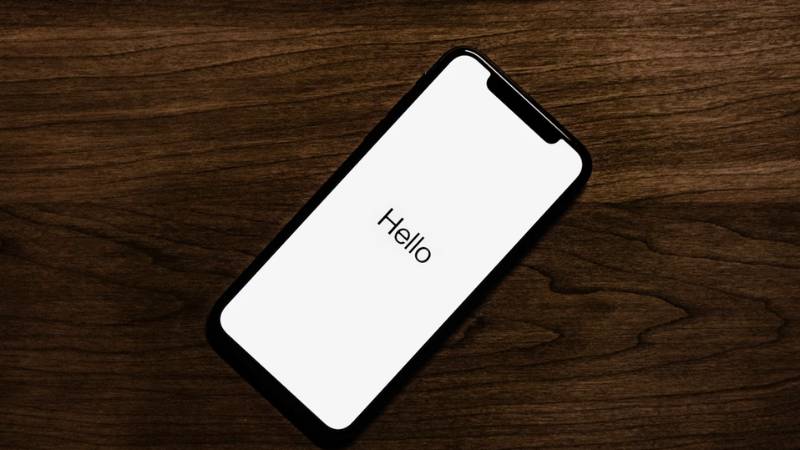
Your iPhone will restart and display the Hello setup screen once the factory reset is complete.
4. How to Factory Reset iPhone Without Passcode
If you forgot your passcode, you will not be able to access Settings. In this situation, you may need to use recovery tools. Many users search for how to factory reset iPhone without password or computer, but in most cases, a computer is required to complete the process securely.
Below are the available methods.
Using Recovery Mode
- Connect your iPhone to a computer using a USB cable.
- Put the device into recovery mode:
- For iPhone 8 or later: Quickly press and release Volume Up, then Volume Down, then press and hold the Side button until recovery mode appears.
- For iPhone 7 series: Hold Volume Down and Side button together.
- For iPhone 6s or earlier: Hold Home and Side button together.
- On the computer, choose Restore when prompted.
This will erase your device and install the latest version of iOS.
Using Finder (Mac)
On macOS Catalina or later:
- Connect your iPhone to your Mac.
- Open Finder and select your device under Locations.
- Choose Restore iPhone.
- Confirm and wait for the process to complete.
Using iTunes (Windows or Older macOS)
If you are using Windows or an older Mac system:
- Connect your device and open iTunes.
- Select your iPhone when it appears.
- Click Restore iPhone.
- Confirm your choice.
After the restore finishes, your iPhone will restart and return to factory settings. You can then set it up as new or restore from a backup if available.
5. What Happens After a Factory Reset?
After completing how to factory reset iPhone, your device returns to its original factory state. All personal data, apps, photos, messages, and settings are permanently removed. The phone will restart and display the initial Hello setup screen, just like when it was first unboxed.
At this stage, you can:
- Set up the iPhone as a new device
- Restore from an iCloud backup
- Restore from a computer backup
- Transfer data from another iPhone
You will also need to sign in again with your Apple ID. If Activation Lock was enabled and you did not sign out beforehand, you must enter the original Apple ID credentials to activate the device.
If your phone was reset due to serious malfunction, hardware failure, or permanent lockout, and it is no longer usable, you may consider exploring eligibility options through the Lifeline program with participating providers such as AirTalk Wireless, where qualified applicants may access a new smartphone* and monthly service benefits depending on availability.
*Terms and conditions apply
6. Conclusion
A factory reset can completely clear your iPhone and return it to its original system state. This process is useful when selling the device, resolving major software problems, or removing all personal data before transferring ownership. Always back up important information first and confirm your Apple ID details to avoid activation issues later. Following the correct steps ensures your reset is secure and done properly.
You can follow Botlanta for more practical tech tips, device troubleshooting guides, and easy step-by-step solutions to help you get the most out of your smartphone.
7. FAQs
Does a factory reset remove everything on iPhone?
Yes. A factory reset deletes all personal data, apps, and settings from your device. It restores the phone to its original system state.
Can I factory reset iPhone without Apple ID password?
You can erase the device using recovery mode, but Activation Lock may still require the original Apple ID credentials to reactivate the phone.
How long does a factory reset take?
The erase process typically takes a few minutes. However, restoring data afterward may take longer depending on backup size and internet speed.
Is factory reset safe for fixing software problems?
Yes. A factory reset can resolve serious software issues when other troubleshooting steps fail. However, it should be used carefully because it permanently deletes your data.