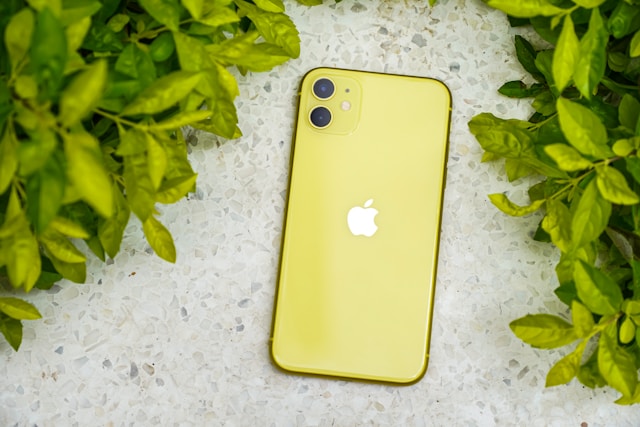
A frozen screen or unresponsive app can make your device feel completely stuck. In these situations, knowing how to hard reset iPhone 11 can quickly restore control without deleting your personal data. A hard reset, also called a force restart, forces the system to reboot when the normal shutdown method does not work.
This guide explains the exact steps required for iPhone 11, when you should use a hard reset, and what to do if the issue continues after restarting the device.
1. What Is a Hard Reset on iPhone 11?
A hard reset on iPhone 11, also known as a force restart, is a method that forces the device to reboot when it becomes unresponsive. Unlike a factory reset, a hard reset does not erase your data, apps, photos, or settings. It simply refreshes the system by restarting the operating software.
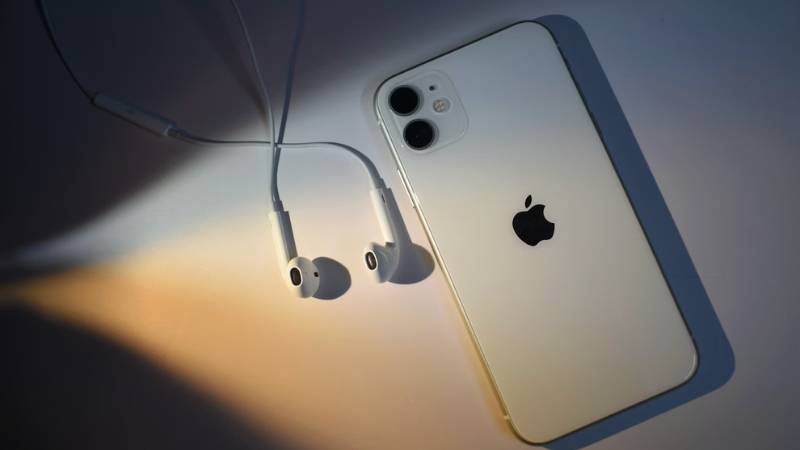
Many users confuse a hard reset with resetting the entire device. However, learning how to hard reset iPhone 11 is only about restarting the system when the screen is frozen, buttons stop responding, or the phone is stuck on the Apple logo. It is a safe troubleshooting step that does not affect personal information.
2. When Should You Hard Reset iPhone 11?
You should hard reset your device only when a normal restart is not possible. This method is designed for situations where the phone does not respond to touch or button commands.
Common scenarios include:
- The screen is frozen and will not respond
- Apps crash repeatedly and the device becomes stuck
- The iPhone is locked on a black screen
- The Apple logo remains on the screen for an extended time
- The device becomes unresponsive after an update
If your iPhone 11 still responds to touch and buttons, try a regular restart first. Use how to hard reset iPhone 11 only when the device cannot be turned off normally.
3. How to Hard Reset iPhone 11 (Step-by-Step)
If your screen is frozen or your device is not responding, follow this exact sequence to complete how to hard reset iPhone 11. The order and timing of the buttons are important. Pressing them incorrectly may not trigger the restart.
Press and Release Volume Up
Quickly press the Volume Up button once, then release it immediately.
Do not hold the button. A quick tap is enough.
Press and Release Volume Down
Immediately after, quickly press the Volume Down button once and release it.
Again, this should be a quick press, not a long hold.
Press and Hold the Side Button
After pressing the volume buttons, press and hold the Side button.
Keep holding it even if you see the power-off slider appear. Ignore the slider and continue holding the Side button.
The screen may turn black during this step. This is normal.
Release When the Apple Logo Appears
Continue holding the Side button until the Apple logo appears on the screen.
Once you see the logo, release the button and allow the device to restart fully.
The phone will reboot normally without deleting any data. This completes the process for how to hard reset iPhone 11 safely.
4. What If Hard Reset Doesn’t Fix the Problem?
If the device remains unresponsive after performing a hard reset, the issue may be more serious. Below are additional troubleshooting steps you can try.
Charge the iPhone
Connect your iPhone 11 to a reliable charger and leave it plugged in for at least 20 to 30 minutes.
A completely drained battery can prevent the device from turning on, even after attempting how to hard reset iPhone 11. If the screen remains black, try a different cable or power adapter.
Try Recovery Mode
If the device is stuck on the Apple logo or continues crashing, recovery mode may help.
- Connect your iPhone to a computer.
- Repeat the hard reset button sequence.
- Continue holding the Side button even after the Apple logo appears until you see the recovery mode screen.
- On your computer, choose Update or Restore when prompted.
Updating attempts to reinstall iOS without deleting your data. Restore will erase the device completely.
Update iOS via Computer
Outdated or corrupted software can sometimes prevent the device from functioning properly.
Connect your iPhone 11 to a Mac using Finder or to a Windows PC using iTunes. Check for available iOS updates and install them. Updating the system may resolve deeper software issues.
Check for Possible Hardware Issues
If none of the above steps work, the issue may be hardware-related.
Signs of hardware problems include:
- The phone does not respond even when charging
- The screen stays black with no logo
- Physical damage such as cracked display or water exposure
In these cases, professional repair or device replacement may be necessary.
If none of these solutions resolve the issue, and your iPhone 11 remains unresponsive due to serious hardware damage or complete failure, you may need to consider repair or replacement options.
For eligible individuals who rely on their phone for daily communication, work, school, or healthcare access, the federal Lifeline program may provide support through participating providers such as AirTalk Wireless.
Depending on eligibility and availability, qualified applicants may receive a replacement smartphone along with monthly service benefits.
Before applying, review program requirements carefully and confirm your eligibility status.
Note: Terms & conditions apply.
5. Conclusion
How to hard reset iPhone 11 is one of the most useful troubleshooting steps when your device becomes frozen or unresponsive. The correct button sequence forces a safe reboot without deleting personal data. If the problem continues after restarting, additional steps such as charging, recovery mode, or software updates may be required to restore normal function.
You can follow Botlanta for more practical tech tips, device troubleshooting guides, and easy step-by-step solutions to help you get the most out of your smartphone.
6. FAQs
Does hard reset delete data on iPhone 11?
No. Performing how to hard reset iPhone 11 does not erase photos, apps, messages, or settings. It simply forces the system to reboot.
How is a hard reset different from a factory reset?
A hard reset restarts the device without deleting data. A factory reset erases all content and returns the phone to its original settings.
Why is my iPhone 11 still frozen after a hard reset?
If the issue continues, the cause may be deeper software corruption or hardware damage. Recovery mode or professional repair may be necessary.
Can I hard reset iPhone 11 if the screen is black?
Yes. Even if the screen is black, you can still perform the button sequence for how to hard reset iPhone 11. The Apple logo should appear if the device responds.