Most people set a phone password once and rarely think about it again. But after a data breach, a suspicious login alert, or simply realizing your current passcode is easy to guess, changing it becomes a smart precaution.
If you’re looking for how to change phone password, the process is straightforward on both iPhone and Android devices. This guide explains the steps, password security tips, and what to do if you’ve forgotten your current credentials.
1. How to Change Phone Password
Learning how to change phone password starts with understanding that the process differs slightly between iPhone and Android devices. Fortunately, both platforms allow you to update your password in just a few minutes.
How to change phone password on iPhone
Accessing passcode settings
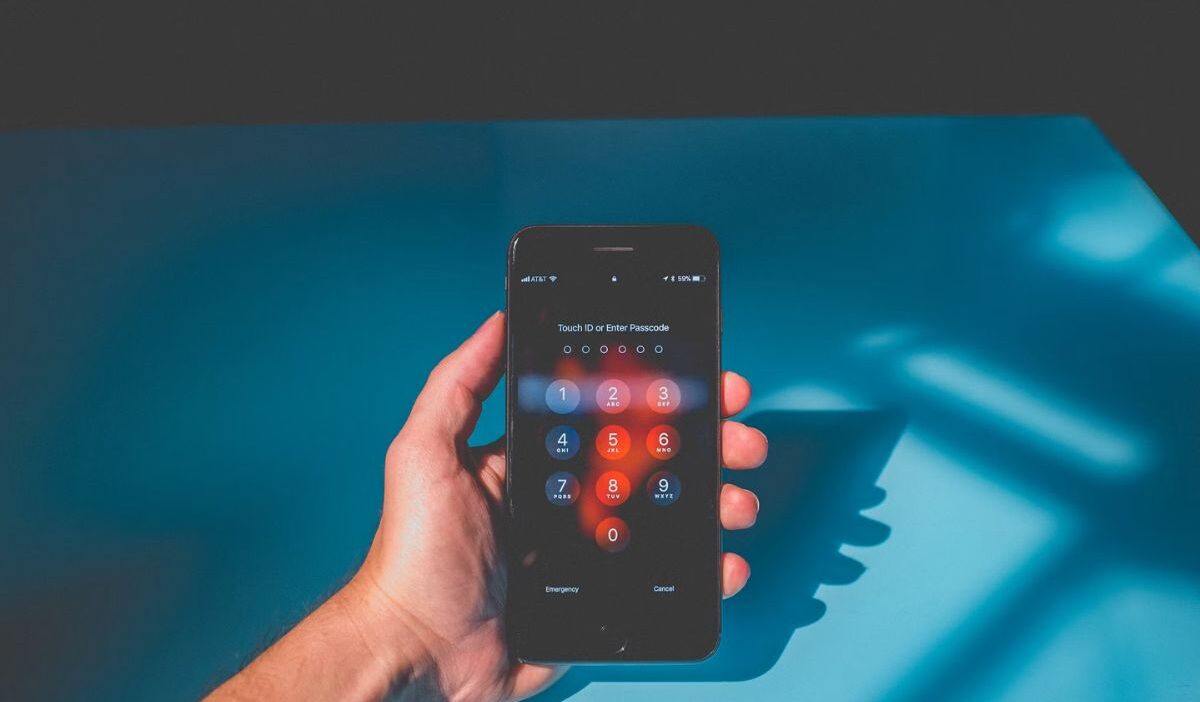
If you use an iPhone, your passcode controls access to the device and protects personal data stored on it. Step-by-step to set a passcode on iPhone.
- Accessing passcode settings
- Open Settings.
- Tap Face ID & Passcode (iPhone X and newer) or Touch ID & Passcode (older models).
- Enter your current passcode.
This opens the security settings for your device.
Verifying your current passcode
Before Apple allows any security changes, you’ll need to verify your existing passcode. This extra step helps prevent unauthorized changes if someone gains temporary access to your phone.
Creating a new passcode
- Scroll down and tap Change Passcode.
- Enter your current passcode.
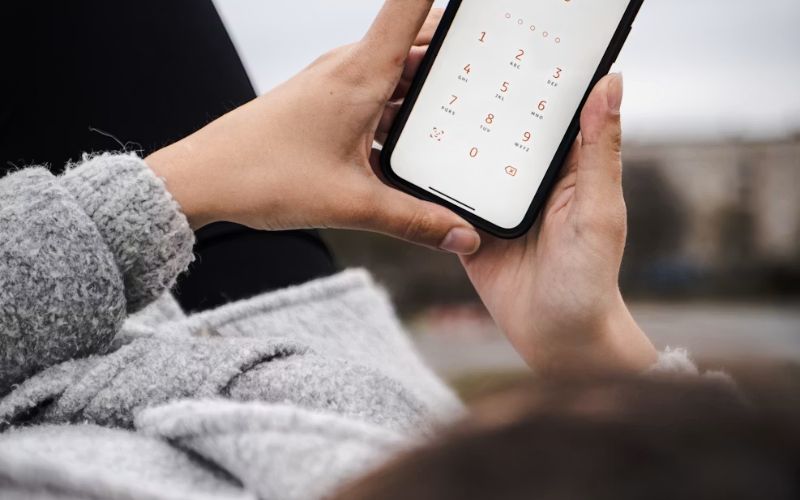
- Enter a new passcode.
Confirm the new passcode.
This completes the basic process for how to change phone password on iPhone.Choosing a stronger security option
Tap Passcode Options to choose from:
- Custom alphanumeric code
- Custom numeric code
- Six-digit numeric code
- Four-digit numeric code
Longer and alphanumeric passcodes are recommended for stronger protection. Avoid easily guessable numbers such as birthdays or simple sequences.
How to change phone password on Android
Opening security settings
Start by unlocking your Android phone and opening the Settings app. Scroll down and tap Security, Security & Privacy, or Lock Screen, depending on your device manufacturer and Android version.
This is where you can manage your screen lock and password options.
Selecting a screen lock method
In the security menu, choose Screen Lock or Lock Screen Type. You may be asked to verify your current PIN, password, or pattern before making changes.
Once verified, select Password if you want to use an alphanumeric password, or choose another available lock method.
Updating your password
Enter your new password using a combination of letters, numbers, and symbols for better security. Avoid easy-to-guess information such as birthdays or simple number sequences. After entering the new password, tap Continue or Next.
Confirming the new credentials
Re-enter the same password to confirm it and tap Confirm or Save. Your Android device will immediately apply the new password, which you’ll need to use the next time you unlock your phone.
>>> Read more: How to Share Wi-Fi Password on iPhone Without Typing a Single Character
2. Choosing a Stronger Password
After learning how to change phone password, the next step is selecting a password that offers better protection without becoming difficult to remember.
Password vs PIN
A password typically allows letters, numbers, and symbols. A PIN uses only numbers. Because passwords offer more possible combinations, they generally provide stronger protection than short PINs.
Longer passcodes vs shorter codes
Length matters.
For example:
- 4-digit PIN = limited combinations
- 6-digit PIN = significantly more combinations
- Long password = far greater complexity
Even adding a few extra characters can make guessing much harder.
Common password mistakes to avoid
Avoid using:
- Birthdays
- Repeating numbers
- “123456”
- Phone numbers
- Names
These choices are among the first combinations attackers often try.
>>> Read more: Update Email Password on iPhone: Easy Explanation
3. What If You Forgot Your Current Password?
Sometimes people search how to change phone password because they can no longer remember the existing one. Recovery options depend on the device you’re using.
iPhone recovery options
If you’ve forgotten your iPhone passcode, Apple may require:
- Recovery Mode
- Device reset
- Apple ID verification
- Backup restoration
Without the correct passcode, direct access to the device is usually restricted.
Android recovery options
Android recovery methods vary by manufacturer.
Options may include:
- Google account verification
- Factory reset via recovery mode, or device-specific reset tools
- Device reset procedures
Some newer Android versions require additional identity verification.
When a device reset may be necessary
If recovery methods fail, a factory reset may become the only option. Because a reset removes local data, maintaining regular backups is important. For example, users who regularly back up their phones can often restore most of their information after a reset.

4. Common Problems When Changing a Phone Password
Even after understanding how to change phone password, a few issues can interrupt the process.
- Password not accepted: Ensure your new password meets minimum length, complexity, or character requirements set by your device or carrier.
- Verification issues: Entering the wrong current password or PIN will block updates until the correct credentials are provided.
- Sync and account problems: Security settings may be affected by account verification requirements.
- Accidentally forgetting the new password: Writing it down securely or using a password manager can help prevent lockouts.
Most issues can be resolved by carefully reviewing the current credentials and security requirements.
5. Additional Ways to Protect Your Phone
Changing your password is only one part of device security. Once you’ve completed how to change phone password, additional protections can strengthen security further.
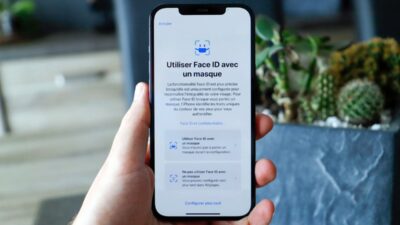
Face ID and Touch ID
Apple devices support:
- Face ID
- Touch ID
These features add convenience while keeping the passcode as a backup security method.
Fingerprint unlock on Android
Many Android phones support fingerprint authentication. A fingerprint can make unlocking faster while maintaining strong protection.
Two-factor authentication
Two-factor authentication adds another verification layer to your accounts. Even if someone obtains a password, account access remains more difficult.
Security updates
Keep your device updated with the latest iOS or Android security patches, as these updates often include fixes for password and authentication vulnerabilities. Regular updates work alongside passwords and biometric security features.
>>> Read more: How to Know If Your iPhone Is Hacked: Warning Signs and Solutions
6. FAQs
Can I change my phone password without knowing the current one?
Usually no. Most phones require the existing password before allowing security changes. If you’ve forgotten it, recovery procedures may be necessary.
Is a password safer than a PIN?
Yes, in most cases. A strong password containing letters, numbers, and symbols is generally more secure than a short numeric PIN.
What happens if I enter the wrong password too many times?
Many devices temporarily lock access after repeated failed attempts. In some cases, a device reset may eventually be required.
Should I use biometric security and a password together?
Yes. Using Face ID, Touch ID, or fingerprint authentication alongside a strong password provides both convenience and additional protection.
Conclusion
Learning how to change phone password is one of the simplest steps you can take to improve device security.
Whether you’re updating an outdated passcode, responding to a security concern, or strengthening account protection, changing your password only takes a few minutes.