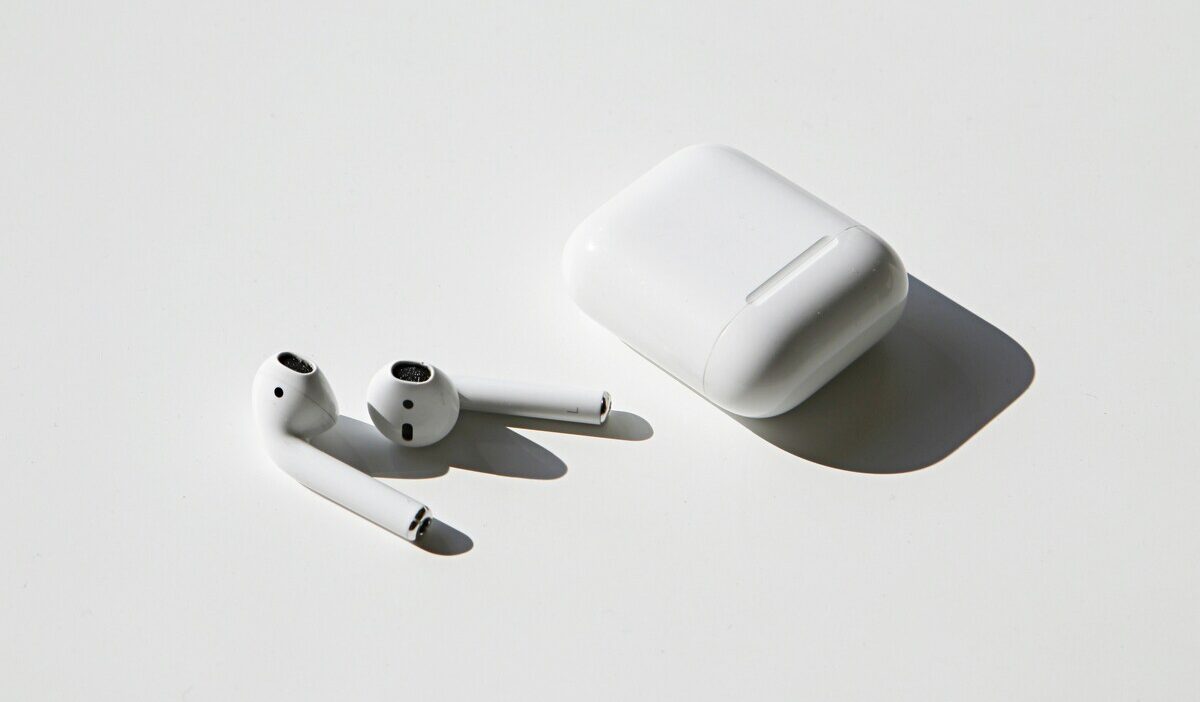
How to add AirPods to Find My? AirPods are small and easy to lose, especially individual buds. They usually get added to Find My automatically the moment they’re paired, but the tracking toggle that keeps them findable when disconnected is a separate step worth checking.
Two minutes now could save you an afternoon crawling around under couch cushions later. Here’s exactly where to look.
1. Check Find My Settings Before Connecting AirPods
AirPods rely entirely on the iPhone or iPad’s own Find My setting being turned on first. Without this enabled on the paired device, AirPods can never appear in Find My no matter what else is done. Let’s confirm this is on before continuing.
- Open Settings on the iPhone or iPad
- Tap the name at the top of the screen
- Tap Find My, then tap Find My [device]
- Turn it on
With that setting confirmed, the device itself is ready. The next part is specific to the AirPods, and it’s the step that actually gets them onto the map.
2. How to Add AirPods to Find My
AirPods are added to Find My automatically the moment they pair with a device that has Find My turned on. The piece most people miss is a separate toggle that keeps AirPods trackable even after they disconnect and go offline.
Follow the steps below to connect and turn on the Find My network:
- Put the AirPods in your ears, or open the charging case lid so they connect to the device
- Go to Settings, then tap Bluetooth
- Tap the More Info (i) button next to the AirPods in the list
- Scroll down and turn on the toggle for Find My network
That’s the full setup. If both toggles were already on and the AirPods still won’t show up, something in the sync or the connection is getting in the way, which is where the fixes below come in.
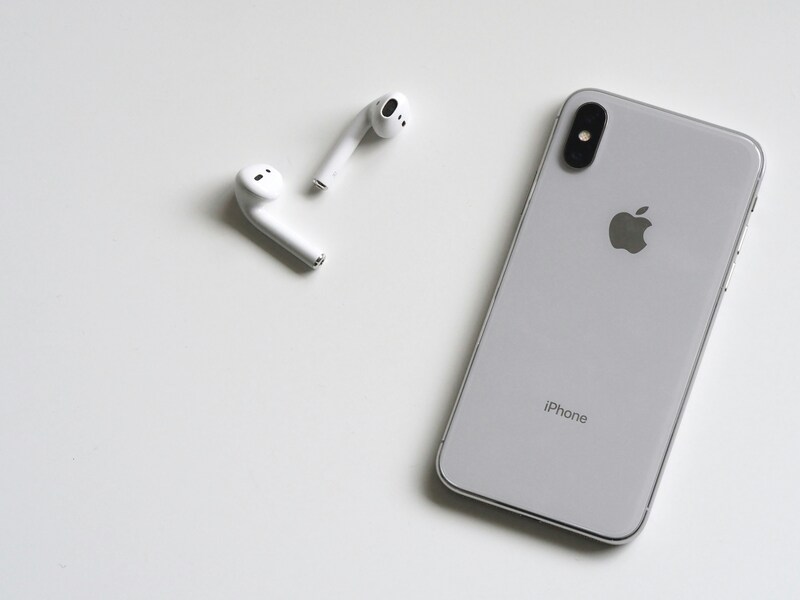
>>> Read more: How To Connect AirPods To iPhone A Simple Guide To Success
3. Why Can’t I Add AirPods to Find My?
How to add Airpods to Find My usually fails because of a temporary sync glitch, an outdated iOS version, or, in some cases, a documented bug affecting a specific model.
Therefore, restarting both the AirPods and the connected device resolves most temporary cases.
| Issue | What It Means | Quick Fix |
| Find My says it can’t add the AirPods | Temporary sync glitch between the device and iCloud | Put AirPods in the case, close the lid, wait 15 seconds, then reopen and try again |
| AirPods Pro 3 specifically won’t link | Often tied to being on an older iOS version when the AirPods were first set up | Update to the latest iOS version under Settings > General > Software Update, then remove and re-pair the AirPods if the issue continues |
| AirPods paired but Find My section missing entirely | Bluetooth connection needs a refresh | Forget the device in Settings > Bluetooth, then re-pair from scratch |
That covers AirPods that never made it onto Find My in the first place. A different, slightly trickier problem is when AirPods were added successfully before but have since dropped out of view. That calls for a different set of checks.
4. How to Fix AirPods Not Showing Up in Find My
Sometimes AirPods have been correctly added before but stop appearing in the Find My app later on.
This is usually a connection or account issue rather than a hardware problem, and a few specific checks fix most cases. Work through these in order.
- Confirm Bluetooth is turned on under Settings > Bluetooth
- Restart the connected iPhone or iPad
- Sign out of the Apple Account under Settings > [name] > Sign Out, then sign back in
- Confirm Find My has permission to use Location Services under Settings > Privacy & Security > Location Services
Note: AirPods Pro (all generations), AirPods Max, AirPods 4 with Active Noise Cancellation, and AirPods (3rd generation) only show a location for up to 24 hours after they were last connected to a device. Older models, along with AirPods 4 without ANC, don’t support Find My network tracking at all.
5. Find My Features Available for AirPods
Once how to add Airpods to Find My is properly linked, a couple of specific features become available depending on the model.
Play Sound and Locate Nearby AirPods
Open the Find My app, tap Devices, select the AirPods, and tap Play Sound if they’re expected to be nearby.
This makes them chime, which helps when they’re lost somewhere close, like between couch cushions or under a bag.
Precision Finding and Supported Models
AirPods Pro 2 and later support Precision Finding, but the iPhone side of the requirement has shifted as Apple’s ultra-wideband chips have evolved.
Check your specific iPhone model against Apple’s current Precision Finding support list, since not every iPhone with a U1 or U2 chip is guaranteed to support the feature with every AirPods generation.
This shows a live distance and direction to the AirPods on screen, rather than just a general map location, making them much easier to track down in a large space.
One thing worth knowing before you go looking: for most AirPods models, Find My shows the location of only one AirPod at a time when they’re separated.
Locate the one shown on the map, put it back in the case, then refresh to find the other. AirPods 4 with ANC, AirPods Pro 2, and AirPods Pro 3 are the exception. They can show both earbuds and the case separately on the map at once.
>>> Read more: How to Set Up Face ID on iPhone: Avoid Common Setup Issues
6. FAQ
Q1. How do I get AirPods to show up on Find My?
Make sure Find My is turned on for the connected iPhone in Settings > [name] > Find My, then confirm the Find My network toggle is on under Settings > Bluetooth, tapping the info icon next to the AirPods.
Q2. How do I add AirPods to Find My Device?
This happens automatically the moment AirPods pair with a device that already has Find My enabled. No separate “add” step exists beyond making sure both the device-level Find My setting and the AirPods’ own network toggle are turned on.
Q3. Can you link AirPods to Find My?
Yes. All current AirPods models can connect to Find My, though only AirPods Pro (all generations), AirPods Max, AirPods 3, and AirPods 4 with Active Noise Cancellation support the Find My network for offline location tracking after they disconnect.
Conclusion
How to add AirPods to Find My? Adding AirPods usually happens on its own once they’re paired, but the Find My network toggle is the step most people miss.
Checking both settings takes less than a minute and closes the gap between them just connecting and them actually being trackable. Open Settings on the connected device right now and confirm both settings are turned on.