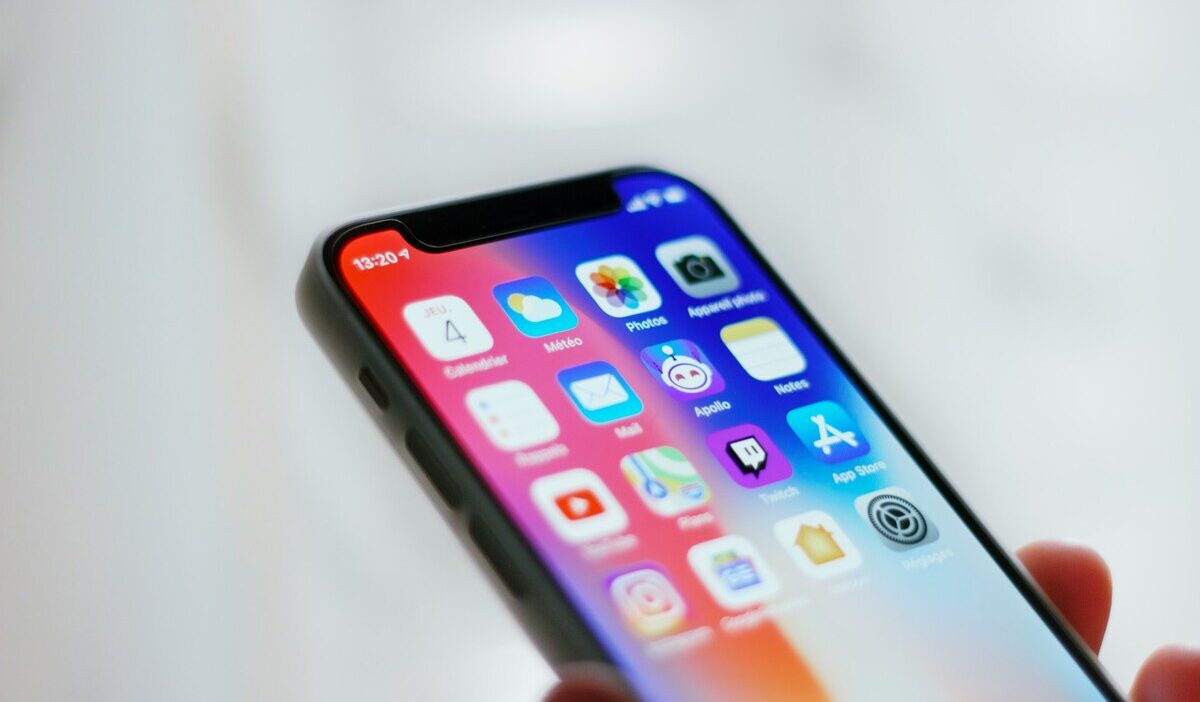
How to organize apps on iPhone comes down to a handful of built-in tools working together: folders, the App Library, and a Home Screen layout that fits how you actually use your phone. None of it requires a third-party app or a complicated system to maintain.
This guide covers the fastest ways to tidy things up, how to plan a layout that stays organized, and the habits that keep it that way over time.
How to Organize Apps on iPhone: 3 Best Ways
A few quick actions to organize apps on iPhone handle most of the clutter on a typical Home Screen without requiring a full rebuild from scratch.
Each one solves a slightly different kind of clutter, so it helps to know which tool fits which problem before diving in.
| Tool | Best for | How to access it |
|---|---|---|
| Folders | Grouping a handful of related apps together | Drag one app onto another |
| App Library | Storing apps you use occasionally, without deleting them | Swipe past the last Home Screen page |
| Hidden pages | Clearing whole pages of rarely touched apps at once | Press and hold an empty area, tap the page dots |
Create Folders by Dragging Apps Together
How to organize apps on iPhone manually? Press and hold any app icon until it starts to jiggle, then drag it directly on top of a similar app.
iOS automatically creates a folder and suggests a name based on the apps inside, though that name can always be edited by tapping into the folder and tapping the title field.
Folders work best for apps you still want visible on the Home Screen but do not need front and center, such as a handful of banking or photo-editing apps grouped.
Move Apps to the App Library
Press and hold an app icon, tap Remove App, then choose Remove from Home Screen instead of Delete App. This keeps the app fully installed and searchable, just no longer visible on the Home Screen itself, which clears space without losing anything.
Hide Home Screen Pages You Don’t Need
One of the ways on how to organize apps on iPhone is to press and hold an empty area of the Home Screen, tap the row of dots at the bottom, then uncheck any page that feels redundant.
Hidden pages are not deleted, and any app on them still lives safely in the App Library.
Plan Your iPhone App Layout Before Rearranging
Moving apps around without a plan can quickly lead to clutter again. Before rearranging your Home Screen, decide which apps you need most and how you want to group the rest.
- Keep Important Apps Easy to Reach
Keep frequently used apps on the first Home Screen page or in the dock. These might include Messages, Camera, Maps, or other apps you open every day.
Move less-used apps to later pages or the App Library. This keeps your main Home Screen simple and makes important apps easier to reach.
- Group Apps by Purpose
Group similar apps into folders based on their purpose, such as Travel, Finance, or Photo Editing. This makes it easier to remember where each app is located.
The approach is also similar to the App Library, which automatically sorts apps into categories.
- Remove Apps You No Longer Need
Delete apps you no longer use before rearranging your Home Screen. This reduces the number of apps you need to organize.
Press and hold an app, tap Remove App, then choose Delete App. Keep in mind that some associated information may remain in iCloud or your app account after deletion.
How to Use App Library to Find Apps Faster
When learning how to organize apps on iPhone, the App Library is one of the most useful built-in tools. It automatically contains every installed app, including those removed from the Home Screen, and provides two simple ways to find them quickly.
- Browse Automatic Categories
Swipe left past your last Home Screen page to open the App Library. iOS automatically groups apps into categories such as Social, Utilities, and Entertainment.
These categories update as you install new apps, so you do not need to organize them manually. Frequently used and recently added apps are also easier to access.
- Search for Apps Quickly
Tap the search field at the top of the App Library and type the app’s name. You can also swipe down on the Home Screen to use Spotlight search.
Searching is often faster than browsing folders, especially for apps you have removed from the Home Screen or use only occasionally.
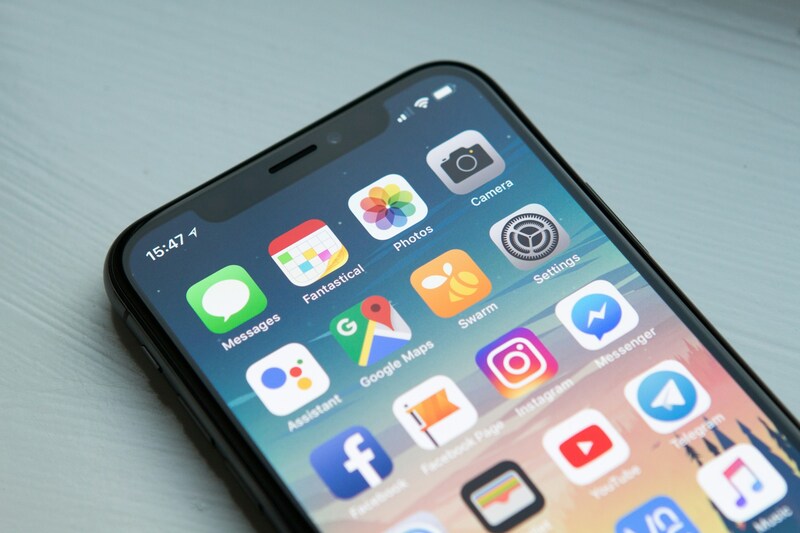
Arrange and Customize Your Home Screen Pages
Folders and the App Library help organize apps, but Home Screen settings also play an important role. Adjusting these options can prevent new apps and unused pages from creating clutter over time.
- Reorder Home Screen Pages
Press and hold an empty area on the Home Screen, then tap the row of dots at the bottom. You can drag pages to change their order or move less-used pages further back without deleting them.
- Choose Where New Apps Appear
Go to Settings → Home Screen & App Library and choose where newly downloaded apps should appear.
Selecting App Library Only keeps new apps from automatically filling your Home Screen. This is especially useful if you frequently download new apps and want to keep your layout clean.
>>> Read more: How to Transfer Apps to New iPhone: Easy Methods
How to Keep Your Apps Organized Long-Term
When learning how to organize apps on iPhone, keeping your layout tidy over time is just as important as the initial setup. A little regular upkeep can prevent new apps from creating clutter again.
- Review Apps Regularly
Setting a reminder every few months to scroll through installed apps and delete anything unused keeps clutter from building back up gradually.
This is a much smaller task when done regularly than when left for a full year, since a quarterly five-minute check is far easier than an overwhelming once-a-year purge of dozens of forgotten apps.
- Use Search Instead of Keeping Every App Visible
Leaning on Spotlight search or the App Library search bar for apps used only occasionally means the Home Screen itself can stay limited to daily-use apps, without needing a folder for every single category of app installed on the phone.
Over time, this habit does more to keep a Home Screen clean than any one-time reorganization, since it removes the instinct to keep everything visible just in case.
FAQs
Does deleting an app from the App Library remove it completely?
Yes. Deleting an app from the App Library removes the app and its data the same way deleting it from the Home Screen would, since the App Library holds the same underlying apps rather than a separate copy.
Can I organize apps automatically by category?
The App Library already does this automatically through its built-in categories, though the Home Screen itself requires manual folder creation, since iOS does not currently offer automatic Home Screen sorting.
Why do some apps keep reappearing on my Home Screen?
This usually happens when Settings, then Home Screen, is set to add new apps to the Home Screen automatically. Switching this to App Library Only stops newly downloaded or updated apps from reappearing there.
Will hiding a Home Screen page delete the apps on it?
No. Hiding a page only removes it from view. Every app that was on it remains fully installed and accessible through the App Library or search at any time.
Conclusion
How to organize apps on iPhone comes down to combining a few built-in tools rather than relying on any single fix: folders for quick grouping, the App Library for everything used less often, and a Home Screen layout planned around daily habits rather than alphabetical order.
A short review every few months keeps that organization from drifting back into clutter, making the whole system easier to maintain than rebuilding it from scratch each time.