How to save stickers on iPhone comes down to a short press-and-hold gesture in most cases, though where that sticker actually ends up, and whether it saves at all, depends on where it came from in the first place.
A sticker pulled from a friend’s message behaves differently than one made from your own photo, which is exactly where most of the confusion starts.
This guide covers the basic save steps, how to turn any photo into a custom sticker, why some stickers refuse to save, and how to manage the ones already sitting in your collection.
1. How to Save Stickers on iPhone
Saving a sticker someone else sent you takes only a few taps, and the same basic gesture works across Messages, Memoji, and most sticker packs installed from the App Store.
Step 1: Press and Hold the Sticker
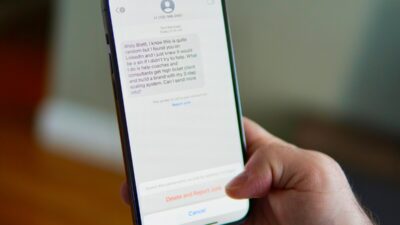
Open the message containing the sticker, then press and hold directly on the sticker image itself until a small menu pops up.
This works the same way whether the sticker appeared as a standalone message or was stuck onto a photo or another message bubble.
Step 2: Tap Add to Stickers or Save Image
The options you see depend on whether you received a true sticker or a regular image.
- If it is a compatible sticker, you may see an option to add it to your sticker collection so you can reuse it later.
- If it was sent as a regular image, you can save it to the Photos app instead, but it will not behave like a reusable sticker.
Step 3: Find It in the Sticker Drawer or Photos App
A saved sticker appears in the sticker drawer inside Messages. To find it, open a conversation, tap the plus (+) button or app drawer near the text field, then select Stickers to view your collection.
A sticker saved as an image instead lands in the Photos app’s main camera roll, mixed in alongside regular photos rather than sitting in a dedicated sticker collection.
2. Creating a Sticker From a Photo on iPhone
Beyond saving stickers other people send, iOS lets you build entirely new ones directly from your own photo library, which opens up a lot more than just reusing what already exists in a chat.
Create Live Stickers From Your Photos
Open a photo in the Photos app, then press and hold the main subject, such as a person, pet, or object, until it separates from the background. Tap Add Sticker to save the cutout as a Live Sticker that you can reuse in supported apps.
Add Custom Sticker Effects
After creating a sticker this way, tapping on it again in the sticker drawer offers several style options, including Outline, Rimlight, Comic, Puffy, and a few color-based filters.
Each effect changes how the sticker looks without altering the original photo it was pulled from, so experimenting with a few different styles costs nothing and can be undone at any time by switching back to the plain cutout version.
3. Why Can’t I Save Some Stickers on iPhone?
A sticker may not save the way you expect because not every image sent in a message is a true iPhone sticker. Some common reasons how to save stickers on iPhone is not as expected include:
- The sticker was sent as a regular image: Some stickers from other devices or messaging apps may arrive as images instead of reusable stickers. In this case, you can save the image, but you may need to recreate it through the Photos app to turn it into a sticker.
- The sticker format is not supported: Different messaging apps use different sticker systems, so a sticker created elsewhere may not have the same features when opened on an iPhone.
- Your iPhone software does not support newer sticker features: Some sticker tools, including Live Stickers, require newer iOS versions. Updating your iPhone may restore access to newer sticker options.
Working through this list usually explains why one sticker saves instantly while another from the same conversation only offers to save as a plain image instead.
4. Stickers From Other Devices May Work Differently
After knowing how to save stickers on iPhone, for your information, Stickers may behave differently depending on the device and app they come from.
Apple’s sticker features, including Live Stickers, are designed to work within Apple’s ecosystem, while other messaging apps may use different sticker formats. Because of these differences, a sticker from another platform may arrive as a regular image instead of a reusable iPhone sticker.
If a sticker arrives as an image, you can still save it to your Photos app and create a new Live Sticker from the image subject using the Photos app. However, the original image itself will not automatically become part of your sticker collection.
>>>Read more: How to Edit Stickers on iPhone and What You Can’t Actually Change
5. Deleting Stickers You No Longer Want
Removing a sticker from the sticker drawer works similarly to removing an app from the Home Screen, and the process differs slightly depending on how the sticker was originally saved.
- Open the sticker drawer above the iMessage keyboard, press and hold the sticker you want to remove, and tap Delete if the option appears directly.
- For stickers created from photos, open the sticker drawer, press and hold the sticker you want to remove, then choose Delete to remove it from your collection.
- For third-party sticker packs, availability may depend on whether the sticker pack or related app is still installed and supported.
6. FAQs
These quick answers cover what people usually run into after saving their first few stickers.
Can I save a sticker without opening iMessage?
Received stickers are usually saved from the Messages app, while new stickers can be created directly from photos in the Photos app. The saving options available depend on whether the content is a true sticker or a regular image.
Do saved stickers take up storage space?
Yes, but saved stickers usually take up very little storage space. The amount depends on whether the sticker comes from a sticker pack or was created from your own photos.
Why did my sticker save as a plain image instead of a sticker?
This usually means the content arrived as an image rather than a supported sticker format. You can save the image and use the Photos app to create a new Live Sticker from the subject if your iPhone supports the feature.
Can I share a saved sticker with someone on Android?
Yes, though it will typically arrive as a regular image rather than an interactive sticker, since Android does not use the same sticker format as iMessage.
Conclusion
How to save stickers on iPhone comes down to a simple press-and-hold gesture in most cases, but the sticker’s origin decides whether it saves as a true sticker or a flattened image.
Understanding that distinction, along with knowing how to build custom stickers directly from photos, makes it easier to build a sticker collection that actually works the way you expect rather than running into confusing save failures along the way.