How to connect Bose headphones to iPhone is usually a quick process, though a few small steps beforehand make the difference between a pairing that works on the first try and one that stalls out with the headphones nowhere to be found in the Bluetooth list.
This guide covers what to check before pairing, the connection steps themselves, the Bose app’s extra features, and what to do when the headphones simply refuse to connect.
1. Before Connecting Bose Headphones to iPhone
A few quick checks before opening Bluetooth settings prevent most of the common pairing headaches later on.
- Check Battery and Bluetooth
Before jumping into the pairing process, it helps to rule out the simple things first. Make sure your Bose headphones have enough battery to turn on and enter pairing mode properly. On your iPhone, open Settings > Bluetooth and confirm Bluetooth is enabled.
It may seem like a small detail, but a low battery or disabled Bluetooth setting can make a working pair of headphones appear as if they are not connecting at all.
- Disconnect From Other Devices
If your Bose headphones have been used with another device before, they may try to reconnect automatically instead of looking for your iPhone. This commonly happens when headphones have been paired with a laptop, tablet, or another phone nearby.
Before starting a new connection, turn off Bluetooth on those devices or disconnect the headphones manually. This gives your iPhone a clear path to find and pair with the headphones.
- Confirm Your Bose Headphones Are Ready to Pair
Before searching for your headphones on your iPhone, make sure they are actually in pairing mode. Depending on your Bose model, you may see a flashing Bluetooth indicator or hear a voice prompt confirming that the headphones are ready to connect.
If your headphones do not appear in the Bluetooth list, the issue is often not with your iPhone. They may simply still be connected to another device or waiting for pairing mode to be activated.
2. How to Connect Bose Headphones to iPhone
Once the headphones and phone are both ready, the actual how to connect Bose headphones to iPhone takes only a minute or two.
Step 1: Put Your Bose Headphones in Pairing Mode
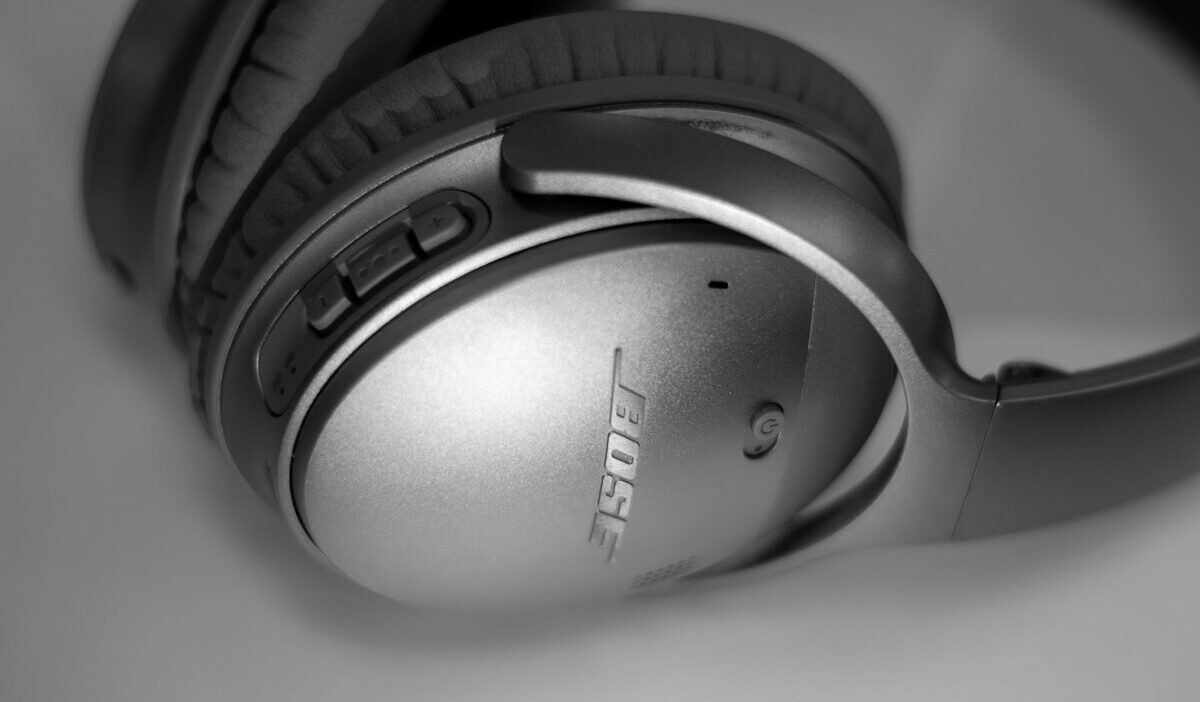
Start by putting your headphones into pairing mode. Depending on your Bose model, this may involve pressing and holding the Bluetooth button, moving the power switch, or using another pairing control.
Wait until you hear a pairing notification or see the Bluetooth indicator change before moving to your iPhone. This confirms the headphones are ready to be discovered.
Step 2: Open Bluetooth Settings on iPhone
Open Settings, then Bluetooth, and make sure the toggle is on. The iPhone automatically starts scanning for nearby devices in pairing mode, and the Bose headphones should appear in the list within a few seconds.
Step 3: Select Your Headphones From the List
Tap the headphones’ name under Other Devices to connect. A successful pairing usually triggers a voice confirmation from the headphones themselves, along with the device moving up into the My Devices section of the Bluetooth menu with a Connected label next to it.
3. Using the Bose App for Setup and Extra Features
Once you are done with how to connect Bose headphones to iPhone, the Bose app can help you get more out of them. While Bluetooth handles the basic connection, the app adds controls that are not available through iPhone settings alone.
Depending on your headphone model, you may be able to adjust noise cancellation, customize EQ settings, install firmware updates, check battery information, and manage additional listening preferences.
For Bose models that support multipoint connections, the app can also help manage how your headphones switch between devices. This is especially useful if you regularly move between an iPhone and another device, such as a laptop.
Instead of repeatedly disconnecting and reconnecting manually, multipoint settings can make switching between devices much smoother.
4. Why Your Bose Headphones Won’t Connect
When how to connect Bose headphones to iPhone fails, the problem is usually caused by a small connection conflict rather than a serious hardware issue. A few quick checks can often reveal whether the problem is pairing mode, an old connection, Bluetooth settings, or something else.
| Symptom | Likely cause | What to try |
|---|---|---|
| Headphones don’t appear in the Bluetooth list | Not in pairing mode or already connected elsewhere | Put the headphones back into pairing mode and disconnect nearby devices |
| Headphones appear but won’t connect | Previous Bluetooth connection conflict | Turn off Bluetooth on old devices or remove the previous pairing |
| Headphones connect but drop frequently | Battery issues, interference, or outdated software | Charge the headphones, update firmware, and reconnect |
| Connects but no sound plays | iPhone audio output is set to another device | Open Control Center and select your Bose headphones as the audio output |
Working down this table from top to bottom usually narrows down the cause faster than restarting the whole pairing process from scratch each time.
>>>Read more: How To Connect AirPods To iPhone A Simple Guide To Success
5. Resetting or Clearing the Pairing List on Bose Headphones
If your Bose headphones have connected to several devices over time, old Bluetooth information may sometimes interfere with a new iPhone connection.
Reset steps vary depending on the Bose model, so it is best to follow the instructions provided for your specific headphones through the Bose app or official product guide.
After clearing previous connections, return to the pairing steps above and connect your iPhone again. Starting with a clean connection can often resolve problems that seem complicated but are actually caused by old Bluetooth settings.
FAQs
These quick answers cover what people usually run into once basic pairing is out of the way.
Can I connect the same Bose headphones to two phones at once?
Some Bose models support multipoint connections, which allow the headphones to stay connected to two devices at the same time and switch between them. Other models may remember multiple devices but only actively connect to one device at a time.
Why do my headphones keep disconnecting after pairing?
This is often caused by Bluetooth interference, low battery on either device, or the headphones automatically reconnecting to a previously paired device that has come back into range. Forgetting the older device in Bluetooth settings usually resolves repeated disconnections tied to that cause.
Does the Bose app work the same on iPhone as on Android?
Mostly, yes, since the core features like EQ adjustment and firmware updates are available on both platforms. A few settings related to system-level notifications or battery reporting can differ slightly due to how each operating system handles background apps.
Do I need to unpair from my old device before connecting to a new iPhone?
It helps, though it is not always required. Turning off Bluetooth on the old device, or forgetting the headphones in that device’s Bluetooth settings, makes the new pairing more reliable, particularly if the old device is still nearby and could reconnect automatically.
Conclusion
How to connect Bose headphones to iPhone is usually a simple Bluetooth pairing process, but small details like pairing mode, previous connections, and device settings often decide whether it works smoothly the first time.
Once your headphones are connected, the Bose app gives you more control over your listening experience, while knowing how to troubleshoot common issues helps you avoid starting over every time a connection problem appears.