How to connect AirPods to iPhone usually feels like something nobody needs instructions for until the moment pairing stops working. A new pair of AirPods sits ready, the iPhone is unlocked, and instead of an instant connection, nothing happens.
This guide covers basic setup, manual connection methods, model-specific differences, and practical fixes when AirPods refuse to cooperate.
1. Basic Steps For How To Connect AirPods To iPhone
For most users, connecting AirPods to iPhone takes less than a minute because Apple devices recognise nearby AirPods automatically.
Follow these steps:
Step 1: Turn on Bluetooth
Open: Settings -> Bluetooth
Make sure: Bluetooth = ON
Without Bluetooth enabled, pairing cannot begin.
Step 2: Unlock your iPhone
Keep the iPhone unlocked and remain on the Home Screen. This helps AirPods trigger automatic setup.
Step 3: Open the AirPods case near the iPhone
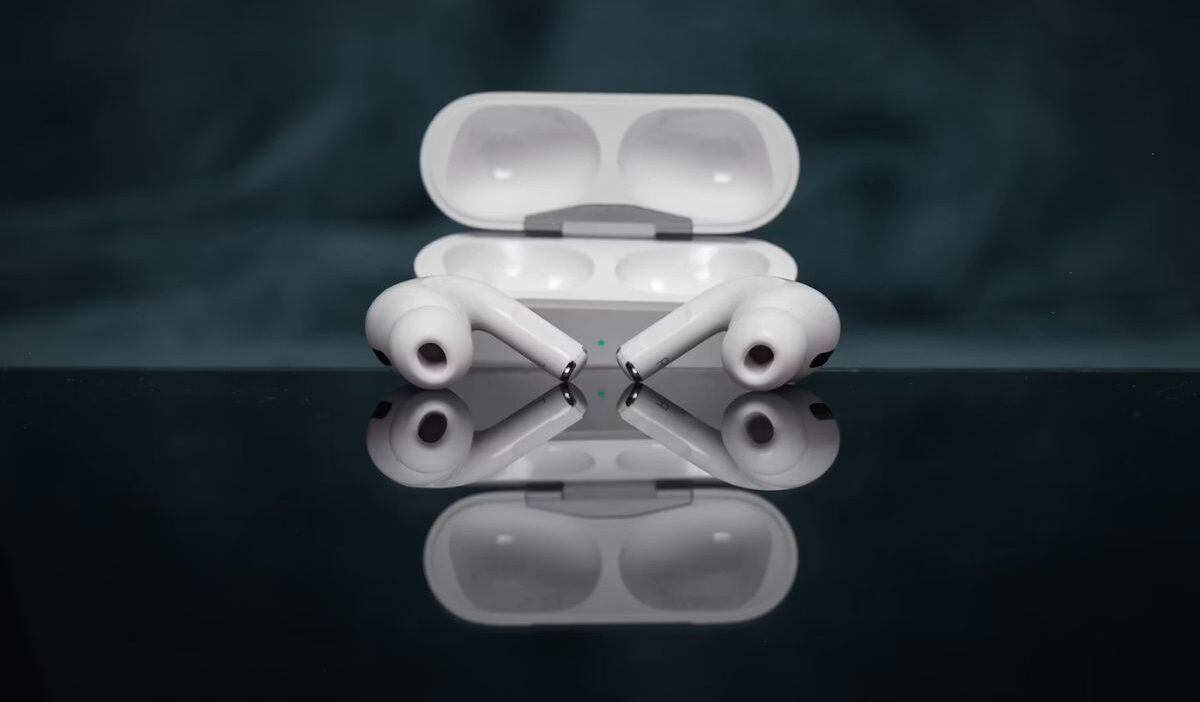
With AirPods inside: Open the charging case and hold it close to the iPhone.
After several seconds, A connection pop-up should appear.
Tap: Connect
Step 4: Complete setup instructions
Some AirPods models display additional settings during setup, which partly explains why how to connect AirPods to iPhone can vary slightly depending on the model.
- Siri
- Spatial Audio
- Noise Control
- Personalised audio features
Follow prompts until setup finishes.
Step 5: Confirm connection
Open: Settings -> Bluetooth
Your AirPods should appear under: My Devices -> Connected
This completes the basic process for how to connect AirPods to iPhone in most situations.
2. Connecting AirPods To iPhone Manually If Auto Setup Fails
Sometimes the connection pop-up never appears. Manual pairing usually solves the problem. Follow these steps:
Step 1: Place AirPods in pairing mode
For standard AirPods or AirPods Pro:
- Put AirPods inside the case
- Open lid
- Hold down the setup button until the status light starts blinking white
For newer USB-C cases, the pairing process remains similar despite charging differences.
Step 2: Open Bluetooth settings
Go to: Settings -> Bluetooth
Wait until AirPods appear under Other Devices
Step 3: Select AirPods
Tap your AirPods name. The iPhone should connect automatically afterward. This partly explains why how to connect AirPods to iPhone sometimes means using Bluetooth settings instead of relying on popups.
>>> Read more: How to Connect AirPods: Quick Fix When Pairing Fails
3. Connecting Different AirPods Models To iPhone
The basic pairing process remains similar across most AirPods models, though setup screens, controls, and available features may differ.
AirPods Pro
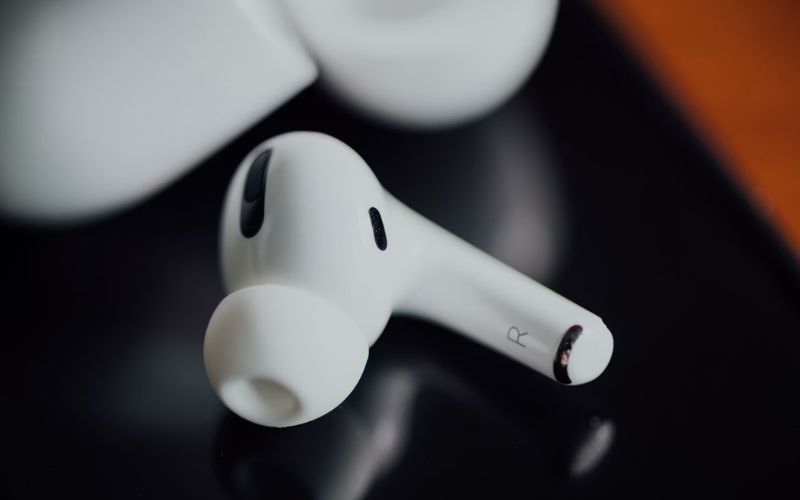
After connecting AirPods Pro, your iPhone may prompt additional setup options designed to improve comfort and listening quality.
You may see features such as:
- Ear Tip Fit Test: Checks whether ear tips create a proper seal for better sound and noise cancellation
- Noise Cancellation: Reduces surrounding sounds during use
- Transparency Mode: Allows outside sounds to remain audible while wearing AirPods
- Spatial Audio: Creates a more immersive listening experience on supported content
Completing the fit test may improve comfort and sound quality, which partly explains why how to connect AirPods to iPhone can include extra setup steps on some models.
AirPods Max
AirPods Max connect in a similar way, although the pairing process differs since they do not come with a charging case.
To pair:
- Press and keep holding the Noise Control button until the status light begins flashing white
- Open: Settings -> Bluetooth
- Select: AirPods Max
The connection process remains straightforward, though physical controls differ from those of smaller AirPods models.
Older AirPods Generations
Earlier AirPods versions generally followed familiar pairing steps:
- Place AirPods inside the charging case
- Open the lid
- Press and hold the setup button until the indicator light starts blinking white
- Connect through Bluetooth if needed
However, older models may not support newer features, which partly explains why how to connect AirPods to iPhone can differ slightly across generations.
- Adaptive Audio
- Conversation Awareness
- Advanced noise controls
- Personalised Spatial Audio
Pairing remains simple even without these additions.
USB-C vs Lightning Cases
Charging case differences mainly influence charging compatibility, not pairing.
Examples:
- USB-C cases: Compatible with newer charging standards and cables
- Lightning cases: Use Apple’s older connector type
Despite hardware differences, the process for how to connect AirPods to iPhone remains almost identical across both versions.
4. How To Fix Connection Problems Quickly
If AirPods refuse to connect:
Try these fixes in order.
Fix 1: Turn Bluetooth off and on
Open: Settings -> Bluetooth -> OFF -> ON. Then reconnect.
Fix 2: Restart your iPhone
Temporary software issues sometimes affect pairing. Restart and try again.
Fix 3: Charge AirPods
A low battery may interrupt connections.
Charge:
- AirPods
- Charging case
Before retrying.
Fix 4: Forget and reconnect AirPods
Open: Settings -> Bluetooth -> AirPods -> Forget This Device. Then pair again. This often resolves persistent issues involving how to connect AirPods to iPhone.
>>> Read more: How to Pair Apple Watch: Quick Setup Guide for Beginners
5. FAQs
How do I reset AirPods to connect again?
Put the AirPods into the charging case and leave the lid open. Then press and hold the setup button until the status light flashes amber, followed by white.
Can AirPods connect to two iPhones at once?
Not for active audio playback. AirPods cannot play sound from two iPhones simultaneously. However, if both devices use the same Apple ID, AirPods may switch automatically between them depending on usage.
How do I switch AirPods between devices?
Open: Settings → Bluetooth. Then select your AirPods under available devices. Within the Apple ecosystem, switching sometimes happens automatically, though manual selection may still be needed if AirPods remain connected to another device.
Conclusion
Learning how to connect AirPods to iPhone becomes easier once the process is separated into simple situations: first-time pairing, manual connection, model-specific setup, and troubleshooting. Most connection issues do not come from broken AirPods.