How to make keyboard bigger on iPhone is something you may start wondering after a few too many mistyped messages. When the keys feel cramped, especially on a smaller screen, even a short text can turn into a frustrating game of backspace.
The good news is that you don’t need to replace your iPhone just to make typing more comfortable. While iOS doesn’t offer a simple slider for changing the keyboard size, a few built-in settings and alternatives can help. Here’s what actually works and which option is best for your situation.
1. Can the Keyboard on an iPhone Be Enlarged?
There isn’t a built-in slider that lets you resize only the iPhone keyboard. However, you have several ways to make typing more comfortable.
Rotating the phone to landscape gives the keyboard more room, while Display Zoom can enlarge the overall interface. You can also make the letters easier to read with accessibility settings or try a third-party keyboard with a different layout.
So, if you’re looking for how to make keyboard bigger on iPhone, start with landscape mode. It’s the simplest option and doesn’t require installing anything.
2. Rotate to Landscape for a Genuinely Bigger Keyboard
Most keyboard-size tricks just scale everything on screen together, which doesn’t actually add more room for the keys themselves.
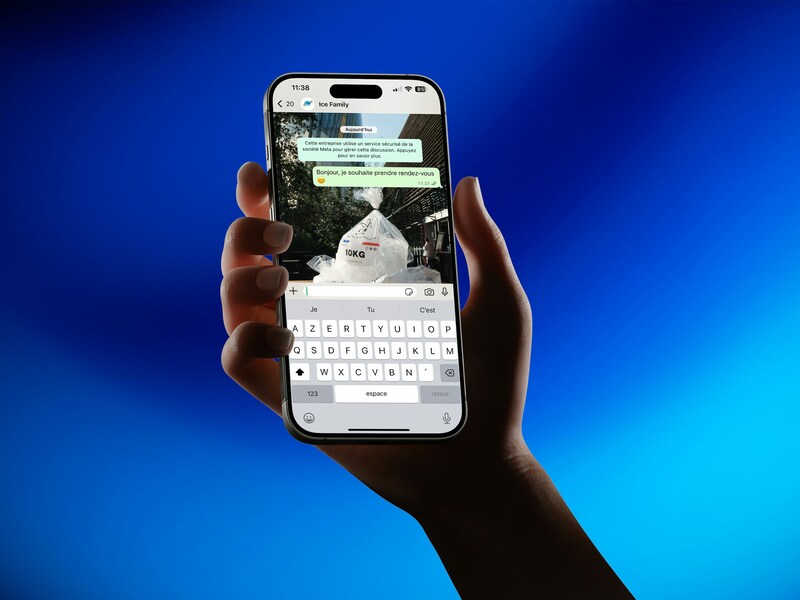
Turning the iPhone sideways gives the keyboard significantly more physical width, with taller keys that take up more of the bottom half of the screen. Follow the steps below to try it.
- Swipe down from the top-right corner to open Control Center
- Make sure Portrait Orientation Lock is turned off
- Open any app with a keyboard, such as Messages or Notes
- Rotate the iPhone sideways
- The keyboard expands to a wider, taller layout automatically
If the keyboard doesn’t expand after you rotate the phone, check that Portrait Orientation Lock is off. It’s also worth trying another app, such as Messages or Notes, because some apps don’t support landscape orientation.
In those apps, the keyboard may stay in its portrait layout even when your iPhone is turned sideways.
>>> Read more: How to Rotate Photo on iPhone: Rotate, Flip, and Straighten
3. Use Display Zoom to Enlarge the Whole Screen
If the keyboard isn’t the only thing that feels too small, Display Zoom can make the entire iPhone interface easier to see.
It enlarges elements across the screen, including text and buttons, rather than giving you a separate control for how to make keyboard bigger on iPhone.
Follow the steps below to turn it on.
- Open Settings and tap Display & Brightness.
- Tap Display Zoom.
- Tap Larger Text.
- Tap Done, then choose Use Zoomed if prompted.
This is a better choice if you also find menus, icons, and other parts of the screen difficult to read. If your only concern is typing space, landscape mode is usually the more direct solution.
4. Improve Keyboard Visibility With Bold Text and Larger Font
Sometimes the problem isn’t the size of the keys themselves. The letters may simply be difficult to read, especially if you have trouble seeing small text. In that case, Bold Text and Larger Text can make the characters easier to see without changing the keyboard’s basic layout.
Follow the steps below to adjust both.
Turn on Bold Text:
- Go to Settings > Accessibility > Display & Text Size
- Turn on Bold Text
Increase font size:
- Go to Settings > Accessibility > Display & Text Size
- Tap Larger Text
- Use the slider to increase the size
- Turn on Larger Accessibility Sizes for an even bigger option
These options improve visibility, but they shouldn’t be confused with a dedicated how to make keyboard bigger on iPhone.
5. Try a Third-Party Keyboard With Bigger Keys
Apple’s built-in keyboard has a fixed layout that no setting can fully change, no matter which accessibility option is used.
Some third-party keyboard apps are specifically designed with larger keys or different layouts, and a few even let the key size be adjusted directly inside the app. Follow the steps below to add one.
- Download a keyboard app from the App Store, such as Gboard, Typewise, or BigKeys
- Go to Settings > General > Keyboard > Keyboards > Add New Keyboard
- Select the new keyboard and turn on Allow Full Access if prompted
- In any text field, tap the globe icon to switch to the new keyboard
Note: Third-party keyboards use different layouts and features, so the typing experience can vary considerably from Apple’s default keyboard. Check the app’s current features before installing it, especially if your main goal is larger or easier-to-tap keys.
6. Why Is My iPhone Keyboard Still Small?
If none of the options above made a noticeable difference, one of these three details is usually why.
- Check Display Zoom: If it’s already set to Zoomed, switching back to Standard and using landscape mode instead may actually give more usable keyboard space
- Check Orientation Lock: A locked portrait orientation silently blocks the landscape keyboard from ever appearing, no matter how the iPhone is turned
- Consider the iPhone model and app layout: Some apps override the system keyboard size or don’t support landscape typing at all, which limits what any setting can do inside that specific app
>>> Read more: How to Make a Ringtone on iPhone and Create Custom Sounds
7. FAQ
Q1. How do I change the keyboard size on my iPhone?
There is no setting that directly resizes only the keyboard. For more typing space, rotate the iPhone to landscape with Portrait Orientation Lock off. Display Zoom can enlarge the overall interface, while Bold Text and Larger Text can make the keys easier to read.
Q2. How do I enlarge the size of my keyboard?
Landscape mode is the most effective built-in method, since it actually adds keyboard space rather than just scaling everything. For an even bigger option, a third-party keyboard app like Typewise offers noticeably larger keys than Apple’s default.
Q3. Why is my iPhone keyboard so small?
Apple designs the default keyboard to fit comfortably in portrait mode on a wide range of screen sizes, which means the keys stay relatively compact. Rotating to landscape, using Display Zoom, or switching to a third-party keyboard are the main ways to work around this.
Conclusion
Making the iPhone keyboard bigger usually means choosing the workaround that fits your needs.
How to make keyboard bigger on iPhone depends on whether you need more physical typing space, a larger overall interface, or simply clearer letters.
Landscape mode is the quickest built-in option, while Display Zoom and accessibility settings can help with visibility. If those still aren’t enough, a third-party keyboard may give you more layout options.