Typing a passcode repeatedly can feel unnecessary when your iPhone spends most of its time somewhere secure. Still, removing it changes more than the Lock Screen.
If you’re looking for how to turn passcode off iPhone, this guide walks through the current steps and explains what security features change afterward. You’ll also see why Turn Passcode Off may be unavailable and what your options are if you’ve forgotten the code.
1. How Do You Turn Passcode Off on iPhone?
The steps are straightforward on current iPhones. They also apply if you’re looking for how to turn off passcode on iPhone 16.
Step 1: Open Face ID & Passcode or Touch ID & Passcode
Open Settings, then choose the menu that matches your iPhone:
- On an iPhone with Face ID, including iPhone 16, tap Face ID & Passcode.
- On an iPhone with a Home button and Touch ID, tap Touch ID & Passcode.
Step 2: Enter Your Current Passcode
Enter the device passcode to open these security settings. Knowing the current passcode is required to turn it off through Settings.
Step 3: Tap Turn Passcode Off
Scroll down and tap Turn Passcode Off. Read the warning carefully because disabling the passcode also affects security features that depend on it.
Step 4: Confirm That You Want to Remove It
Confirm that you want to turn the passcode off. If iOS displays any additional authentication prompt, follow the instructions shown on your device.
Once the passcode is disabled, Face ID or Touch ID can no longer be used as your normal device-unlock authentication because Apple’s biometric security requires a passcode to be configured.
This also answers how to turn off Face ID and passcode on iPhone when your goal is to remove device authentication entirely.
>>>Read more: How to Turn Off Focus on iPhone: Fast Ways to Disable It
2. What Happens When Your Passcode Is Off?
Removing after knowing how to turn passcode off iPhone affects more than the Lock Screen because several iPhone security features depend on it.
| Feature | What changes |
| Face ID and Touch ID | Can no longer be used as normal device-unlock authentication |
| Apple Pay and Wallet | Credit, debit, and transit cards are removed from that device |
| Data protection | You lose important passcode-based protection for encrypted device data |
| Apple Account recovery | You lose the device passcode as one available recovery method |
| Lost phone | Anyone holding the unlocked device can access information that is not separately protected |
Apple still uses hardware encryption on iPhone, so saying that all encryption disappears would be inaccurate. The important difference is that a passcode strengthens Data Protection by protecting encryption keys used for sensitive files.
Some banking or other security-sensitive apps may still require their own login or authentication. Even so, removing the device passcode substantially reduces protection if the iPhone is lost or stolen.
For a primary iPhone containing personal accounts, keeping a passcode is the safer choice.
3. Why Is Turn Passcode Off Greyed Out?
Many people ask, “Why can’t I press Turn Passcode Off?” If Turn Passcode Off is unavailable, another security policy may require your iPhone to keep a passcode.
| Cause | What to check |
| Work or school profile (MDM) | Check Settings > General > VPN & Device Management or contact the organization managing the device |
| Exchange email account | A work Exchange account can enforce device passcode requirements |
| Family or device restrictions | Review applicable Screen Time or parental controls |
| Stolen Device Protection | Check whether a security delay is required before changing protected settings |
Do not remove a work profile merely to disable the passcode without checking what the profile controls. Removing management can also affect access to organizational accounts or services.
After changing the relevant restriction, return to Face ID & Passcode and check whether Turn Passcode Off is available. If the device is managed or the option remains unavailable, contact the organization responsible for the policy or Apple Support before removing additional settings.

4. What Should You Do If You Forgot Your Passcode?
You cannot do the series of actions “how to turn passcode off iPhone” without the current code. Still, you have a few ways back in. Start with the least destructive one.
- Try your old passcode. On iOS 17 or later, you can use your previous code for 72 hours after changing it. Tap Forgot Passcode? on the lock screen, then choose Enter Previous Passcode.
- Reset from the lock screen. After several wrong tries, the “iPhone Unavailable” screen appears. Tap Forgot Passcode? (iOS 17 or later) or Erase iPhone (iOS 15.2 and 16). You need Wi-Fi or cellular data, Find My turned on, and your Apple Account password.
- Use a computer. Put the iPhone in recovery mode and restore it with Finder on a Mac or the Apple Devices app on Windows.
If Passcode Reset with your previous code is unavailable, resetting the iPhone through the Lock Screen or a computer erases the data currently on the device. You can restore an eligible iCloud or computer backup during setup afterward.
A forgotten passcode cannot simply be removed while preserving the current device state. Use Apple’s supported recovery process rather than third-party tools that claim to bypass the passcode without data loss.
5. What Are Safer Ways to Unlock Your iPhone Faster?
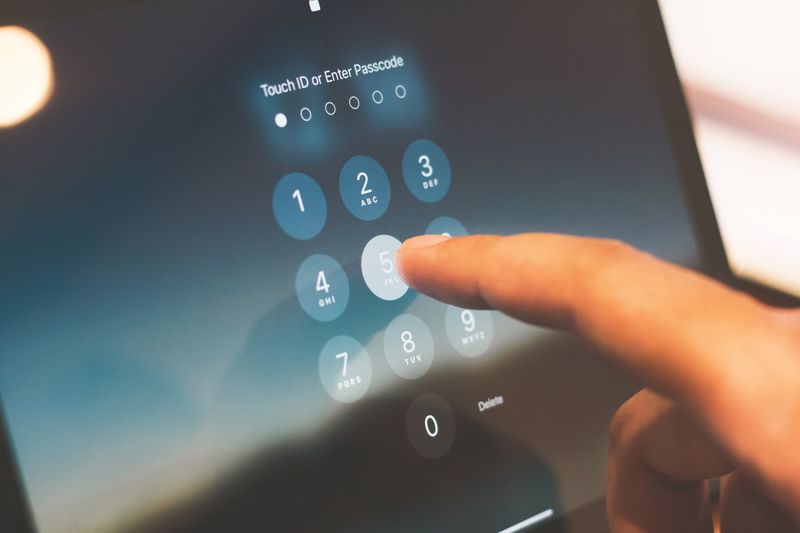
If repeated passcode entry is the problem, you may not need to remove the passcode at all.
Use Face ID or Touch ID when available. Biometrics let you unlock quickly while keeping a stronger passcode in place.
If you use a compatible Apple Watch, check Settings > Face ID & Passcode for the Apple Watch or nearby-device unlocking option available on your iOS version. Apple Watch must meet its own security requirements.
A shorter passcode is another option under Change Passcode > Passcode Options. A four-digit code is easier to enter but offers less protection than a six-digit or longer code.
You can also adjust Auto-Lock if the real frustration is the screen turning off while you’re actively using the phone. Keep in mind that leaving the screen unlocked longer also gives someone more time to access it if you walk away.
If Stolen Device Protection is enabled, some security changes can require additional biometric authentication and a one-hour Security Delay. With the Always setting, those protections apply even in familiar locations.
6. FAQs
How Do You Turn the Passcode Back On?
Go to Settings > Face ID & Passcode and tap Turn Passcode On. Enter a 6-digit code, or tap Passcode Options for a 4-digit or custom code. Re-enter it to confirm. Then set up Face ID again and re-add your Apple Pay cards in Wallet.
Why Can’t You Turn Off the Passcode on Your Apple Watch?
Apple says the option may be unavailable when your paired iPhone is managed by an organization. In that case, check with your IT admin. If it works, note that turning the watch passcode off disables Apple Pay on the watch.
Is It Possible for Someone to Turn Off Your Passcode Without Knowing It?
No. iOS asks for the current code before it shows any passcode setting. A stranger can only erase the phone. If Find My is on, Activation Lock then blocks setup without your Apple Account password.
Conclusion
Now you know how to turn passcode off iPhone, but the convenience comes with a significant security trade-off. Removing the passcode also disables normal Face ID or Touch ID authentication and reduces the passcode-based protection applied to your data.
If repeated unlocking is the real problem, Face ID, Touch ID, or a different passcode length may give you the convenience you want without leaving the entire device unprotected. Before turning the passcode off, review the warning on your iPhone so you know which Wallet and security features will also be affected.