Screen recording on an iPhone is a convenient way to capture videos, tutorials, or app activity, but knowing how to stop it efficiently is just as important. Whether you started a recording intentionally or accidentally, being able to end it quickly ensures your content is saved correctly and prevents unnecessary storage use.
For clear, step-by-step instructions and expert tips on how to stop screen recording on iPhone, you can refer to the full guide on Botlanta for precise guidance.
1. How to Stop Screen Recording on iPhone Using Control Center
Stopping a screen recording on your iPhone is quick and straightforward when using the Control Center. Following these steps ensures that your recording ends properly and saves without errors.
Swipe Down to Open Control Center
First, unlock your iPhone and swipe down from the top-right corner of the screen (for iPhones with Face ID) or swipe up from the bottom (for iPhones with a Home button). This action opens the Control Center, where you can access various shortcuts and controls. Make sure you swipe carefully to avoid accidentally opening notifications or other menus.
Tap the Screen Recording Button
Once the Control Center is open, locate the screen recording button, which looks like a filled circle inside a larger circle. Tap this button once to stop the recording immediately. Doing so ensures that the device captures all content up to that moment and prepares the file to be saved to your Photos app.
Wait for Recording to End
After tapping the button, a notification appears confirming that the screen recording has stopped. Wait a few seconds to allow your iPhone to process and save the video file completely. Once finished, you can open the Photos app to view, edit, or share the recorded video as needed.
>>> Also read: How to Screen Record on iPhone: The Complete and Easy Guide for Perfect Results 2026
2. How to Stop Screen Recording Without Control Center
If you cannot access the Control Center, there are still effective ways to stop a screen recording on your iPhone. These alternative methods ensure that your recording ends safely and is saved properly without relying on shortcuts.
Tap the Red Status Indicator at the Top
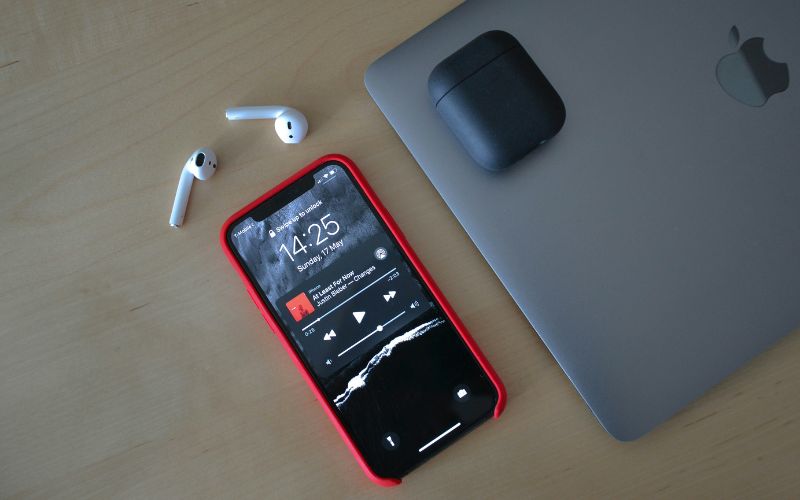
When your iPhone is recording the screen, a red bar or red pill-shaped indicator appears at the top of the display. Tap this red indicator, and a confirmation prompt will appear asking if you want to stop the recording. Confirming this action immediately ends the recording and saves the video to your Photos app, providing a quick and reliable alternative.
Use Lock Screen to Stop Recording
You can also stop a screen recording directly from the Control Center. Wake your iPhone and look for the screen recording notification, then tap it to stop the recording. This method is particularly useful if you want to quickly end the recording without opening Control Center.
Use AssistiveTouch (If Enabled)
If AssistiveTouch is enabled in your accessibility settings, you can use its on-screen menu to stop screen recording. Open the AssistiveTouch menu, tap “Device,” then select “More” and finally “Stop Recording.” Knowing how to stop screen recording on iPhone using this feature provides an accessible option for users who prefer not to use physical buttons or gestures.
3. Tips to Use Screen Recording More Effectively
Screen recording on an iPhone can be a powerful tool for tutorials, gameplay, or sharing app activity. Using it effectively ensures high-quality recordings while saving storage space and making editing easier.
- Record in landscape or portrait orientation, depending on the content, to ensure the video is easy to view.
- Check storage space before recording to avoid interruptions or incomplete videos.
- Enable Do Not Disturb mode to prevent notifications and calls from appearing in your recording.
- Use external audio or a microphone if your video requires clear narration or commentary.
- Trim and edit recordings in the Photos app to remove unnecessary parts and keep the video concise.
- Label or organize your recordings into albums to quickly find and share them later.
- Test your recording with a short clip first to make sure the settings, audio, and display are working as expected.
4. FAQs About How to Stop Screen Recording on iPhone
Screen recording on an iPhone is a convenient way to capture videos, but users often have questions about managing and saving their recordings. Understanding how the feature works can help prevent mistakes and make the process smoother.
Does screen recording stop automatically?
Screen recording does not stop automatically unless your device runs out of storage or shuts down. You need to manually end the recording using Control Center, the red status indicator, or alternative methods like AssistiveTouch. Being aware of this ensures that your videos are saved correctly and are not cut off unexpectedly.
Where do screen recordings go?
All screen recordings are saved directly to the Photos app on your iPhone. You can access them in the Recents album if available. From there, you can edit, share, or delete the recordings as needed.
Can I cancel a recording without saving it?
Yes, you can cancel a screen recording without saving it by tapping the red status indicator and selecting “Cancel.” This immediately stops the recording and discards the video instead of saving it to your Photos app. This option is useful if you start recording by mistake or no longer need the content.
Final Words
Screen recording on an iPhone is a handy feature, but knowing how to stop it properly is essential to save your videos and prevent unnecessary storage use. Whether you use Control Center, the red status indicator, or AssistiveTouch, mastering these methods ensures smooth and accurate recordings every time.
For anyone looking for clear instructions and practical tips, Botlanta offers reliable guides to help you manage your device efficiently. Explore their resources to learn how to stop screen recording on iPhone and make the most of this feature. With these strategies, you can capture, save, and share your content with confidence.