Whether you want to save a disappearing story, record a tutorial, capture gameplay, or show someone how to fix a setting, knowing how to screen record on iPhone gives you a powerful built-in tool that many users overlook.
Screen recording allows you to capture exactly what appears on your display in real time. You can record app activity, scrolling, voice narration, and even system sounds. Once recorded, the video is saved directly to your Photos app, where you can trim, edit, and share it immediately.
This guide walks through every step clearly, including how to enable the feature, record with sound, and locate your saved videos for editing.
1. What Is Screen Recording on iPhone and When Should You Use It?
Screen recording is a built-in feature that captures everything happening on your iPhone display in real time. When you learn how to screen record on iPhone, you gain the ability to create video clips of apps, messages, games, or system navigation without using third-party software.
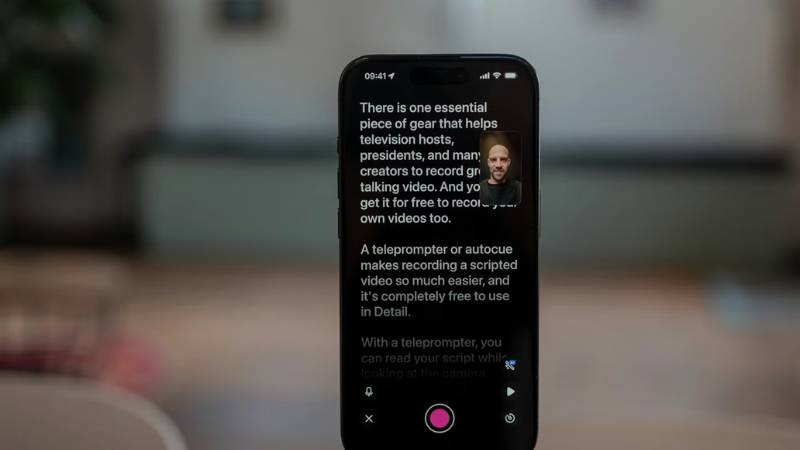
This feature is commonly used for:
- Creating step-by-step tutorials
- Recording gameplay
- Saving short-lived social media content
- Demonstrating technical issues for support
- Explaining settings to friends or family
Unlike screenshots, which capture a single moment, screen recording captures motion, interaction, and audio. That makes it especially useful when you need to show a process instead of just a static image.
2. What You Need Before You Screen Record on iPhone
Before you begin, there are a couple of simple requirements to check. Ensuring these settings are in place prevents confusion when trying to access the feature.
iOS Version Requirements
Screen recording is available on iPhones running iOS 11 or later.
If your device is using an older version of iOS, the feature may not appear in settings. To check your version:
- Open Settings
- Tap General
- Select About
- Look for the iOS Version
If needed, update your software under Settings > General > Software Update.
Add Screen Recording to Control Center
Even if your iPhone supports screen recording, the button may not appear by default.
To enable it:
- Open Settings
- Tap Control Center
- Scroll down to More Controls
- Tap the green plus icon next to Screen Recording
Once added, you can access it instantly from Control Center. This step is essential when learning how to screen record on iPhone because the recording function is launched directly from there.
3. How to Screen Record on iPhone Step by Step
Once Screen Recording is added to Control Center, the process is simple and takes only a few seconds. Follow these exact steps to understand how to get screen record on iPhone correctly.
Open Control Center
On iPhones with Face ID, swipe down from the top-right corner of the screen. On iPhones with a Home button, swipe up from the bottom edge. This opens the Control Center panel where quick-access tools are located.
Tap the Screen Recording Icon
Look for the circular icon with a solid dot inside. Tap it once to begin recording. If you do not see the icon, return to Settings and ensure it has been added to Control Center.
Wait for the 3-Second Countdown
After tapping the icon, a short three-second countdown appears. This delay gives you time to close Control Center and navigate to the screen you want to record.
Once the countdown ends, your iPhone begins recording everything displayed on the screen. A red indicator appears at the top of the screen while recording is active.
Stop Recording From Control Center or Status Bar
To stop recording, open Control Center again and tap the Screen Recording icon. You can also tap the red status bar at the top of the screen and confirm “Stop.” The recording automatically saves to your Photos app. These steps complete how to screen record on iPhone using the standard method.
>>> Also read: How to Compress a Video on iPhone 2026: Easy Ways to Reduce File Size Without Losing Quality
4. How to Screen Record on iPhone With Sound
By default, screen recordings capture system sounds only. If you want to record your voice while explaining something, you need to enable the microphone.
Press and Hold the Screen Record Button
Open Control Center. Press and hold the Screen Recording icon instead of tapping it quickly. A small menu will appear.
Turn On Microphone
Tap the Microphone icon at the bottom of the screen. When activated, it turns red to indicate that external audio will be recorded. This allows your voice to be captured along with on-screen activity.
Start Recording
After enabling the microphone, tap Start Recording. The countdown begins, and your iPhone will record both the screen and your narration.
Understanding how to screen record on iPhone with sound is especially useful for tutorials, app demonstrations, and instructional videos.
5. Where to Find and Edit Your Screen Recording
After you finish recording, your iPhone automatically saves the video to the Photos app. No matter which model you use, whether you’re searching for how to screen record on iPhone 15 or using an earlier version, the process for locating and editing your recording is the same.
Knowing where to find and refine your file is just as important as understanding how to start the screen recording itself.
Open Photos App
Open the Photos app and go to the Recents album. Your screen recording will appear there immediately after you stop recording. You can also scroll to the Screen Recordings album under Media Types for quicker access. Tap the video to preview it before editing or sharing.
Trim the Beginning and End
Most recordings capture a few extra seconds at the start or end. Tap Edit in the top-right corner. Drag the yellow handles on the timeline to trim unwanted parts.
This allows you to remove:
- The Control Center opening
- Countdown delays
- Extra taps at the end
After trimming, tap Done and confirm to save the edited version.
Adjust Brightness or Crop
If needed, you can also make visual adjustments.
Inside the Edit menu, you can:
- Adjust brightness or contrast
- Crop the video frame
- Straighten the orientation
These simple refinements improve clarity and remove distractions before sharing.
Understanding how to screen record on iPhone includes knowing how to polish the final result so it looks clean and professional.
Conclusion
Now you know exactly how to screen record on iPhone, from enabling the feature to capturing audio and refining the final clip. With just a few taps, you can document app activity, demonstrate features, or save important on-screen moments without installing extra software.
Once you become familiar with the Control Center shortcut and microphone settings, screen recording turns into a quick everyday tool rather than a hidden feature. Use it intentionally, trim your recordings for clarity, and you will have clean, share-ready videos directly from your device whenever needed.
FAQs
Does screen recording notify other apps?
Most apps do not receive a notification, but some streaming or protected content apps may block recording.
Can I screen record private apps?
You can record most apps, but certain banking or streaming apps may restrict screen recording for security reasons.
Why is there no sound in my screen recording?
If your recording has no voice, the microphone was likely not enabled before starting. Press and hold the Screen Recording icon and activate the microphone.
How long can I screen record on iPhone?
You can record as long as you have sufficient storage space and battery life available.