Keeping your iPhone secure is essential for protecting personal data and maintaining privacy. Learning how to lock the screen on iPhone ensures that your device stays protected from unauthorized access while allowing quick, convenient use when needed. From using Face ID or Touch ID to enabling auto-lock settings, there are multiple ways to secure your screen efficiently.
For a step-by-step walkthrough and expert tips, refer to the full guide on Botlanta to master how to lock screen on an iPhone.
1. Why Locking Your iPhone Screen Matters
Keeping your iPhone secure goes beyond just convenience. It’s a crucial step in protecting your personal information and ensuring smooth device use. Understanding the benefits of locking your screen highlights why features like Face ID, Touch ID, and auto-lock are essential for every user.
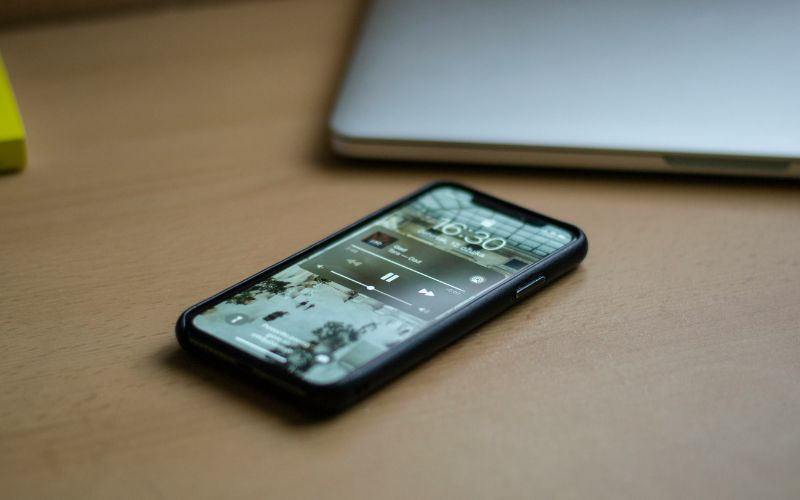
Protect Personal Data and Privacy
Locking your iPhone screen is one of the simplest ways to safeguard sensitive information such as messages, emails, and banking apps. By knowing how to lock iPhone screen properly, you prevent unauthorized access and reduce the risk of data breaches.
Parents can also use settings to learn how to lock the screen on iPhone for baby, keeping content secure while allowing safe device use for children. A locked screen ensures your private data remains private at all times.
Prevent Accidental Touches
An unlocked iPhone can easily register unintended taps or swipes, especially when carried in a pocket or bag. Activating screen lock prevents these accidental touches, avoiding unwanted calls, app openings, or messaging errors. This simple step keeps your workflow uninterrupted and maintains device functionality, ensuring that every touch you make is intentional and precise.
Save Battery Life
A locked screen helps conserve battery by turning off the display when the device is idle. Reducing screen-on time prevents apps from running unnecessarily in the background, extending overall battery performance.
Learning how to lock iPhone screen efficiently allows you to maintain power throughout the day, making your iPhone more reliable for work, communication, and entertainment.
>>> Also read: How to Set Different Wallpaper on Lock Screen and Home Screen iPhone: The Complete and Easy Guide in 2026
2. How to Lock Screen on iPhone (Quick Instruction)
Locking your iPhone screen is quick and straightforward once you know the available options. Whether you want to secure your device instantly or set it to lock automatically, Apple provides multiple convenient methods.
Press the Side Button
The simplest way to lock your iPhone is by pressing the side button. This immediately turns off the display and activates the lock screen, preventing unauthorized access.
By understanding how to lock the screen on an iPhone using this method, you can quickly secure your device anytime, whether you’re stepping away or putting it in a pocket. This method is fast, reliable, and works on all modern iPhone models.
Use Auto-Lock Settings
Auto-Lock allows your iPhone to lock automatically after a set period of inactivity. You can adjust this in Settings > Display & Brightness > Auto-Lock, choosing a duration that balances convenience with security. This feature is especially useful for those who often forget to lock their device manually, as it ensures your iPhone remains protected without any extra effort.
Lock Screen With AssistiveTouch
AssistiveTouch provides an on-screen button for users who prefer not to press physical buttons. Once enabled in Accessibility settings, you can access a virtual menu to lock your screen instantly. This method is ideal for users with mobility challenges or those who want to reduce wear on the side button, offering a flexible alternative for securing the device.
3. When It Might Be Time for a New or More Reliable Device
If your current iPhone is slowing down, losing battery quickly, or experiencing frequent glitches, it may be time to consider upgrading to a newer, more reliable device. A better phone can improve performance, enhance security, and make everyday tasks much smoother.
For users concerned about cost, programs like the Lifeline Program can help make upgrading more affordable. Lifeline provides a monthly discount on mobile service for eligible low-income individuals, based on income level or participation in programs such as Medicaid or SNAP.
Lifeline providers bring these benefits to users by offering not only discounted service, but also free or heavily discounted smartphones, depending on availability and eligibility. This makes it easier to upgrade your device without paying full retail price.
If you’re considering an upgrade, providers like AirTalk Wireless offer a simple way to apply and receive a compatible device along with reliable service.
How to get a new or upgraded device with AirTalk Wireless:
- Check eligibility to see if you qualify for an upgrade or new device program.
- Visit the AirTalk Wireless website and enter your ZIP code to get started.
- Select a service plan that suits your needs.
- Choose your device by selecting a model that fits your needs, whether the latest iPhone or a more reliable option for daily use.
- Complete the application by filling out the online form with your personal information and uploading any required documents to apply efficiently.
- Submit and wait for approval
- Receive and set up your device once approved, following instructions to activate it and learn how to lock screen on iPhone to keep it secure from day one.
4. Tips to Improve Your iPhone Security
Keeping your iPhone secure is essential to protect your personal data and maintain privacy. Implementing simple security practices can prevent unauthorized access and ensure your device runs safely and smoothly.
- Enable Face ID or Touch ID for quick, secure access to your device without relying solely on a passcode.
- Set a strong passcode that is hard to guess, avoiding simple combinations like 1234 or 0000.
- Turn on Auto-Lock to automatically lock your screen after a short period of inactivity, reducing the risk of unauthorized access.
- Use two-factor authentication for your Apple ID to add an extra layer of security for apps and iCloud services.
- Keep your iOS updated to the latest version to benefit from security patches and bug fixes.
- Limit access to sensitive apps by reviewing app permissions and restricting location, camera, and microphone usage.
- Enable Find My iPhone to locate, lock, or erase your device remotely if it’s lost or stolen.
5. FAQs About Locking Screen on iPhone
Locking your iPhone screen is a key step in protecting your data and preventing accidental usage. Knowing the different ways to lock your device and troubleshoot issues can make daily use safer and more convenient.
How do I lock my iPhone instantly?
You can lock your iPhone instantly by pressing the side button on the right edge of the device. This immediately turns off the screen and secures your phone from unauthorized access. It’s the fastest and most reliable way to protect your device whenever you step away.
Can I lock my iPhone without the power button?
Yes, this can be done without the use of the power button. To do this, go to Settings, then Accessibility, and enable AssistiveTouch. With this enabled, a menu will appear on the screen, allowing you to lock the screen with a tap. This can be useful, especially if the power button is not working well or if you do not want to press the button often.
Why won’t my iPhone auto-lock?
If your iPhone is not auto-locking, you should check the settings. To do this, go to Settings, then Display & Brightness, then Auto-Lock. Some of the iPhone’s apps, like video players, may be preventing the auto-lock from occurring. In addition, the Low Power Mode may shorten auto-lock time, while certain apps (like video playback) can delay it.
Does locking the screen save battery?
Yes, locking your screen helps save battery by turning off the display and reducing background activity. The iPhone consumes less power when the screen is off, especially if auto-lock is enabled after a short period of inactivity. Regularly locking your screen ensures longer battery life throughout the day.
Final Words
Securing your iPhone is a simple yet powerful way to protect your personal information and improve daily usability. Whether you use the side button, auto-lock settings, or AssistiveTouch, knowing how to lock screen on iPhone ensures your device stays safe from unauthorized access.