Many iPhone users want a unique look for both their Lock Screen and Home Screen, but they are unsure how to separate the two. If you are wondering how to set different wallpaper on lock screen and home screen iPhone, the process depends largely on your iOS version.
This guide explains how to set different wallpaper on lock screen and home screen iPhone step by step, including how to avoid common mistakes that cause both screens to match automatically.
1. Can You Set Different Wallpapers on Lock Screen and Home Screen?
Yes, you can set different wallpapers on Lock Screen and Home Screen, especially on devices running iOS 16 or later. Apple redesigned the wallpaper system to allow more personalization while still linking certain settings together by default.
Before iOS 16, users could already assign different images to each screen, but the process was more limited. With the newer system, Apple introduced wallpaper pairs. When you create a new Lock Screen, the system automatically generates a matching Home Screen wallpaper. However, you are not required to keep them the same.
Understanding how to set different wallpaper on lock screen and home screen iPhone means knowing how to separate the paired design and manually customize each screen.
2. How iPhone Wallpaper Customization Works in iOS 16 and Later
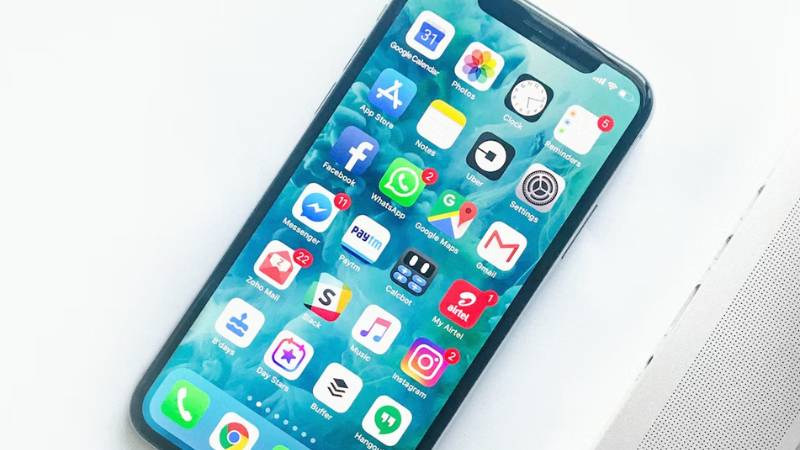
In iOS 16 and newer versions, wallpapers are managed through a Lock Screen customization interface. When you press and hold on the Lock Screen, you enter a visual editor that allows you to create multiple wallpaper profiles.
Each Lock Screen has a corresponding Home Screen. By default, Apple applies a blurred or color-matched version of the Lock Screen image to the Home Screen. This is why both screens often look similar at first.
However, when customizing, you can tap “Customize Home Screen” and choose:
- A completely different photo
- A solid color background
- A gradient
- A blurred version of the Lock Screen image
This pairing system is what sometimes causes confusion. The wallpapers are linked visually, but they can be separated with a few extra taps.
Once you understand this structure, learning how to set different wallpaper on lock screen and home screen iPhone becomes straightforward and fully customizable.
>>> Read more: How to Restore iPhone From Backup: Complete Guide for iCloud and iTunes for 2026
3. How to Set Different Wallpaper on Lock Screen and Home Screen iPhone
If your device is running iOS 16 or later, you can customize each screen separately through the Lock Screen editor. Follow these steps carefully to ensure the wallpapers do not automatically match.
Press and Hold on Lock Screen
Wake your iPhone and stay on the Lock Screen.
Press and hold on an empty area until the wallpaper gallery appears. This opens the customization interface where you can edit existing wallpaper pairs or create a new one.
Tap Customize
Select the wallpaper you want to modify, then tap Customize.
You will see two options:
- Lock Screen
- Home Screen
Choose the appropriate option to begin editing.
Choose Lock Screen Wallpaper
First, adjust your Lock Screen image if needed. You can select a new photo, apply depth effects, or change fonts and widgets. Tap Done once you finish customizing the Lock Screen.
Select “Customize Home Screen”
After confirming the Lock Screen, tap Customize Home Screen instead of “Set as Wallpaper Pair.”
This is the crucial step when learning how to set different wallpaper on lock screen and home screen iPhone. If you choose the pair option, both screens will match automatically.
Choose a Different Image or Color
On the Home Screen editor, you can:
- Select a completely different photo
- Choose a solid color
- Apply a gradient
- Blur the Lock Screen image
After selecting your preferred design, tap Done.
Now your Lock Screen and Home Screen will display different wallpapers.
4. How to Change Home Screen Wallpaper Separately From Settings
You can also change wallpapers through the Settings app if you prefer a more traditional method.
Go to Settings
Open the Settings app on your iPhone.
Tap Wallpaper
Select Wallpaper to access your current wallpaper pairs.
Add New Wallpaper
Tap Add New Wallpaper to create a new customization profile. Choose your Lock Screen design first.
Select Lock Screen and Home Screen Separately
After confirming the Lock Screen, tap Customize Home Screen.
From here, select a different image or style for the Home Screen instead of accepting the default paired design.
Understanding how to set different wallpaper on lock screen and home screen iPhone mainly comes down to avoiding the automatic pairing option and manually customizing each screen before saving.
5. Why Your Wallpapers Keep Matching Automatically
If you followed the steps but both screens still look identical, there are a few common reasons this happens when trying to set different wallpapers.
You Selected “Set as Wallpaper Pair”
When customizing in iOS 16 or later, Apple offers two options after editing the Lock Screen:
- Set as Wallpaper Pair
- Customize Home Screen
If you choose “Set as Wallpaper Pair,” the system automatically applies a matching version of the Lock Screen image to the Home Screen.
To prevent this, always select Customize Home Screen and manually choose a different image or color. This is the most common reason people struggle with how to set different wallpaper on lock screen and home screen iPhone.
iOS Version Not Updated
Older iOS versions handle wallpaper settings differently. If your device is running a version prior to iOS 16, you may not see the newer customization interface.
Updating to the latest available iOS version can unlock improved wallpaper management options and reduce automatic pairing behavior.
Sync Settings Overriding Changes
In some cases, Focus modes or synced wallpaper profiles may override manual changes. For example:
- A Focus mode might activate a specific wallpaper
- Switching between Lock Screen profiles may revert your Home Screen design
Check your Focus settings under Settings → Focus to ensure no profile is automatically applying a linked wallpaper.
Understanding these triggers helps you fully control how to set different wallpaper on lock screen and home screen iPhone without the system reverting your design.
Conclusion
Setting different wallpapers on your Lock Screen and Home Screen is fully possible with the right steps. The key is selecting manual customization instead of accepting the default wallpaper pair.
Once you understand how to set different wallpaper on lock screen and home screen iPhone, you can personalize both screens independently and avoid automatic matching. A few extra taps during setup make all the difference.
FAQs
Can I use two completely different photos for Lock Screen and Home Screen?
Yes. When customizing, choose “Customize Home Screen” and select a separate image instead of using the wallpaper pair option.
Why does my Home Screen wallpaper look blurred?
iOS may automatically apply a blur effect to match the Lock Screen. You can remove or adjust this in the Home Screen customization settings.
Does changing Lock Screen wallpaper always affect Home Screen?
Not necessarily. It only changes both screens if you select “Set as Wallpaper Pair.”
Can Focus modes change my wallpaper automatically?
Yes. Focus modes can be linked to specific Lock Screen setups, which may also affect your Home Screen appearance.