If your side button is hard to press or not working properly, you may be searching for how to lock screen on iPhone from touch instead of using physical buttons. Fortunately, iOS includes built-in accessibility features that allow you to lock your device directly from the screen.
This guide explains how to lock screen on iPhone from touch step by step, including setup instructions and troubleshooting tips if the feature does not respond as expected.
1. Why You Might Want to Lock Your iPhone Screen Without Using Buttons
There are many practical reasons to learn how to lock screen on iPhone from touch instead of relying on the side button. Over time, physical buttons can become less responsive due to wear and tear. Pressing them repeatedly may feel harder, especially if the device is older.
Another common reason involves physical damage. If the side button is stuck or broken, locking the screen using touch-based controls becomes a necessary workaround rather than a preference.
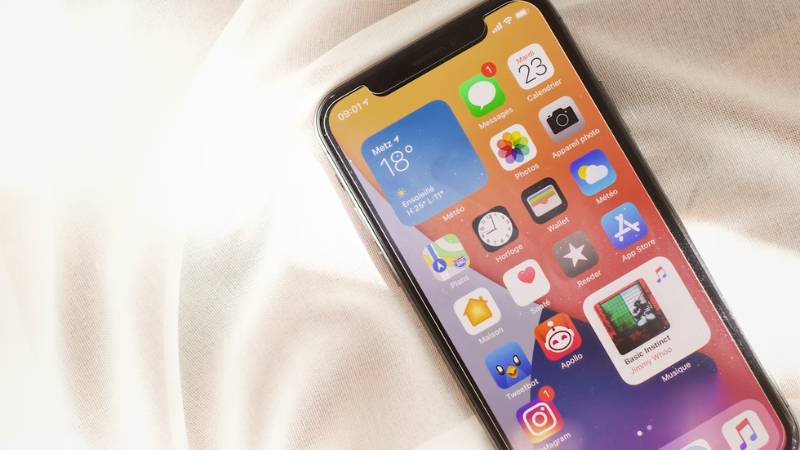
Some users also prefer on-screen controls for convenience. Accessibility features like AssistiveTouch allow you to perform essential actions without adjusting your grip or pressing hardware keys. This can make daily usage smoother and reduce mechanical stress on the device.
Knowing how to lock screen on iPhone from touch gives you more flexibility and helps extend the lifespan of your physical buttons.
2. The Different Ways to Lock Screen on iPhone From Touch
Two primary built-in methods allow you to lock your iPhone screen using touch gestures instead of buttons:
- AssistiveTouch: This feature creates a floating on-screen button that can be customized to include a lock screen shortcut. It works on most modern iOS versions and is the most reliable touch-based method.
- Back Tap: Available on newer iPhone models, Back Tap allows you to double tap or triple tap the back of the device to trigger actions, including locking the screen.
Both methods provide a hardware-free way to lock your device quickly. Choosing the right option depends on your iPhone model and iOS version, but either solution allows you to lock screen on iPhone from touch safely and efficiently.
>>> Read more: How to Compress a Video on iPhone 2026: Easy Ways to Reduce File Size Without Losing Quality
3. How to Lock Screen on iPhone Using AssistiveTouch
AssistiveTouch is the most reliable method if you want to lock screen on iPhone from touch without pressing the side button. It creates a floating on-screen shortcut that can perform multiple system actions, including locking your device.
Turn On AssistiveTouch
- Open Settings
- Tap Accessibility
- Select Touch
- Tap AssistiveTouch
- Toggle it On
A small floating button will appear on your screen. You can drag it to any corner.
Customize Top-Level Menu
To make locking easier:
- Tap Customize Top Level Menu
- Select one of the icons
- Choose Lock Screen from the action list
This ensures the lock function is immediately accessible without navigating through extra menus.
Tap AssistiveTouch Button to Lock
Once configured:
- Tap the floating AssistiveTouch button
- Tap Lock Screen
Your display will turn off instantly, just like pressing the physical side button. This method is especially useful if your hardware buttons are worn out or damaged.
4. How to Lock Screen Using Back Tap
Back Tap is another built-in feature that allows you to lock screen on iPhone from touch by tapping the back of the device.
Assign “Lock Screen” to Double or Triple Tap
- Open Settings
- Tap Accessibility
- Select Touch
- Scroll down and tap Back Tap
- Choose Double Tap or Triple Tap
- Select Lock Screen
After setup, simply tap the back of your iPhone two or three times to lock it. This method works on supported models running newer iOS versions.
5. What If Touch Lock Is Not Working?
Sometimes AssistiveTouch or Back Tap may not respond as expected. Here are common causes and fixes.
AssistiveTouch Not Responding
- Make sure AssistiveTouch is enabled
- Restart your device
- Check if Accessibility shortcuts were accidentally modified
If the floating button freezes, turning AssistiveTouch off and on again usually resolves the issue.
Back Tap Not Triggering
- Ensure your iPhone model supports Back Tap
- Remove thick phone cases that may block tap detection
- Confirm that the feature is properly assigned to “Lock Screen”
Back Tap relies on motion sensors, so placement and tapping rhythm matter.
iOS Version Compatibility
Some features require newer versions of iOS. If Back Tap does not appear in settings, update your device to the latest available iOS version.
Understanding how to lock screen on iPhone from touch includes knowing how to troubleshoot when these features fail.
Conclusion
Learning how to lock screen on iPhone from touch gives you more control over your device and reduces dependence on physical buttons. AssistiveTouch provides the most consistent method, while Back Tap offers a faster gesture-based option on supported models.
With these tools enabled, locking your iPhone becomes quick, convenient, and reliable even if your side button is not functioning properly.
FAQs
Can I lock my iPhone screen without using the side button?
Yes. You can use AssistiveTouch or Back Tap to lock the screen directly from touch controls.
Does locking the screen using AssistiveTouch drain more battery?
No. AssistiveTouch uses minimal system resources and does not significantly impact battery life.
Why doesn’t Back Tap work on my iPhone?
Your model may not support it, your iOS version may be outdated, or a thick phone case may interfere with tap detection.
Is it safe to rely only on touch-based locking methods?
Yes. These are built-in iOS features designed to provide alternative control options without harming the device.