Learning how to record on iPhone takes only a few taps. The phone can capture a lecture, a tutorial, or a call without extra apps.
This guide covers four built-in tools. In addition, it explains each tool’s limits, where files are saved, and what to check when recording fails. Finally, it covers the legal side.
1. How to Record on iPhone: Which of the 4 Methods Fits You?
Most people want one of four things: sound, the screen, real-world video, or a call. So, how to record on iPhone depends on what you need to capture.
| Method | Best for | Main limit |
|---|---|---|
| Voice Memos | Lectures, interviews, ideas | Audio only |
| Screen recording | Tutorials, bug reports | Some apps block it |
| Camera app | Real-world video | Large files at 4K |
| Call recording | Phone calls | Region and language limits |
Now, let’s look at each method in practice.
Record Audio With Voice Memos
Voice Memos is ideal for recording lectures, interviews, or personal notes without installing another app.
- Open Voice Memos.
- Tap the red Record button to begin.
- Tap Stop when finished. Your recording saves automatically.
For clearer sound, position your iPhone closer to the speaker and avoid noisy surroundings.
On supported models, go to Settings > Apps > Voice Memos > Recording Mode to choose Mono, Stereo, or Spatial Audio.
You can also use Voice Isolation on supported devices to reduce background noise.
Record Your iPhone Screen With or Without Sound
Screen recording captures everything on the display. It is ideal for showing an app bug or teaching someone a setting.
- Swipe down from the top-right corner to open Control Center.
- Tap the gray Record button and wait for the three-second countdown.
- To stop, tap the red indicator at the top of the screen, then tap Stop.
To record your voice, touch and hold the Screen Recording control in Control Center, turn on Microphone, and tap Start Recording.
Some apps restrict screen recording or prevent their audio and video from being captured. You also cannot record your screen while using screen mirroring.
Your finished recording is saved automatically in Photos.
Record Video Using the Camera App
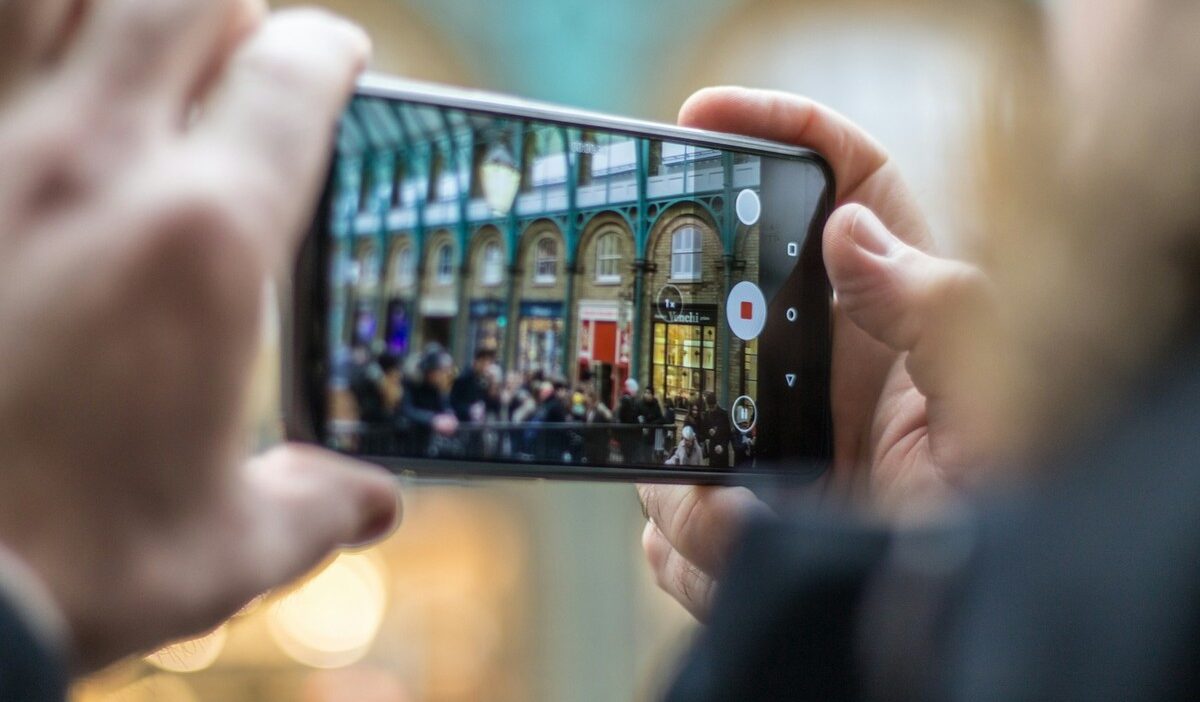
The Camera app is the classic answer to how to record on iPhone when the subject is in front of you. Open Camera, swipe to Video, and tap the red button to start and stop.
For a quick video, use QuickTake on supported iPhone models. In Photo mode, touch and hold the Shutter button, then slide it toward the lock to continue recording hands-free.
To change video quality, open Settings > Camera > Record Video. Available resolutions and frame rates depend on your iPhone model. Higher resolutions such as 4K produce larger files, while 1080p generally uses less storage.
Record a Phone Call on a Supported iPhone
Since iOS 18.1, supported iPhones can record phone calls directly through the Phone app without additional recording software.
To record a call:
- Open Phone and make a call.
- Once connected, tap More > Call Recording.
- Both participants hear an announcement that recording has started.
- Tap Stop or end the call to finish.
The recording is saved automatically in the Call Recordings folder in Notes.
Transcripts are available in supported languages and regions. Compatible iPhones with Apple Intelligence may also generate call summaries.
Important: Call recording isn’t available everywhere, including in the European Union. Always confirm the other participant’s willingness to be recorded and follow applicable consent laws.
>>>Read more: How to Blur a Photo on iPhone (Background, Face, or Whole Image)
2. Where Can You Find, Edit, and Share iPhone Recordings?
Knowing how to record on iPhone is only half the job. Each tool saves files in a different app, which confuses many users at first.

| Recording type | Where it saves | How to edit |
|---|---|---|
| Voice memo | Voice Memos | Open the recording and select its editing controls |
| Screen recording | Photos | Select Edit to trim or adjust |
| Camera video | Photos | Select Edit to trim or adjust |
| Phone call | Notes > Call Recordings | Play, copy transcript, or share audio |
In Voice Memos, Trim removes the start or end, while Replace records over a section. Similarly, Enhance Recording reduces background noise and echo. In Photos, drag the ends of the frame viewer to trim a clip.
To share any file, tap the Share button. Then choose AirDrop, Messages, Mail, or a cloud app.
3. Why Is Your iPhone Recording Not Working?
If a recording won’t start or save, the cause may be a restriction, unavailable feature, or storage issue.
| Problem | What to check |
|---|---|
| Screen Recording is unavailable | Check Screen Time restrictions or device-management settings |
| No microphone audio in a screen recording | Turn on Microphone in the Screen Recording controls |
| No Call Recording option | Confirm iOS version, region, language, and call connection |
| Call recording was disabled | Check Settings > Apps > Phone > Audio Call Recording |
| Recording doesn’t save | Check Settings > General > iPhone Storage |
| An app records a black screen | The app may prohibit capturing protected content |
For Screen Time restrictions on recent iOS versions, check Settings > Screen Time > Content & Privacy Restrictions > App Store, Media, Web & Games > Game Center > Screen Recording.
If recording still fails, restart your iPhone and install available software updates.
4. Is It Legal to Record a Conversation on iPhone?
Recording laws depend on where the participants are located and whether the conversation is private.
In the United States, federal law generally permits recording with the consent of at least one participant. However, some states, including California, Florida, Illinois, Massachusetts, and Washington, require consent from everyone for certain private conversations.
Rules also vary internationally. For example, Germany generally prohibits unauthorized recording of another person’s privately spoken words.
Apple’s built-in call recording feature announces when recording begins, but that announcement doesn’t automatically resolve every legal consent requirement.
The safest approach is to tell everyone involved and obtain permission before recording. This is particularly important for interviews, workplace conversations, and calls involving people in different jurisdictions.
5. FAQs
Can You Record Audio in the Background While Using Other Apps?
Yes. Voice Memos can continue recording while you use another app or return to the Home Screen. However, recording stops if another app begins playing audio. On supported iPhones, you can return to your recording through the Dynamic Island.
How Much Storage Does a Recording Use?
It depends on the recording format, resolution, and duration. Audio-only recordings generally use much less storage than video. Higher-resolution recordings, especially 4K video, require considerably more space. Check Settings > General > iPhone Storage to monitor available space.
Why Does a Streaming App Show a Black Screen in a Recording?
Streaming apps like Netflix use copy protection (DRM). When screen recording starts, they block the picture and often the sound. As a result, the file shows a black screen. This is intentional, so no iPhone setting changes it.
Conclusion
Now you know how to record on iPhone with Voice Memos, screen recording, the Camera app, and native call recording.
Each tool fits a different job and saves files in a different place. Pick the one that matches what you need, check your settings first, and always get consent before recording a conversation.