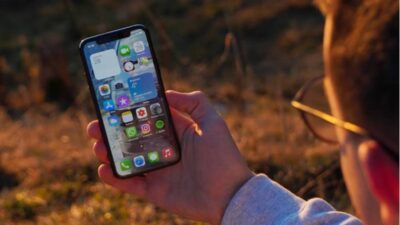
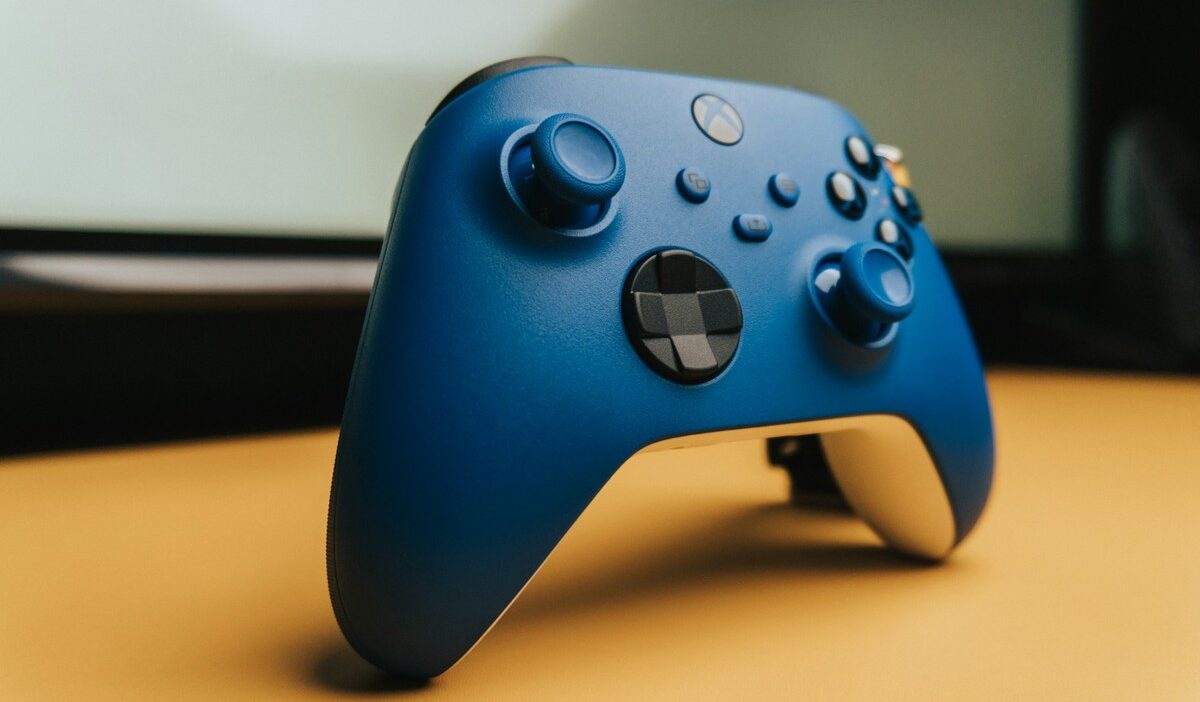
How to connect Xbox controller to iPhone becomes important when your favorite game supports a controller, but your phone won’t recognize the Xbox pad you already own. Maybe it keeps reconnecting to your console, or you’re unsure whether Bluetooth or a cable is the better option.
Fortunately, supported Xbox controllers can work with iPhone without an extra pairing app. The key is checking your controller model and connection method first. Here’s how to get it working and what to try if it doesn’t show up.
1. Which Xbox Controllers Can Connect to an iPhone?
Not every Xbox controller supports Bluetooth, so compatibility depends on your model and connection method.
Apple officially supports Bluetooth pairing with these Xbox controllers:
| Controller | Works with iPhone? |
|---|---|
| Xbox Wireless Controller with Bluetooth (Model 1708) | Yes |
| Xbox Wireless Controller Series X and Series S | Yes |
| Xbox Elite Wireless Controller Series 2 | Yes |
| Xbox Adaptive Controller | Yes |
| Early Xbox One pads without Bluetooth | No |
| Xbox 360 controllers | No |
How can you identify your controller?
On Xbox controllers with removable AA batteries, the model number is usually inside the battery compartment.
Other models, including the Elite Series 2, have built-in rechargeable batteries, so check their product information or label instead.
Important: This table covers Bluetooth pairing. iOS 18 and later also support certain wired Xbox controllers, but a cable doesn’t guarantee every older controller will work.
If you have a supported Bluetooth model, you can move directly to the pairing steps below.
2. How to Connect Xbox Controller to iPhone in 4 Steps?
Is pairing hard? Not at all. Here is how to connect Xbox controller to iPhone using the method in Apple’s support guide.
Step 1: Turn On Your Xbox Controller
Press the Xbox button in the center of the controller until it lights up. If it stays dark, put in fresh batteries first.
Step 2: Put the Controller Into Bluetooth Pairing Mode
Find the small Connect button beside the charging port. Hold it for about three seconds until the Xbox button flashes quickly. However, turn off any nearby Xbox console first. Otherwise, the controller may jump back to it.
Step 3: Open Bluetooth Settings on Your iPhone
On the iPhone, open Settings > Bluetooth and turn the switch on. The phone then scans for nearby devices.
Step 4: Select the Xbox Controller to Connect
Tap Xbox Wireless Controller under Other Devices. Once connected, your Xbox controller appears under My Devices in Bluetooth settings.
The next time you use it, turn on the controller and allow it to reconnect. If it connects to your Xbox console instead, you may need to switch its connection mode or select it again on your iPhone.
>>>Read more: How to Connect Bose Headphones to iPhone: Pair, Reconnect, and Troubleshoot
3. Can You Connect an Xbox Controller to iPhone With a USB Cable?
Yes. iOS 18 and later support wired connections with compatible Xbox controllers.
A wired connection may help when Bluetooth is unreliable, but you’ll need the appropriate cable and compatible hardware.
For iPhone 15 or later with USB-C:
- Use a USB-C to USB-C data cable for a compatible Xbox Series controller.
- For an Xbox One Model 1708 controller, use a compatible USB-C to micro-USB data cable.
For older iPhones with Lightning:
- Use a compatible Lightning to USB Camera Adapter.
- Connect the controller through the appropriate USB data cable.
- Some setups may require additional power.
Once connected, open Settings > General > Game Controller to check whether your iPhone recognizes the controller.
Important: Charge-only cables won’t transfer controller data. Wired support also varies by controller model, so not every Xbox controller is guaranteed to work through USB.
For most users with a Bluetooth-compatible controller, wireless pairing remains the simpler option.

4. Can You Customize Xbox Controller Buttons on iPhone?
Yes. After connecting your controller, open Settings > General > Game Controller and select it.
Tap Default or Default Controls, depending on your iOS version, to customize button assignments.
You can also choose Add Game to create controls for an individual supported game.
Additional options may include Home Button Overrides, saved Profiles, and Buddy Controller, which lets two connected controllers control the same player.
- Home Button Overrides: lets a listed game use the Xbox button. Otherwise, it opens the Games app, the Game Overlay, or Spotlight mid-match.
- Profiles: saves custom layouts to apply to paired controllers later.
- Buddy Controller: merges two controllers into one player, so a friend can help you through a hard level.
Start with Default Controls for everyday changes. Then add your main game to Home Button Overrides if the Xbox button keeps interrupting play.
5. Xbox Controller Not Connecting to iPhone? What Fixes Work?
Even after learning how to connect Xbox controller to iPhone, pairing can fail. A pad that never appears points to pairing mode. Meanwhile, a pad that drops points to interference, batteries, or old firmware.
| Problem | Likely cause | Fix |
|---|---|---|
| Controller missing from the list | Not in pairing mode | Hold Connect until the Xbox button flashes fast |
| Pad connects to the console instead | Xbox nearby remembers it | Turn off the console, then pair again |
| “Firmware update” message | Old controller software | Update the controller’s firmware |
| Paired but buttons do nothing | Game lacks controller support or connection issue | Test a game with confirmed controller support; then forget and re-pair if necessary |
| Lag or random disconnects | Wireless interference | Disconnect other Bluetooth devices |
| Light blinks, then dies | Weak batteries | Replace the AA batteries or recharge |
Firmware is the fix people skip most often. Connect the controller by USB to a Windows PC running the Xbox Accessories app. Alternatively, use an Xbox console under Settings > Devices & connections > Accessories. Then repeat how to connect Xbox controller to iPhone from Step 1.
6. Which iPhone Games Support Xbox Controllers?
Not every iPhone game supports external controllers, but several popular titles do.
Here are some options worth trying:
- Call of Duty: Mobile: Multiplayer shooting with controller support.
- Minecraft: Building and exploration using physical controls.
- Stardew Valley: Farming and exploration with gamepad support.
- Warframe: Action gameplay with compatible Xbox controllers.
- Apple Arcade: Many titles support controllers. Look for the controller icon on the game’s App Store page.
Can You Play Xbox Games on Your iPhone?
Yes. There are two main options.
- Xbox Cloud Gaming: Open xbox.com/play in Safari to stream supported games. Cloud gaming is available through eligible Game Pass plans, including Essential, Premium, and Ultimate, subject to regional availability and plan-specific limits.
- Xbox Remote Play: Visit xbox.com/remoteplay in a supported browser to stream games installed on your own Xbox console. Remote features must be enabled on the console.
Both services require a reliable internet connection, and the available games and features may vary.
Once your controller is connected, you can use your iPhone for supported mobile games or stream Xbox titles without relying entirely on touchscreen controls.
7. FAQs
Is It Possible to Pair Two Controllers to One iPhone?
Yes. iOS can keep more than one controller connected, and each pairs the same way. However, local multiplayer only works in games built for it. Otherwise, try Buddy Controller.
Does a Third-Party Controller Pair the Same Way?
Mostly. Bluetooth controllers pair through Settings > Bluetooth, but each brand uses its own pairing button. Meanwhile, clip-on pads such as the Backbone One plug straight into the phone’s port.
How Do You Switch the Controller Between an iPhone and an Xbox Console Without Re-Pairing?
On supported Xbox controllers with updated firmware, double-tap the Pair button to switch back to your Xbox console. Press and hold it briefly to reconnect to the remembered Bluetooth device. Older models may require manual pairing.
Conclusion
Knowing how to connect Xbox controller to iPhone can make gaming more comfortable, whether you’re playing mobile titles or streaming from your Xbox.
Bluetooth is usually the simplest option, while a compatible wired connection offers an alternative when wireless pairing isn’t reliable. Just remember that controller support depends on both your hardware and the game you’re playing.
Once you’ve found a setup that works, your iPhone can become a much more versatile gaming device without needing a separate mobile controller.