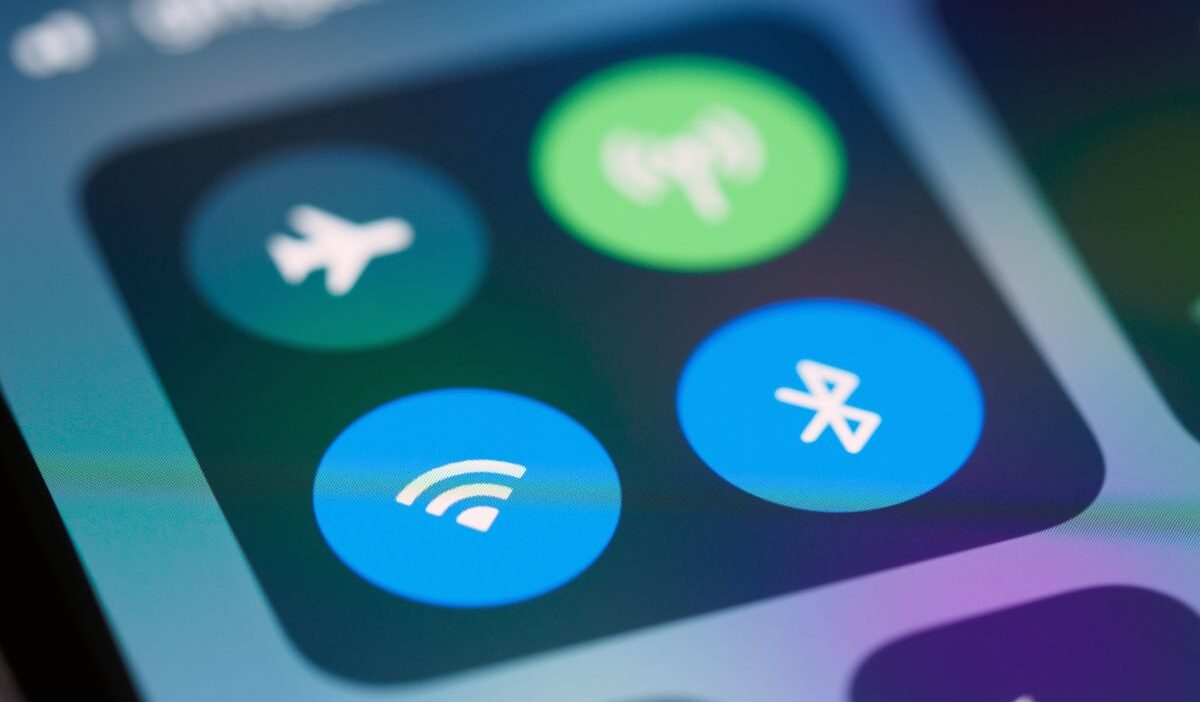
How to change Bluetooth name on iPhone depends on whether you want to rename a connected accessory or your iPhone itself. Both are possible through Settings, but the steps are different.
Whether you’re trying to distinguish two identical speakers or personalize your device name, this guide covers both methods and explains what to do when the rename option is missing.
1. How to Change Bluetooth Name on iPhone
Renaming a connected Bluetooth accessory, such as headphones or a speaker, happens through the Bluetooth settings menu rather than anywhere on the device itself.
Step 1: Connect the Bluetooth Accessory First
The device needs to be actively paired and connected to the iPhone before its name can be changed. A device sitting in the list as previously paired but not currently connected typically will not show the option to edit its name.
Step 2: Open Settings and Tap Bluetooth
Open the Settings app, then tap Bluetooth. The connected device should appear near the top of the list under My Devices, with Connected listed underneath its current name.
Step 3: Tap the Info Icon and Edit the Name
Tap the ⓘ icon next to the connected accessory. If the device supports renaming, select Name, delete the old name, and enter your preferred name.
Tap Done to save the change. The new name should appear in your Bluetooth device list.
If you don’t see the Name option, your accessory may not support renaming through iPhone settings.
2. Changing the Name Your iPhone Itself Shows to Other Devices
This is a separate setting from renaming an accessory, and it controls what other people’s devices see when your iPhone appears in their Bluetooth list, AirDrop, or Personal Hotspot search.
Open Settings, then General, then About, then tap Name at the top of that screen.
Typing a new name here updates it across Bluetooth, AirDrop, and Personal Hotspot simultaneously, since all three features draw from this same single device name rather than maintaining separate ones.
This is worth changing for anyone who shares a common first name with someone else nearby, since a Bluetooth or AirDrop list showing two identical device names makes picking the right one just as confusing as two accessories with the same generic label.
3. Why Some Bluetooth Devices Won’t Let You Rename Them
Not every Bluetooth accessory supports custom names. If the Name option is missing, first make sure the accessory is connected directly through Bluetooth.
Some devices require their manufacturer’s companion app to change their names. Check whether the app offers a rename option or whether a firmware update is available.
If the option still doesn’t appear, your accessory may not support renaming through iPhone settings. This is a device limitation rather than necessarily an iPhone problem.
4. What Happens After You Rename a Bluetooth Device?
Once how to change Bluetooth name on iPhone is set, a few specific behaviors are worth understanding, since renaming affects some things and leaves others completely untouched.
Does Renaming Affect Pairing?
No. Changing a device’s display name has no effect on the underlying Bluetooth pairing itself.
The connection, any saved settings tied to that pairing, and how the device functions all remain exactly the same, since the name is purely a label rather than part of the technical pairing process.
Does the New Name Appear on Other Devices?
It depends on the accessory. For AirPods, Apple confirms that name changes update across devices signed into the same Apple Account.
Other Bluetooth accessories may handle custom names differently. Some changes may remain specific to the device where you renamed the accessory, while others may appear on additional connected devices.
Check the accessory’s instructions if you want the name to remain consistent across multiple phones or computers.
Why a Device Name May Revert
Some accessories may return to their original names after being reset, unpaired, or updated. The behavior depends on the manufacturer and how the accessory manages custom names.
If your new name disappears, reconnect the device and try renaming it again. You can also check for updates or naming options in the manufacturer’s companion app.
>>>Read more: How To Connect AirPods To iPhone A Simple Guide To Success
5. Renaming Devices Like Apple Watch Through Their Own App
Apple Watch uses a different naming process from most Bluetooth accessories. To rename it, use the Watch app on its paired iPhone.
- Open the Watch app and select My Watch.
- Tap General, then About.
- Tap the current device name at the top.
- Enter a new name and tap Done.
The updated name makes your Apple Watch easier to identify among your connected Apple devices.
Other accessories, such as certain fitness trackers or speakers, may require their manufacturer’s companion app to change their names.
6. FAQs
These quick answers cover what people usually wonder after know how to change Bluetooth name on iPhone for the first time.
Does renaming a Bluetooth device change its name on other phones too?
It depends on the accessory. AirPods name changes sync across devices signed into the same Apple Account. Other Bluetooth devices may retain the new name only locally or handle name changes differently.
Why did my Bluetooth accessory’s name revert after an update?
Some Bluetooth accessories restore their default names after a reset, unpairing, or firmware update. Reconnect the accessory and rename it again. If the issue continues, check the manufacturer’s app or instructions.
Can I rename a Bluetooth speaker that isn’t currently connected?
Generally, no. Apple requires compatible Bluetooth accessories to be connected before renaming them through iPhone settings. Connect your speaker, then go to Settings > Bluetooth > ⓘ > Name.
Does changing the Bluetooth name affect pairing with other devices?
No. Renaming a Bluetooth accessory normally changes only its displayed name. It does not alter existing Bluetooth pairing information or require the device to reconnect through a new pairing process.
Conclusion
Knowing how to change Bluetooth name on iPhone makes it easier to identify your devices without confusing similar accessories. Most supported Bluetooth devices can be renamed through Bluetooth settings, while your iPhone’s own name is managed under General > About.
If an accessory doesn’t offer a rename option, check its companion app or manufacturer instructions.