Knowing how to delete wallpaper on iPhone is more involved than it sounds. Apple does not have a single delete button for wallpapers – instead, the process runs through the wallpaper management screen introduced in iOS 16, where each wallpaper pair (Lock Screen and Home Screen) is treated as a set.
Whether you want to remove one custom wallpaper, clear out several old ones, or reset back to Apple’s default, the steps are straightforward once you know where to look.
This guide covers every scenario with clear, step-by-step instructions for iPhones running iOS 16 and later.
How to Delete Wallpaper on iPhone?
Starting with iOS 16, Apple redesigned how wallpapers are managed and how to delete wallpaper on iPhone.
Your Lock Screen and Home Screen wallpapers are paired together and stored as wallpaper sets. You can have multiple sets saved and switch between them, and you can delete any set you no longer want.
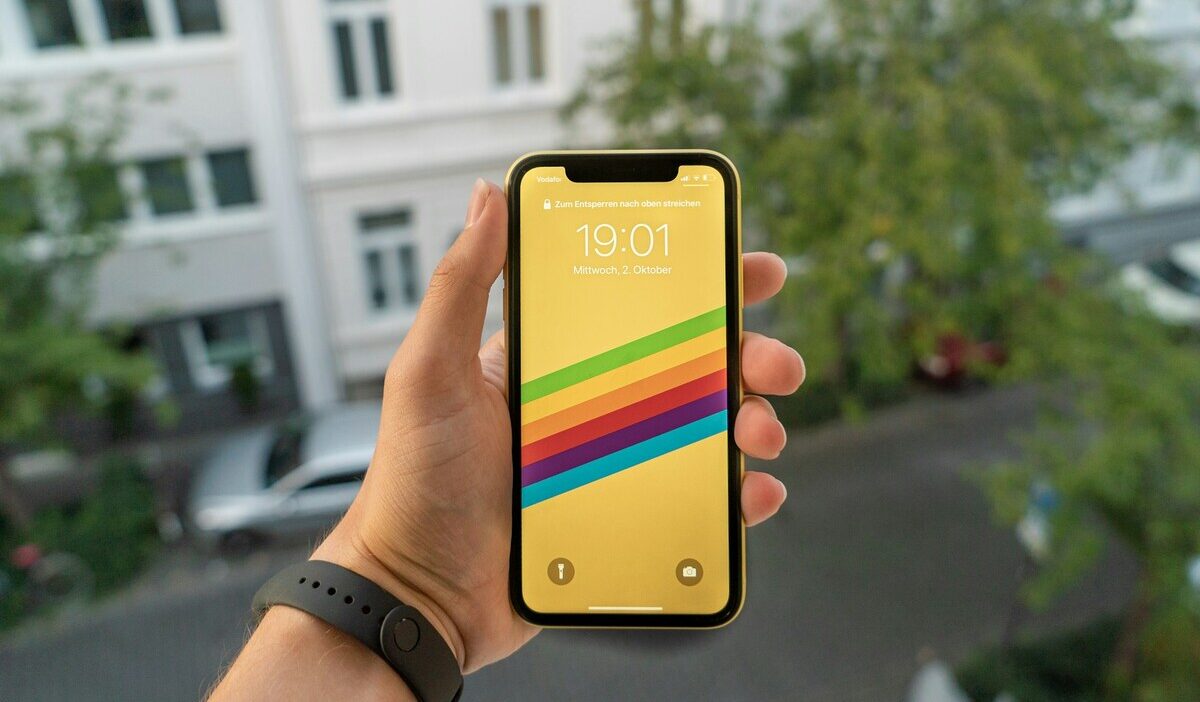
The wallpaper management screen is accessed by long-pressing the Lock Screen.
From there, you can swipe between saved wallpaper sets, make edits, and delete any set individually or clear all custom wallpapers at once.
How to Remove a Wallpaper From the Lock Screen?
This method lets you delete wallpaper on iPhone one set at a time directly from the Lock Screen:
- Wake your iPhone and go to the Lock Screen without unlocking it.
- Press and hold the Lock Screen until the wallpaper management view appears. You will see your saved wallpaper sets displayed as cards you can swipe through.
- Swipe left or right to find the wallpaper set you want to remove.
- Swipe up on the wallpaper card you want to delete. A small trash icon will appear at the bottom of the card.
- Tap the trash icon, then tap Delete This Wallpaper to confirm.
The wallpaper set is removed immediately. If the deleted set was your active wallpaper, your iPhone will switch to the next available set automatically. You cannot delete a wallpaper set while it is the only one saved – you must set a replacement first.
How to Remove a Wallpaper From the Home Screen?
The Home Screen wallpaper on iPhone is always tied to a Lock Screen wallpaper as a paired set. To remove a Home Screen wallpaper on iPhone, you remove the entire wallpaper set it belongs to using the same swipe-up method described above.
There is no separate setting to delete just the Home Screen portion while keeping the Lock Screen wallpaper.
However, you can customize the Home Screen to use a different image or color than its paired Lock Screen:
- Long-press the Lock Screen to open wallpaper management.
- Tap Customize below the wallpaper card you want to edit.
- Tap Home Screen at the top of the customization options.
- Choose a different color, gradient, or blur effect for the Home Screen without changing the Lock Screen.
This lets you effectively replace the Home Screen wallpaper image without deleting the whole set.
How to Delete All Custom Wallpapers at Once on iPhone?
If you want to delete wallpaper on iPhone in bulk and start fresh, the fastest method goes through Settings rather than the Lock Screen:
- Open the Settings app and tap Wallpaper.
- You will see your current active wallpaper pair. Tap Add New Wallpaper to confirm the system is working, then go back.
- To clear all saved wallpapers at once, go to Settings, General, Transfer or Reset iPhone, and tap Reset.
- Tap Reset All Settings. This resets all system settings, including wallpaper configurations, back to default.
Note that Reset All Settings does not erase your apps, photos, or data – but it will reset Wi-Fi passwords, notification preferences, privacy settings, and other system configurations alongside the wallpapers.
If you only want to remove a few wallpaper sets, the swipe-up delete method from the Lock Screen is less disruptive.
How to Change or Reset Your iPhone Wallpaper?
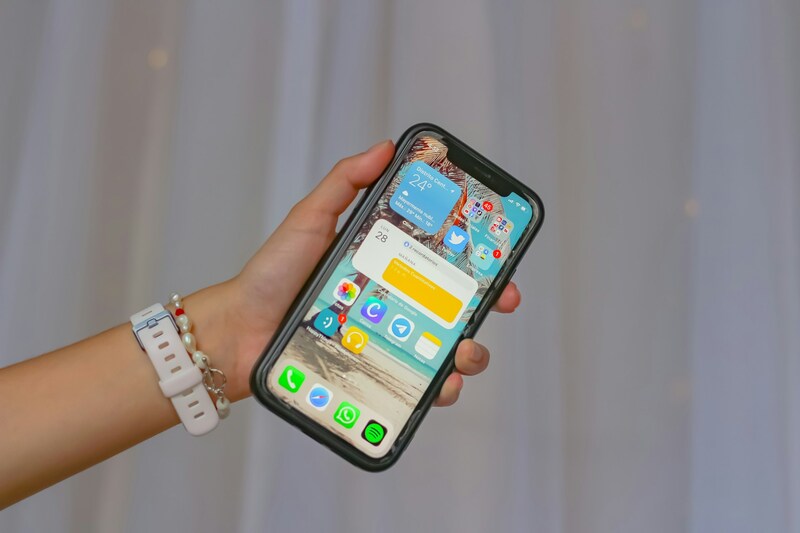
After you know how to delete wallpaper on iPhone, you will want to either set a new one or restore Apple’s original default. Both options are available directly from the wallpaper management screen or through the Settings app.
Set a New Wallpaper After Deleting the Old One
Setting a replacement wallpaper on iPhone after how to delete wallpaper on iPhone takes just a few steps:
- Long-press the Lock Screen to open wallpaper management, then tap the + button in the bottom right corner. Alternatively, go to Settings, Wallpaper, and tap Add New Wallpaper.
- Browse the options: Photo Shuffle, Photos (your library), Emoji, Weather, Astronomy, Color, or any of Apple’s curated collections.
- Select an image or style, then use the preview screen to adjust the position, add widgets, or change the clock font and color.
- Tap Add in the top right, then choose whether to Set as Wallpaper Pair (applies to both Lock Screen and Home Screen) or customize each separately.
Your new wallpaper is saved and set as the active pair immediately. The deleted wallpaper is not restored, even if you change your mind; only the original Apple default wallpapers are always available.
>>> Read more: How to Set Different Wallpaper on Lock Screen and Home Screen iPhone: The Complete and Easy Guide in 2026
Use Apple’s Default Wallpapers on iPhone
Apple’s built-in wallpapers are always available and do not need to be downloaded or restored. To access them after you delete wallpaper on iPhone:
- Go to Settings, Wallpaper, and tap Add New Wallpaper.
- Scroll down past your Photos to see Apple’s curated wallpaper collections. These include dynamic wallpapers, still wallpapers, and the original default wallpapers from various iOS versions.
- Tap any wallpaper to preview it, then tap Add and Set as Wallpaper Pair to apply it.
The stock wallpapers Apple ships with each iOS version are always available in this menu. If you are looking for a specific default from an older iOS version, Apple includes a large archive of past wallpapers in the Wallpaper picker under the Collections section.
FAQs
Why can’t I delete a wallpaper on my iPhone?
If you can’t delete a wallpaper on iPhone, it’s usually because it’s the only one set. iOS requires at least one active wallpaper, so you need to add a new one first before removing the old.
How do I delete multiple wallpapers on iPhone at once?
iOS doesn’t support deleting multiple wallpapers at once. You have to remove each one individually from the Lock Screen view.
On iOS 16+, you can quickly remove them by long-pressing the Lock Screen, then swiping up on each wallpaper and tapping the trash icon.
Does deleting a wallpaper delete the photo from my camera roll?
No. Deleting a wallpaper does not remove the original photo from your library. It only removes the wallpaper setup, while the photo stays untouched.
Wallpapers and photos are separate, so if you want both gone, you need to delete each one intentionally.
How do I go back to the default iPhone wallpaper?
You can restore Apple’s default wallpaper from Settings by adding a new wallpaper and choosing one from Apple’s built-in collections. Older defaults are also available in the Collections section.
Knowing where to find them makes it easy to return your iPhone to a familiar look, whether you want a fresh reset or just prefer Apple’s original design.
Conclusion
How to delete wallpaper on iPhone is built right into the system, so you can manage your screen without needing anything extra. It is a small action, but it reflects how you want your device to feel and look.
Once you understand how to delete wallpaper on iPhone, making changes becomes natural. You choose what stays on your screen and what no longer belongs there.