If you want to keep some apps private or just make your Home Screen less cluttered, you do not have to delete anything. Apple offers several ways to hide apps so they remain on your device and continue to work as usual.
Here is how to hide apps on iPhone. It’s simple.
1. Can You Completely Hide Apps on iPhone?
Users can remove apps from the Home Screen while keeping them installed. With iOS 18+, Apple added its most powerful privacy tool yet: you can move hidden apps into a protected Hidden folder in the App Library that only unlocks with authentication.
Yet even if you hide an app, it might still appear in places like Battery Usage, Screen Time reports, your App Store purchase history, or Storage settings. In addition, some built-in Apple apps, such as Phone or Messages, cannot be fully hidden.
>>> Read more: How to Update Apps on iPhone Easily
2. How to Hide Apps on iPhone (7 Simple Ways)
There are a few different ways to hide or lock down apps on your iPhone.
Remove Apps From the Home Screen
When you use this feature, the app disappears from your Home Screen, but it’s still on your phone.
- Press and hold the app icon on your Home Screen until a quick-action menu appears and the icons begin to jiggle.
- Tap “Remove App.”
- When the confirmation pop-up appears, choose “Remove from Home Screen.” Be careful not to hit “Delete App,” which would uninstall the app and remove its data.
Hide and Lock Apps With Face ID, Touch ID, or Passcode
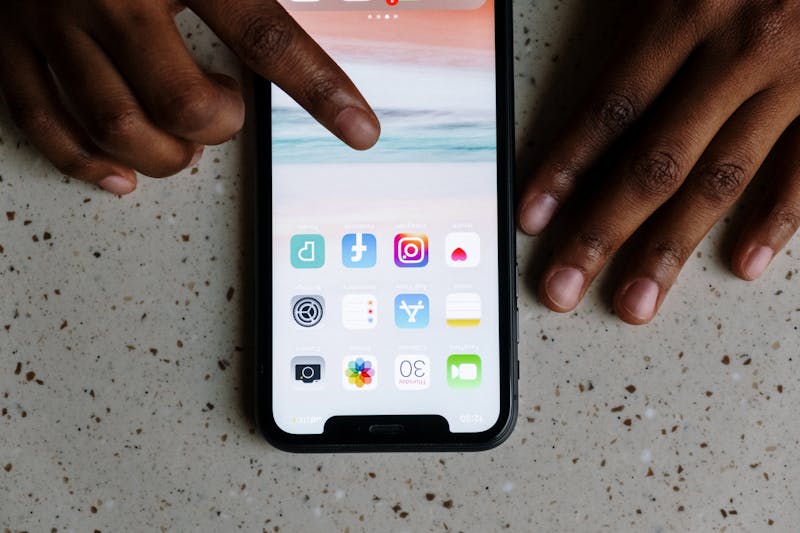
This way, the app disappears from your Home Screen and is moved to a Hidden folder in the App Library. Hidden apps require authentication before they can be opened.
How to hide and lock an app:
- Go to your Home Screen and find the app you want to protect.
- Press and hold the app icon until the quick-action menu appears.
- Tap “Require Face ID” (or the equivalent Touch ID or passcode option, depending on your device).
- Select “Hide and Require Face ID.”
- Authenticate using Face ID, Touch ID, or your passcode to confirm the action.
Hide Entire Home Screen Pages at Once
If you’re looking for a way to make your phone less cluttered or help yourself (or your kids) focus, hiding entire Home Screen pages can be a simple solution.
- Go to the Home Screen and press and hold an empty area of the screen until the icons begin to jiggle. If a menu appears first, hit “Edit Home Screen.”
- Tap the page indicator dots near the bottom of the screen. This opens the Home Screen pages overview, where all pages appear as thumbnails.
- Under each preview, you’ll see a checkmark. If you want to hide a page, just tap its checkmark. It will turn into an empty circle, meaning the page won’t show up anymore.
- Repeat the process for multiple pages if needed, then tap “Done” in the upper-right corner to save your changes.
Use Folders to Make Apps Less Noticeable
One simple way to make apps less visible on an iPhone is to put them in folders. This won’t actually hide the apps, but it does make them less obvious at a glance and helps keep the Home Screen looking tidier.
- Go to the Home Screen.
- Press and hold an empty area of the screen until the app icons start jiggling.
- Drag one app directly on top of another app. The iPhone will automatically create a new folder.
- Continue dragging additional apps into the same folder if desired.
You can also rename the folder and move it to a less obvious spot on the Home Screen.
Hide Apps From Search and Siri Suggestions
You can prevent certain apps from appearing in Spotlight Search, Siri Suggestions, widgets, and other recommendation areas.
- Open Settings on your iPhone.
- Tap Siri or Search.
- Scroll through the app list and select the app you want to hide.
- Disable the available search and suggestion options.
3. How to Find Hidden Apps on iPhone
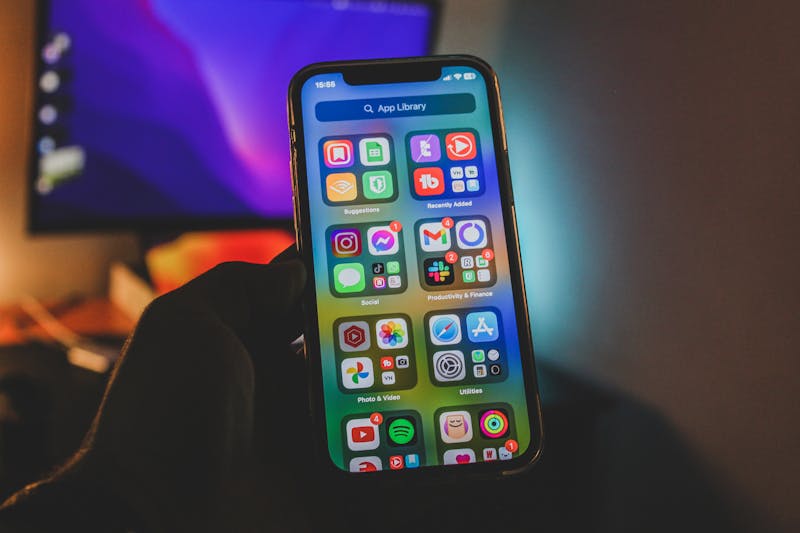
If you can’t find a specific app on your Home Screen, you can track it down using these three methods:
Search the App Library:
- Swipe left past all your Home Screen pages until you reach the App Library.
- Use the search bar at the top to quickly locate any apps that may have been removed from your main screens.
Check the “Hidden” Folder:
- For apps hidden using the “Hide and Require Face ID” feature, scroll to the very bottom of the App Library.
- Tap the Hidden folder and unlock it with Face ID, Touch ID, or your passcode to reveal the apps inside.
View via System Settings:
- Open Settings, scroll down, and tap on Apps.
- This section provides a complete list of all installed apps, along with details on storage usage and management options.
>>> Read more: How to Delete Apps on iPhone in 2026
4. FAQs
How do I unhide all hidden apps?
If you’ve hidden an app and want it back on your Home Screen, the App Library is usually the quickest way to restore it.
- Find the app in the App Library.
- Press and hold the app you want to restore and select options such as Add to Home Screen.
Does hiding an app stop notifications?
On an iPhone running iOS 18 or later, using “Hide and Require Face ID/Touch ID/Passcode” moves the app into the Hidden folder and disables its notifications, alerts, and calls.
How do I hide apps on an older iPhone?
You can remove apps from the Home Screen without deleting them or place them inside folders on less-visible Home Screen pages. You can also use the newer “Hide and Require Face ID” feature, but make sure your iPhone is updated to iOS 18 or later.
5. Conclusion
You’ve learned how to hide apps on iPhone in very simple ways. Just keep in mind, these tricks only go so far. Anyone with access to the iPhone and the passcode may still be able to locate hidden apps through the App Library, Settings, Screen Time menus, or hidden-app folders.
Overall, these built-in tools are handy for customizing your device, reducing distractions, and maintaining a cleaner digital space.