As a user upgrading to a new iPhone or iPad, transferring your data correctly is just as important as setting up the device itself. Don’t worry, though. Let’s go through how to transfer data from one iPhone to another and pick the method that works best for you.
1. Quick Start: Why is It The Default Beginner-friendly Method?
Quick Start is Apple’s built-in migration tool that makes moving data from one iPhone to another simple and automatic. When the new iPhone is placed near the old one, it is instantly detected, and a guided setup begins.
It usually works well when the old iPhone is still functional, and both devices can remain nearby and powered on.
And if your device is managed by Apple Business Manager or Apple School Manager, Quick Start might not be available.
2. How to Transfer Data From One iPhone to Another
Transfer time depends on the amount of data, network speed, and transfer method used. Here are 6 trustworthy ways to transfer data to a new iPhone.
Use Quick Start to transfer data to a new iPhone
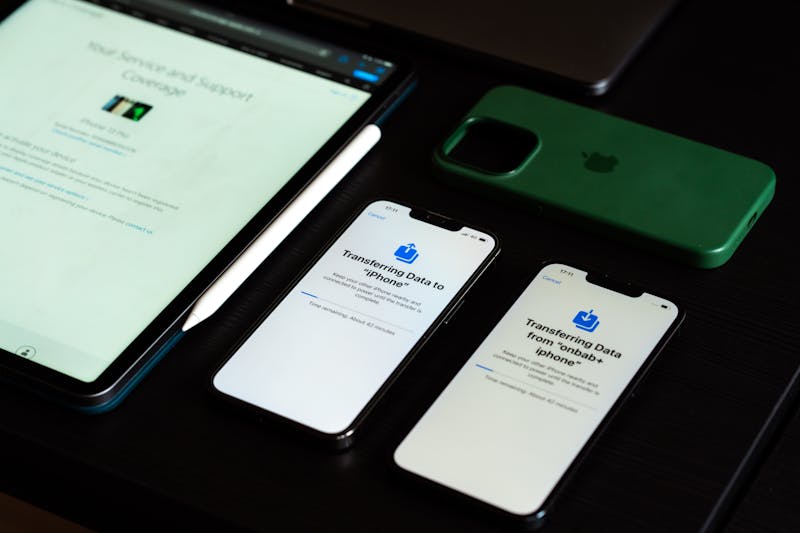
Quick Start lets you automatically set up a new iPhone or iPad using your current Apple device. How to use it:
- Make sure your current device runs iOS 11/iPadOS 13 or later, with Wi-Fi and Bluetooth turned on.
- Keep both devices charged or connected to power.
- Turn on the new device and place it near the old one. A Quick Start prompt should appear automatically on your current device.
- Follow the onscreen instructions to sign in with your Apple ID and continue setup.
- Connect the new device to Wi-Fi or cellular service, then set up Face ID or Touch ID.
- Choose either Download from iCloud or Device-to-Device Transfer
- Keep both devices nearby and avoid interrupting the transfer until it finishes.
Use a wired direct transfer (for large data volumes)
A wired direct transfer allows users to move data from an old iPhone or iPad to a new one via a physical cable connection. This approach is especially useful when transferring large amounts of data.
- Use the correct cable for your devices.
- Connect both devices securely and keep them plugged into power if possible.
- Turn on the new iPhone and place it near the old device to begin setup.
- Connect the new device to Wi-Fi or cellular service.
- Set up Face ID or Touch ID when prompted.
- Keep both devices connected and nearby until the transfer is complete.
>>> Read more: Do Not Disturb iPhone: Easily Set Up and Use It
Use iCloud Backup (for automatic cloud migration)
iCloud Backup automatically stores important device data online so it can be restored later on a new or reset iPhone, iPad, or Apple Vision Pro. iCloud Backup does not require the old device to remain physically connected during setup.
- Connect your device to a stable Wi-Fi network and keep it charged or plugged in.
- Go to Settings > [Your Name] > iCloud > iCloud Backup.
- Turn on Back Up This iPhone/iPad.
- Tap Back Up Now to create a manual backup.
- On the new device, follow the setup process and connect to Wi-Fi.
- Choose Restore from iCloud Backup on the Apps & Data screen.
- Sign in with your Apple ID and select the most recent backup.
Transfer data with iTunes (for Windows users)
Using iTunes works for Windows users who want to transfer files, backups, or app data between a PC and an iPhone or iPad. It is especially helpful for moving large files or managing data offline.
- Install and open iTunes on your PC.
- Connect your iPhone or iPad using a USB cable or Wi-Fi syncing.
- Click the Device button, then select File Sharing.
- Choose a supported app.
- Click Add to transfer files from PC to device; Save To to transfer files from device to PC.
- Click Eject before disconnecting the device.
Transfer data with Finder (for Mac users)
Using Finder is most useful when you have already backed up your old iPhone or iPad on a Mac and want a full, reliable transfer.
- If the new device is already set up, erase it first to return to the “Hello” screen.
- Follow the setup process until you reach Apps & Data, then select Restore from Mac or PC.
- Connect the device to your Mac using a compatible cable.
- Open Finder, select your device, and click Restore Backup.
- Choose the correct backup and enter the password if it is encrypted.
- Keep the device connected until the transfer is complete.
>>> Read more: How to Transfer Photos From iPhone to Computer
3. How to Choose the Best Way for Your Situation
The best method for transferring iPhone data depends on your devices, internet connection, and the amount of data you need to move.
- If you just need to transfer a few photos, contacts, or documents, AirDrop is usually the quickest way. But if you’re moving a full backup or a big media library, using direct wired transfer or Finder/iTunes is way more reliable.
- If you’re setting up a new iPhone, Quick Start or a wired transfer is your best way to transfer everything from your old iPhone to your new one. In terms of device setup, Finder is ideal for Mac users.
- For beginners, Quick Start and iCloud Backup are the easiest options.
4. Common Data Transfer Problems on iPhones
Transfers on iPhones can get stuck or crawl to a halt during Quick Start or when restoring from a PC. Usually, it comes down to weak Wi-Fi, a dying battery, or an outdated iOS version. The usual fix: restart both devices, make sure they’re charged up, and use a stable Wi-Fi or wired connection
Sometimes, after a transfer, you’ll notice missing photos or messages. That’s usually due to incomplete iCloud syncing or using an outdated backup. Double-check your iCloud settings or grab a more recent backup and try again.
5. FAQs
Do I need to transfer my SIM card or eSIM?
Yes. For physical SIMs, just swap the card. For eSIM, follow the on-screen prompts during Quick Start to transfer your cellular plan digitally.
Can I transfer data if my old iPhone is broken?
Yes, as long as you have a recent iCloud or Computer backup. You can restore that backup to your new iPhone during the initial setup.
How do I transfer data if I only have a Windows PC?
Install the Apple Devices app (or iTunes), connect your old iPhone via USB, and create a local backup.
6. Conclusion
So, how to transfer data from one iPhone to another? It doesn’t have to be complicated. With the right steps and a bit of prep, you can transfer your photos, apps, settings, and personal information quickly and safely, without losing anything important.