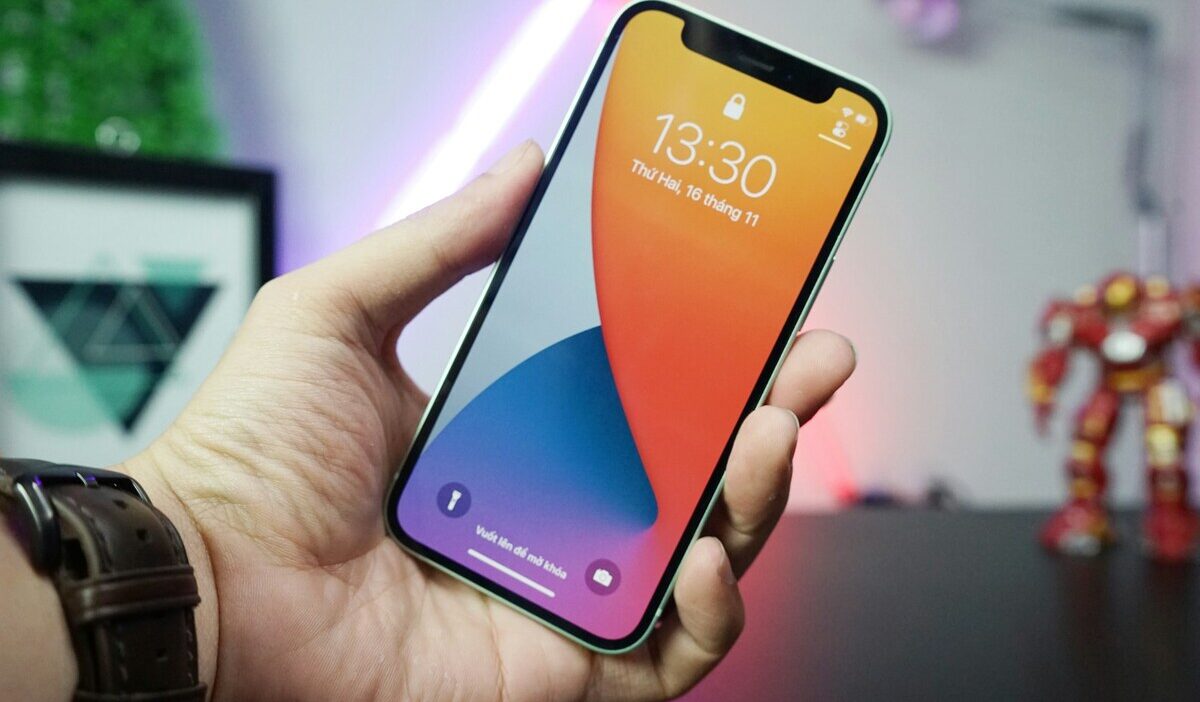
Do Not Disturb iPhone is one of the most practical features iOS offers. It silences calls, alerts, and notifications so you can focus, sleep, or drive without your phone constantly pulling your attention.
Whether you want to set a schedule for quiet hours, let certain contacts reach you, or activate driving mode, this guide walks you through every setting so you get exactly the level of silence you need.
What Is Do Not Disturb on iPhone and How Does It Work?
Do Not Disturb (DND) is a built-in iPhone feature that mutes incoming calls, alerts, and notification sounds when activated. Your screen stays dark, and your phone stays quiet, even if notifications keep arriving in the background.
DND does not block calls or messages. It only silences them. Anyone who tries to reach you will still get through on their end; you just will not hear or see it until you check your phone.
Do Not Disturb vs. Focus Mode: What Is the Difference?
In iOS 15 and later, Apple folded Do Not Disturb iPhone into the broader Focus Mode system. Focus Mode lets you create custom profiles – such as Work, Personal, Sleep, or Fitness – each with its own rules for which apps and contacts can send notifications.
Do Not Disturb iPhone is still available as a standalone Focus option. It works the same way it always has, just with more customization options than before. If you only need a quick, no-frills silence, DND is the fastest choice.
If you want a more detailed setup tied to specific activities, the other Focus profiles give you that control.
What Do Not Disturb Silences and What It Allows Through
When DND is on, your iPhone silences all incoming calls, FaceTime calls, text notifications, app alerts, and any other sounds or vibrations tied to notifications. The Lock Screen will not light up for incoming alerts either.
By default, DND allows a few things through. Alarms you set in the Clock app still go off. Emergency alerts – such as government warnings – are not blocked.
In addition, if you set specific contacts or apps as allowed, their notifications come through even when Do Not Disturb iPhone is active.
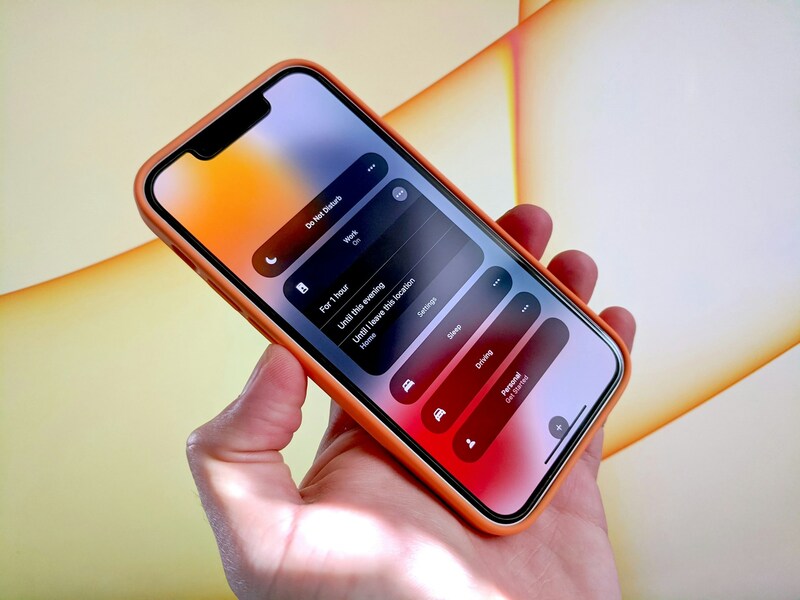
How to Turn DND On and Off Quickly
The fastest way to toggle Do Not Disturb iPhone is through the Control Center. Swipe down from the top-right corner of your screen (or swipe up from the bottom on older models). Tap the Focus button, then tap Do Not Disturb. Tap it again to turn it off.
You can also go to Settings > Focus > Do Not Disturb and use the toggle at the top of the screen. A small crescent moon icon appears in your status bar whenever Do Not Disturb iPhone is active.
>>> Read more: How to Delete Apps on iPhone in 2026: Every Method Easy Explained
How to Set Up and Customize Do Not Disturb on iPhone
Beyond a simple on/off toggle, DND has several options that let you tailor it to your routine. You can set it to run on a schedule, allow priority contacts to reach you, and activate a separate driving mode.
Schedule Do Not Disturb at Specific Times
To schedule Do Not Disturb iPhone automatically, go to Settings > Focus > Do Not Disturb. Tap Add Schedule or Automation, then select Time.
Set your start and end times and choose which days the schedule applies. Once saved, your iPhone will turn DND on and off at those times automatically – no manual action needed. This works well for overnight hours or regular work blocks when you do not want interruptions.
According to Apple Support, you can also trigger Do Not Disturb iPhone based on your location or a specific app being open, giving you even more control over when it activates.
Allow Calls and Notifications Through Do Not Disturb
To let certain people reach you while Do Not Disturb iPhone is on, go to Settings > Focus > Do Not Disturb > People. Tap Allow Notifications From and add the contacts you want to let through.
You can also enable Repeated Calls – when this is on, a second call from the same number within three minutes will ring through. This is useful for family members or colleagues who might need to reach you in a genuine emergency.
For apps, tap Apps on the same DND settings page and add any app whose alerts should still come through. This lets you stay silent for most notifications while keeping alerts from, say, a banking or medical app visible.
Turn On Do Not Disturb While Driving
iPhone has a dedicated driving focus that silences notifications when it detects you may be driving. To set it up, go to Settings > Focus > Driving.
You can choose how it activates – automatically when iPhone detects motion consistent with driving, when it connects to a car’s Bluetooth, or manually.
When Driving Focus is on, your screen stays dark, and notifications are held until you arrive. People who text you can receive an auto-reply letting them know you are driving, if you turn that option on.
FAQs
How do I turn off Do Not Disturb on iPhone?
Open Control Center by swiping down from the top-right corner of your screen. Tap Focus, then tap Do Not Disturb to toggle it off.
The crescent moon icon in your status bar will disappear when DND is no longer active. You can also go to Settings > Focus > Do Not Disturb and switch off the toggle at the top.
Why is my iPhone on Do Not Disturb even when I turned it off?
A scheduled DND automation may be turning it back on automatically. Go to Settings > Focus > Do Not Disturb and check the Add Schedule or Automation section.
If a time-based or location-based trigger is set, it will reactivate DND according to that rule. Delete or adjust the schedule to stop it from turning on without your input.
Moreover, check if another Focus profile – such as Sleep or Driving – is active, as those can also silence notifications in a similar way.
Will alarms still sound when Do Not Disturb is on iPhone?
Yes, alarms will still sound even when Do Not Disturb is enabled. DND only silences calls, messages, and notifications, but it does not affect alarms set in the Clock app.
Conclusion
Setting up Do Not Disturb on iPhone takes only a few minutes, and the difference it makes to your focus or sleep quality can be significant. The key is getting the exceptions right – scheduling quiet hours and choosing which contacts or apps can still reach you.
Start with a simple schedule and adjust from there. Once it fits your routine, DND runs quietly in the background without you having to think about it.