Knowing how to block a number on iPhone takes less than a minute once you know where to look.
Whether you are dealing with a persistent spam caller, an unwanted text, or someone you would rather not hear from, iOS gives you several built-in ways to cut off contact.
This guide covers every method available, what blocking actually does to incoming contact, and answers the questions most people have after they block someone for the first time.
How to Block a Number on iPhone
iPhone gives you three main entry points of how to block a number on iPhone: the Phone app, the Messages app, and a dedicated Blocked Contacts list in Settings.
All three methods block the contact across calls, texts, and FaceTime simultaneously. Choose whichever starting point is most convenient based on where you last saw the number.
How to Block a Number From the Phone App
This method of how to block a number on iPhone works best when you want to know how to block a number on iPhone directly from a recent call or a saved contact.
From a recent call:
- Open the Phone app and tap Recents at the bottom.
- Find the call from the number you want to block and tap the info icon (the small “i” in a circle) to the right of it.
- Scroll to the bottom of the screen and tap Block this Caller.
- Tap Block Contact to confirm.
From a saved contact:
- Open the Phone app and tap Contacts, or open the Contacts app directly.
- Find and tap the contact you want to block.
- Scroll to the bottom of their contact card and tap Block this Caller.
- Tap Block Contact to confirm.
The number is added to your blocked list immediately. No notification is sent to the contact.
Block Spam Calls Automatically on iPhone
For general spam calls, not from a specific number, iPhone has a built-in filter called Silence Unknown Callers.
When enabled, any call from a number not in your contacts, not in your recent outgoing calls, and not suggested by Siri is automatically silenced and sent to voicemail.
To turn it on, go to Settings, Phone, and tap Silence Unknown Callers, then toggle it on. This does not block spam calls outright, but it stops your phone from ringing and keeps the calls out of your way.
Silenced calls still appear in your Recents list, so you can check for anything legitimate that got caught by the filter.
Third-party apps like Robokiller or Hiya can provide additional spam call screening if the built-in option is not enough.
These apps use crowdsourced call databases to identify and block known spam numbers before your phone rings at all.
>>> Read more: How to Block Websites on iPhone: Control Access Fast 2026
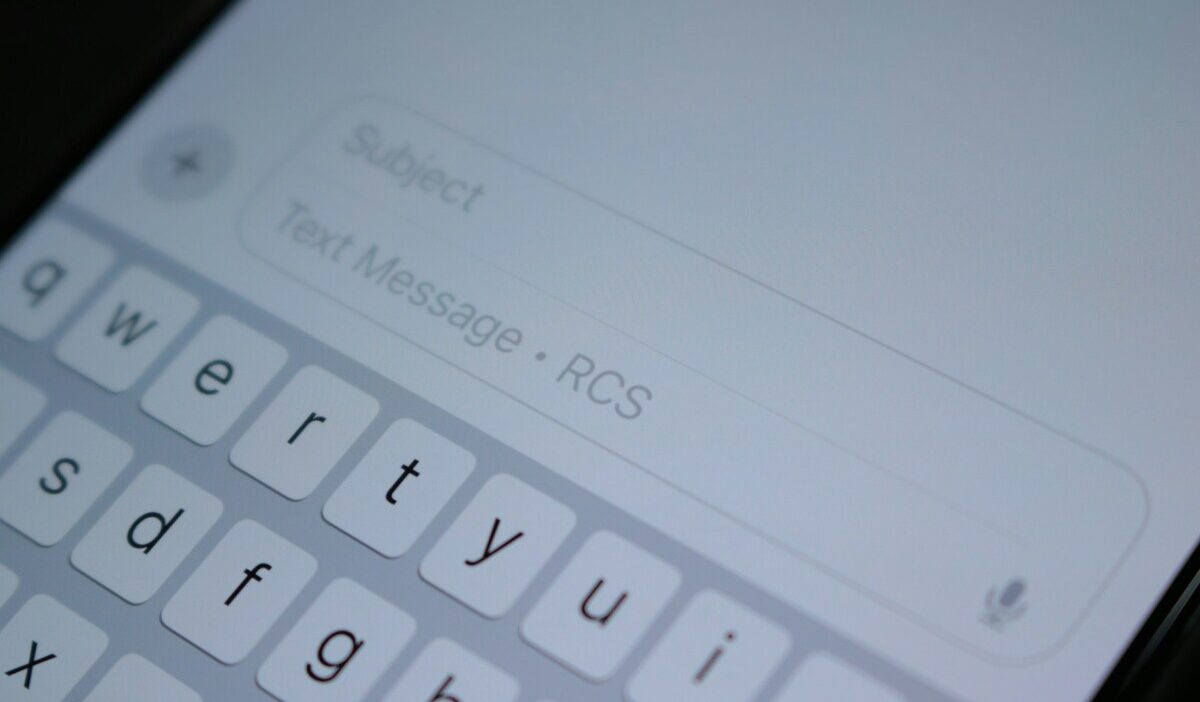
How to Block Someone From a Text Message or iMessage
If you want to know how to block a number on iPhone starting from a conversation in Messages, you do not need to leave the app:
- Open the Messages app and tap the conversation from the person you want to block.
- Tap the contact name or number at the top of the conversation to open the contact details panel.
- Tap the info icon (the small “i” in a circle).
- Scroll down and tap Block this Caller.
- Tap Block Contact to confirm.
Once blocked, the sender’s messages will no longer be delivered to you. They will not see a delivery confirmation, and from their side, the conversation may appear to continue sending normally; they just never receive a response, and you never receive their messages.
If the text is coming from a short code or automated marketing sender, you can also reply STOP to opt out, though this only works for legitimate marketing messages that are required to honor opt-out requests.
How to Block Unknown or No Caller ID Numbers on iPhone
Blocking unknown callers, those who show up as No Caller ID or Unknown, works differently because there is no specific number to add to the blocked list. The Silence Unknown Callers feature described above is the most effective built-in tool for this situation.
You can also manage your full blocked contacts list and add numbers manually by going to Settings, Phone, Blocked Contacts, and tapping Add New at the top.
This lets you how to block a number on iPhone even if you have never received a call or message from it, useful if someone gives you a number you want to pre-emptively block.
For persistent harassment from masked or spoofed numbers, consider contacting your carrier. Most carriers offer a call-blocking or call-screening service. You can also file a complaint with the FCC Consumer Complaint Center if you are receiving illegal robocalls or unwanted solicitations.
>>> Read more: How to Silence Notifications on iPhone: Smart Ways to Focus
What Happens When You Block a Number on iPhone
When you block a number on iPhone, the effect is immediate and applies across three communication channels at once:
- Phone calls: calls from the blocked number go directly to voicemail without your phone ringing. The caller can still leave a voicemail, but it goes into a separate Blocked Messages section at the bottom of your voicemail list, not your main inbox. You will not receive a notification.
- SMS and iMessage: messages from the blocked number are not delivered to you. You will not see them, and they will not generate any notifications. The sender does not receive a delivery failure notice.
- FaceTime: FaceTime calls from the blocked number are declined automatically and silently. The caller receives no answer.
How to block a number on iPhone does not delete any existing messages or call history. Past conversations remain in your Messages app and Recents list. You would need to delete those manually if you want to remove them.
The blocked contact can still reach you through other channels that are not tied to their phone number, for example, through email, social media, or a different phone number. Blocking on iPhone only covers the specific number or Apple ID you have blocked.
To view or manage your blocked list at any time, go to Settings, Phone, Blocked Contacts. From there, you can unblock anyone by swiping left on their entry and tapping Unblock.
FAQs
Does a blocked number know they are blocked on iPhone?
Generally, no. iPhone does not notify someone when they are blocked.
Calls may ring briefly before going to voicemail, and messages appear to send normally with no error. The only clue is the lack of response over time.
Can a blocked number still text you on an iPhone?
A blocked number can still send texts, but you won’t receive them. They are filtered out and don’t appear in your inbox.
From the sender’s side, messages seem to go through. iMessages show as sent but never “Delivered,” while SMS gives no delivery status at all.
How many numbers can you block on an iPhone?
Apple doesn’t set a strict limit on how many numbers you can block, and iPhones can handle large lists without issues.
But if spam comes from constantly changing numbers, manual blocking becomes less effective. In that case, a call-blocking app with an updated spam database is a more practical solution.
Does blocking a number block them on FaceTime, too?
Yes. Blocking a number on iPhone also blocks FaceTime calls from that number. Calls are silenced automatically, with no ring or alert, and this applies to both audio and video.
However, the block only applies to that specific number or Apple ID. If the person uses a different one, their FaceTime calls can still come through.
Conclusion
Knowing how to block a number on iPhone is more than just a simple step, it is a way to protect your time, attention, and peace of mind. It allows you to decide what reaches you instead of reacting to it.
Once you understand how to block a number on iPhone, managing calls and messages becomes more intentional. You stay in control of who can contact you, and that control is something worth using when needed.