Whether you are freeing up storage or clearing out apps you no longer use, knowing how to delete apps on iPhone is one of the most basic and most useful things you can do with your device.
iOS gives you more than one way to remove apps, and the best method depends on your situation.
You can delete apps directly from the Home Screen, go through the Settings menu for more control, or choose to offload an app instead of fully removing it.
This guide covers every option so you can decide what works best for you.
How to Delete Apps on iPhone From the Home Screen
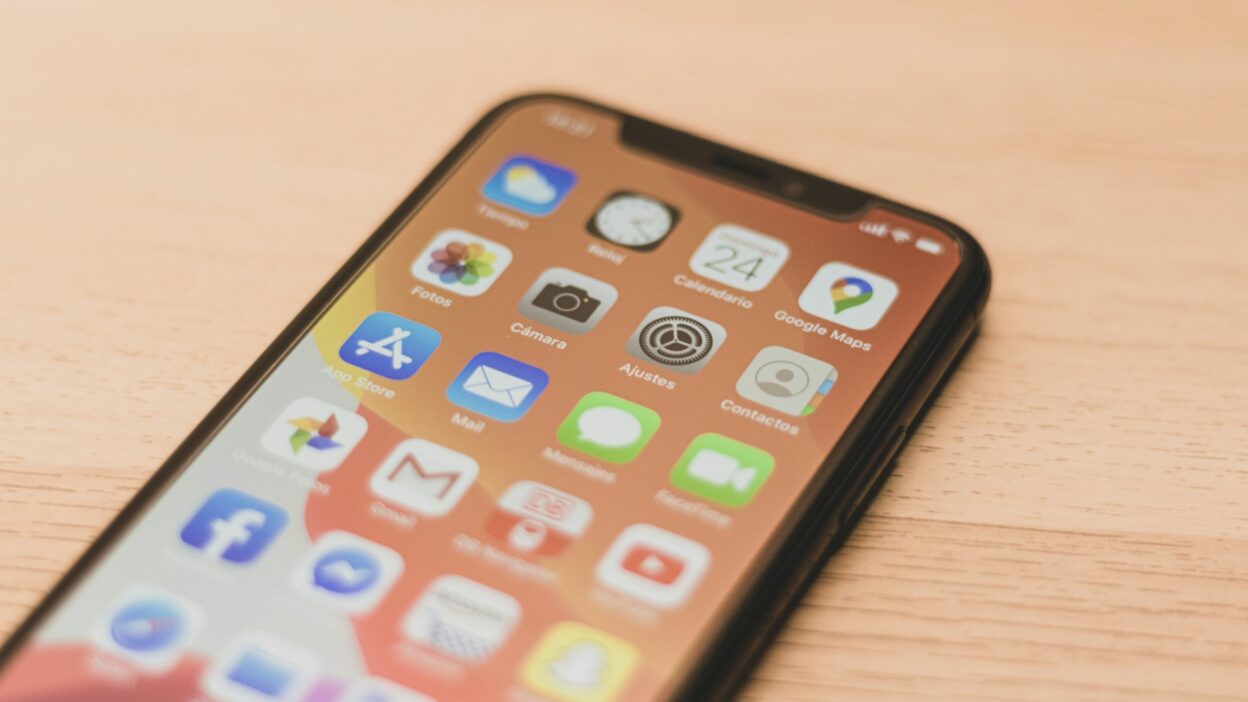
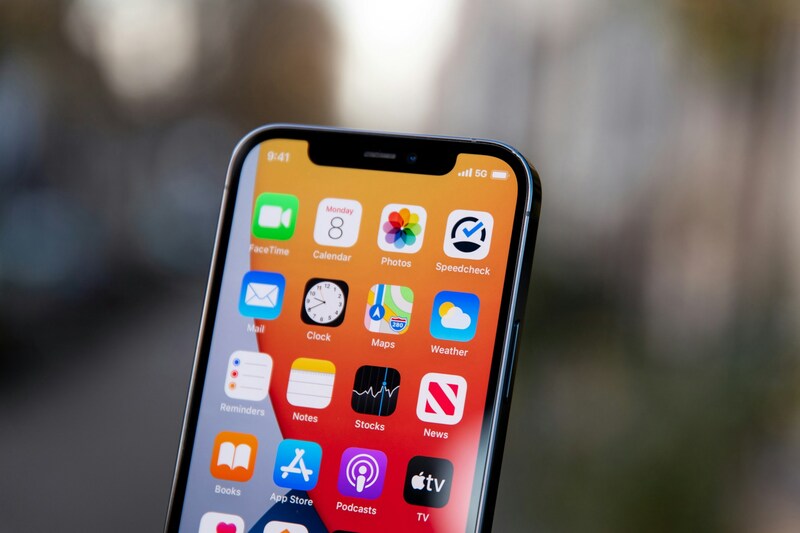
The Home Screen is the most direct place of how to delete apps on iPhone. iOS gives you two approaches here: removing one app at a time or entering jiggle mode to clear several at once.
How to Delete Apps Using the Long Press Method
Press and hold any app icon on your Home Screen until a small menu appears. Tap Remove App, then tap Delete App on the confirmation prompt. The app and its data are removed immediately.
If you see Remove from Home Screen as a separate option, that only hides the icon – it does not delete the app. Always tap Delete App to fully remove it from your device.
>>> Read more: How to Unhide Apps on iPhone: All the Ways to Find Hidden Apps
How to Delete Multiple Apps at Once on iPhone
To delete multiple apps without going one by one, press and hold an empty area of the Home Screen until all icons start to jiggle. Then tap the minus (-) symbol in the top-left corner of each app you want to remove.
Tap Delete App on each confirmation prompt. When you are finished, press the Home button or tap Done in the top-right corner to exit jiggle mode. This is the fastest way to clear out several apps in one session.
What Happens to Your Data When You Delete an App
When you learned how to delete apps on iPhone, you should know that all locally stored data tied to that app – including cache, settings, and saved files – is removed from your device. The app itself is also uninstalled.
However, any data stored in the cloud or linked to an account usually stays intact. For example, if you delete a social media or fitness app, your account and its history remain on the provider’s servers. You can reinstall the app later and log back in to recover that data.
Data stored only on your device, such as offline drafts or local game saves, will be gone for good once the app is deleted, unless you backed it up first.
How to Delete Apps on iPhone Through Settings
The Settings menu gives you a more detailed view of your apps, including how much storage each one uses. This makes it easier to spot which apps are worth removing and apply what you have just learned about how to delete apps on iPhone.
Finding and Removing Apps in the Settings Menu
Go to Settings > General > iPhone Storage. You will see a full list of your installed apps sorted by size. Tap any app to open its details page.
On that page, tap Delete App, then confirm. The app and all its local data are removed. This method is especially useful when you want to see exactly how much space you will recover before deleting anything.
How to Offload vs. Delete an App on iPhone
On the same app details page in iPhone Storage, you will also see an Offload App option. Offloading is different from deleting – it removes the app itself but keeps its documents and data on your device.
According to Apple Support, when you reinstall an offloaded app, your data is restored exactly where you left it. This is a good choice when you want to free up space without losing your progress or settings.
In contrast, deleting an app wipes everything locally. Use offload when you plan to come back to the app later, and use delete when you are done with it entirely.
How to Delete Pre-Installed Apple Apps on iPhone
Many of Apple’s built-in apps – such as Stocks, Compass, and Tips – can be deleted like any third-party app. Press and hold the icon, tap Remove App, and then tap Delete App.
Some core system apps, like Phone, Messages, and Safari, cannot be removed this way. When you long-press them, the delete option does not appear. These apps are built into iOS and cannot be uninstalled.
If you delete a removable Apple app and want it back, open the App Store, search for the app by name, and tap the cloud download icon to reinstall it for free.
>>> Read more: Recently Deleted Messages on iPhone: Simple Way to Find
FAQs
Why can’t I delete an app on my iPhone?
There are a few possible reasons. Some Apple system apps – like Phone or Messages – cannot be deleted because they are part of iOS. Besides that, Screen Time content restrictions may be blocking app deletion.
To check, go to Settings > Screen Time > Content & Privacy Restrictions > iTunes & App Store Purchases, and make sure Deleting Apps is set to Allow.
Does deleting an app delete your account?
No. Deleting an app from your iPhone only removes the app and its local data – it does not delete any account you created within that app. Your account stays active on the provider’s servers.
To fully close an account, you need to go through the app’s settings or the provider’s website before or after uninstalling.
Can you delete built-in apps on an iPhone?
Yes, some built-in apps on iPhone can be deleted, but not all.
To check, simply try to remove the app. If you see a “Remove App” option, it means it can be deleted. If that option does not appear, the app is considered essential to the system and cannot be removed.
Conclusion
There is more than one way of how to delete apps on iPhone, and each method fits a different situation. Long-pressing works best for quick single removals, jiggle mode speeds things up when clearing several apps at once, and the Settings menu gives you the most control over storage.
Before removing an app, it is worth asking whether offloading makes more sense – especially for apps you use occasionally. Either way, your device storage will thank you.