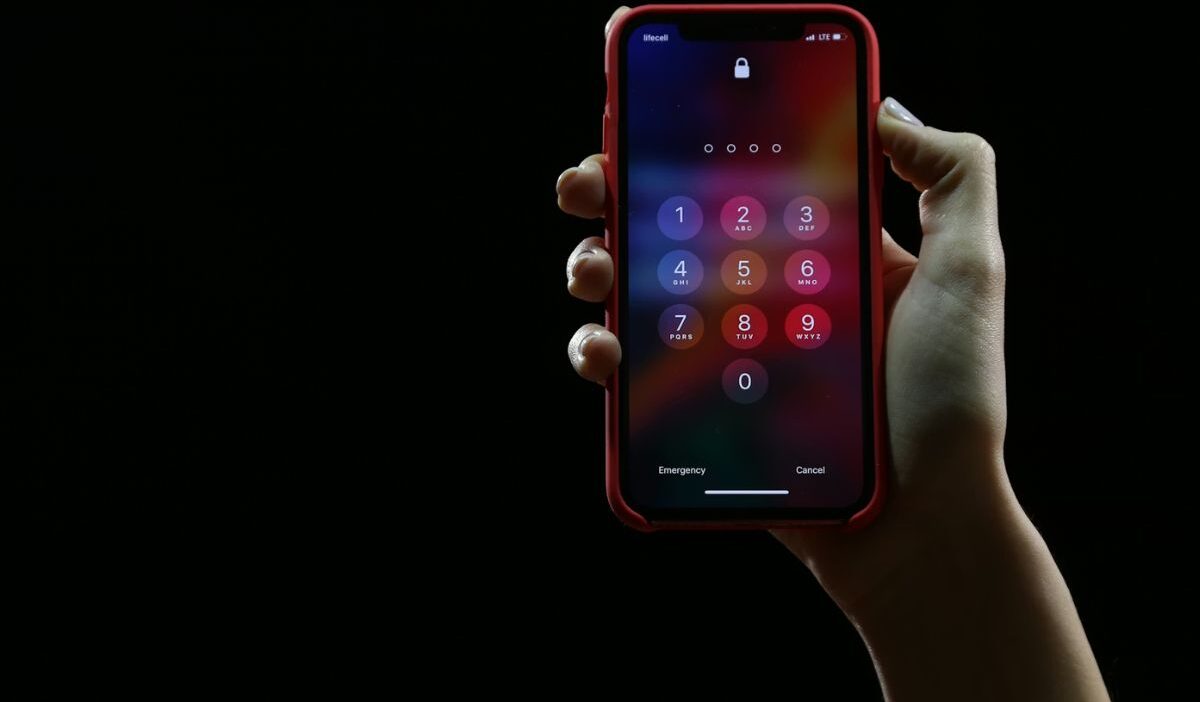
How to unlock iPhone without passcode often becomes urgent the moment your device locks you out after too many failed attempts.
You pick up your phone, try a few combinations, and suddenly it says the device is unavailable.
At that point, it is no longer a small inconvenience. It affects access to your data, communication, and daily tasks.
Let’s break down the real options so you can unlock your iPhone with clarity and avoid common mistakes.
1. How to Unlock iPhone Without Passcode Using Official Apple Methods
Method 1: Use Recovery Mode (With Computer)
Step 1: Prepare your computer and cable
How to unlock iPhone without passcode? Use a trusted cable to connect your iPhone to a Mac or Windows PC. Make sure Finder (Mac) or iTunes (Windows) is updated so the device can be recognized properly.
Step 2: Force your iPhone into recovery mode
Press the correct button sequence based on your model and keep holding until the recovery screen appears. This step is important because it allows your computer to bypass the locked screen.
Step 3: Wait for device detection on computer
Finder or iTunes will display a message saying your iPhone needs to be updated or restored. This confirms the connection is successful.
Step 4: Select “Restore” instead of “Update”
Choosing restore will erase the device completely, including the passcode, which is necessary for how to unlock iPhone without passcode.
Step 5: Let the system reinstall iOS
The process will download and install a fresh version of iOS. Do not disconnect your device during this step.
Step 6: Complete setup after restart
Once finished, your iPhone will restart and return to the setup screen without a passcode.

Method 2: Use iCloud (Find My iPhone)
Step 1: Access iCloud from another device
Open a browser and go to iCloud, then sign in using your Apple ID linked to the locked iPhone.
Step 2: Open “Find My” feature
This section shows all devices connected to your account, including the locked iPhone.
Step 3: Select your iPhone from the list
Make sure you choose the correct device before proceeding.
Step 4: Choose “Erase iPhone”
This action remotely deletes all data and removes the passcode. It is one of the safest official solutions for how to unlock iPhone without passcode.
Step 5: Wait for the remote erase to complete
Your device will reset even if it is not physically with you, as long as it is connected to the internet.
Step 6: Set up your device again
After the erase, follow the on-screen instructions to start fresh or restore data.
>>> Read more: How to Lock Screen on iPhone: Ultimate 2026 Security Guide
2. How to Unlock iPhone Without Passcode Without Losing Data
Step 1: Check if a backup exists first
Go to iCloud or your computer to confirm a recent backup is available. This step determines whether your data can be recovered after unlocking.
Step 2: Proceed with unlocking method
Use recovery mode or iCloud erase to remove the passcode. This step is required because there is no direct way around the lock screen.
Step 3: Start the iPhone setup process
After the reset, your device will display the initial setup screen as if it were new.
Step 4: Choose a restore option carefully
How to unlock iPhone without passcode? Select “Restore from iCloud Backup” or “Restore from Mac/PC” depending on where your data is stored.
Step 5: Sign in with your Apple ID
This verifies your identity and allows access to your backup data.
Step 6: Select the most recent backup file
Choose the latest version to recover the most complete set of data.
Step 7: Wait for restoration to complete
Apps, photos, and settings will gradually return. Keep your device connected to Wi-Fi during this process.
3. Common Situations That Lead to This Problem
How to unlock iPhone without passcode, with several scenarios can lead to being locked out of your iPhone.
- Forgotten passcode
This is the most common situation, especially after changing it recently. When the new code is not used often, it becomes harder to recall over time.
- Multiple incorrect attempts
Too many wrong entries can disable the device temporarily or permanently. Each failed attempt increases the waiting time, making access more frustrating.
- Device not been used for a long time
Memory gaps can make it difficult to recall the correct code. This often happens when the device has been unused or stored away for weeks or months.
- Children or accidental input
Someone else entering incorrect codes repeatedly can trigger a lock. Even a few accidental attempts can quickly lead to a temporary or full disabled state.
These situations share a common cause. Access control is strict, and small mistakes can quickly escalate into a lockout.
4. The Difference Between Temporary Lock and Full Disable
| Condition | Temporary Lock | Full Disable |
| What happens | iPhone is locked for a short period after a few wrong attempts | iPhone becomes completely inaccessible after too many incorrect attempts |
| Screen message | Shows “Try again in X minutes” | Shows “iPhone unavailable” or “Security lockout” |
| Cause | Several incorrect passcode entries in a row | Repeated failed attempts beyond the system limit |
| Access status | You can try again after waiting | Shows “iPhone unavailable” or “Security lockout.” |
| Solution | Wait and enter the correct passcode | Use recovery mode or iCloud to reset the device |
| Data impact | No data loss | Your data will be lost if no backup exists |
5. What to Do After Unlocking Your iPhone
How to unlock iPhone without passcode? Once you regain access, the next steps are just as important as unlocking.
- Set a new passcode you can remember but keep secure
- Turn on Face ID or Touch ID.
- Back up your data immediately to iCloud or a computer
- Review security settings to prevent future lockouts
These actions reduce the chance of facing the same issue again and improve overall device security.
>>> Read more: How to Restart iPhone: Easy Step-by-Step Instructions for All Models 2026
6. FAQs
How to unlock iphone without passcode without computer?
You can use iCloud’s Find My feature to erase your device remotely. This removes the passcode but requires your Apple ID and password.
Can you unlock an iPhone without losing data?
Only if you have a backup. After resetting the device, you can restore your data, which minimizes loss.
What happens after too many wrong passcode attempts?
Your iPhone becomes temporarily locked and eventually disabled. At that stage, recovery methods are required to regain access.
Can Apple unlock your iPhone for you?
Apple cannot unlock your device without resetting it. They can guide you through recovery steps, but security policies prevent bypassing the passcode directly.
Conclusion
Getting locked out of your device can feel stressful, but the solution becomes clearer once you understand how the system works. Learning how to unlock iPhone without passcode is not just about regaining access. It is about handling security the right way.