How to change font on iPhone depends on what you actually want to change. Apple does not let you swap the system-wide typeface used across menus and the Home Screen, but that does not leave you stuck with one look everywhere. You can resize or bold system text, restyle the Lock Screen clock, use different fonts inside supported apps, or create decorative text for social media.
The trick is knowing which kind of “font change” you need. Start with the system-level options first, then move into app-specific customization.
1. Can You Change the Default Font on iPhone?
Not completely. Apple does not provide a supported setting that replaces the standard system typeface across iOS.
What you can change is how that text feels on screen. You can make it larger, make it bold, or customize certain areas such as the Lock Screen clock. Apps that support their own typography can also use different fonts inside documents or other content.
So rather than one master font switch, iPhone gives you several smaller controls. The broadest of those is text size.
2. How to Change Text Size and Weight on iPhone
If the goal is easier reading rather than a completely different typeface, this is the best place to start how to change font on iPhone.
- Open Settings
- Tap Display & Brightness
- Tap Text Size
- Drag the slider until the text feels comfortable
- Turn on Bold Text if you want thicker lettering
For even larger text, go to:
Settings > Accessibility > Display & Text Size > Larger Text
Apple says these settings work across supported apps that use Dynamic Type, including apps such as Mail, Messages, Calendar, Notes, and Settings. They do not necessarily change every third-party app.
If size is not what you had in mind and you want the iPhone to look more personal, the Lock Screen gives you more freedom for how to change font on iPhone.
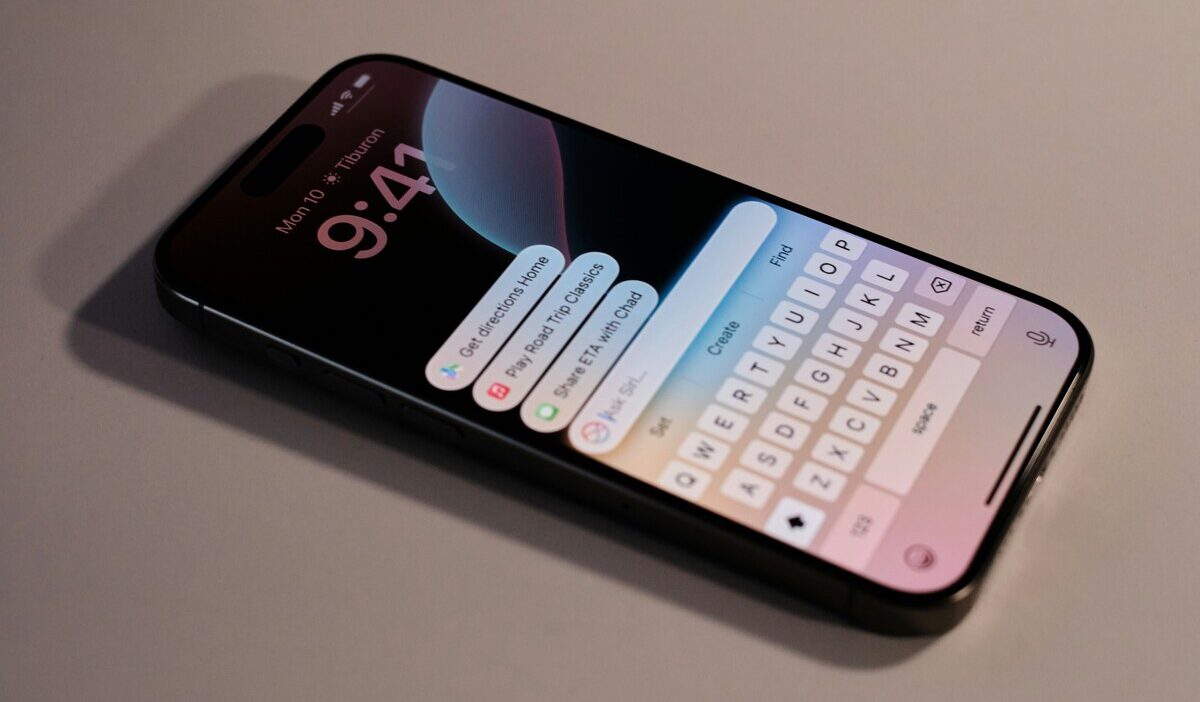
3. Change the Lock Screen Clock Font
The system font may be off-limits, but how to change font on iPhone for the Lock Screen clock is much more flexible.
- Wake and unlock your iPhone
- Touch and hold the Lock Screen
- Tap Customize
- Choose the Lock Screen you want to edit
- Tap the time
- Select a font style and adjust its appearance
- Tap Done
Apple currently lets you change the look of the clock, including its font and other visual options.
>>> Read more: How to Change Clock on iPhone: Time and Lock Screen
4. Install and Use Custom Fonts in Supported Apps
iPhone supports additional fonts, but they work inside compatible apps rather than replacing the iOS interface.
Apple’s current process starts in the App Store for how to change font on iPhone:
- Open the App Store
- Download an app that provides installable fonts
- Open that app and follow its instructions to install the fonts
- Go to Settings > General > Fonts to view and manage installed fonts
Apple does not provide a built-in More Fonts catalog inside Settings. The Fonts screen is primarily where you manage fonts that have already been installed.
Once installed, open an app that supports those fonts and use that app’s formatting controls. In Pages, for example:
- Select the text
- Tap the Format button
- Open the text controls
- Tap Font
- Choose the font you want
Pages supports changing typeface, size, color, and other text properties.
The exact controls vary from app to app. Installing a font therefore does not make it suddenly appear as an option in Instagram, Messages, or every text field on the phone.
For those places, what people call a “font” usually works in a completely different way.
5. Use Fancy Fonts Anywhere With a Keyboard App
A third-party font keyboard is the only way to get stylish or fancy text in Those curly letters and stylized Instagram bios are usually not custom fonts at all. In many cases, they are special Unicode characters designed to resemble bold, script, outlined, or other decorative lettering.
A font keyboard can make them easier to type:
- Download a compatible font keyboard from the App Store
- Go to Settings > General > Keyboard > Keyboards
- Tap Add New Keyboard
- Select the keyboard
- While typing, use the globe button to switch keyboards
- Choose a supported style and enter your text
You can then use that styled text in places such as social profiles, captions, or messages when the destination supports those characters.
A keyboard app is not the only way to do this. Some apps or text generators let you create the same Unicode-style text and simply copy and paste it.
Be more careful if a keyboard asks for Allow Full Access. Apple does not require Full Access for every third-party keyboard.
Basic keyboards can operate without it. Full Access gives the keyboard additional capabilities, including network access, and can allow typed input to be processed outside the basic keyboard sandbox.
That does not automatically make a keyboard unsafe, but it does mean privacy deserves more than a quick tap on “Allow.” Check the developer, App Store privacy information, and whether the features you want actually require Full Access.
Also keep in mind that decorative Unicode text is not equally readable everywhere. Screen readers, search tools, or some apps may interpret unusual characters differently, so plain text is still the safer choice when readability matters.
>>> Read more: How to Get Rid of Virus on iPhone: Avoid Costly Security Risks
6. FAQ
Q1. How do I change my iPhone’s font style?
You cannot replace the system-wide iPhone typeface. You can change text size and weight, customize the Lock Screen clock, or choose different fonts inside apps that support font selection.
Q2. How do I change the font view on my iPhone?
Go to Settings > Display & Brightness > Text Size to resize supported text, or turn on Bold Text. For larger accessibility options, use Settings > Accessibility > Display & Text Size > Larger Text.
Q3. Can I change the font on my Home Screen icons?
No. Apple does not provide a setting to replace the font used for app names and other Home Screen labels. Font customization applies only to specific parts of iOS or apps that provide their own typography controls.
Conclusion
Understanding how to change font on iPhone gets easier once you separate the system interface from the content you create. Text size and Bold Text change readability, the Lock Screen offers a little visual personality, and supported apps give you much more control over the actual typeface.
For social media and messages, decorative Unicode text can add flair, but it is not the same as installing a new font. The iPhone may not hand you one switch for everything, but choosing the right tool for each layer gives you more control than it first appears.