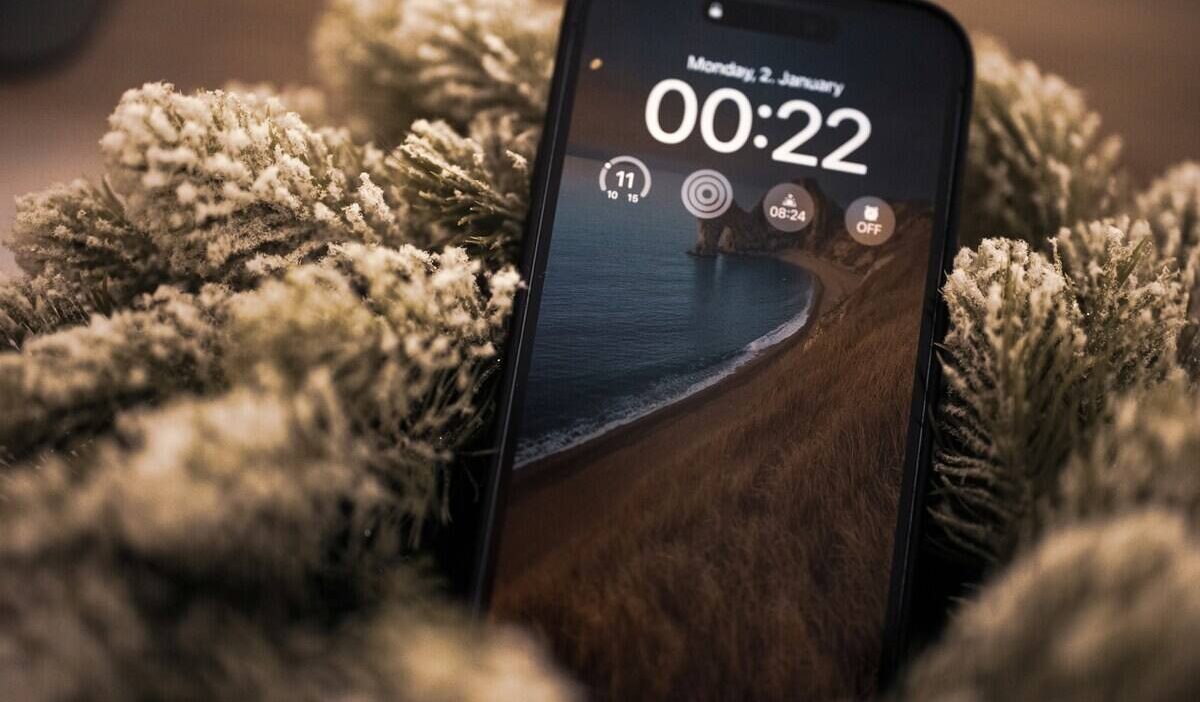
How to change clock on iPhone depends on what you want to adjust. You can correct the actual time and time zone in Settings, switch between 12-hour and 24-hour time, or customize the Lock Screen clock’s font, color, transparency, and available size options.
This guide separates those controls so you can quickly find the right setting, whether the time is wrong after travel or you simply want the Lock Screen clock to look different.
1. How to Change the Time on iPhone
iPhone sets the time automatically using your location by default. Turning that off lets you set the time and time zone manually.
Change the Time Manually
Set Automatically has to be turned off first, or the manual time picker stays locked and unresponsive.
- Open Settings, tap General, then tap Date & Time
- Turn off Set Automatically
- Tap the date or time field and adjust it manually.
- Scroll the wheels up or down to set the correct time
Change the Time Zone
This is separate from how to change clock on iPhone or the time itself and matters most after traveling, when the iPhone hasn’t caught up to a new region yet and you want to know how to change clock on iPhone:
- Make sure Set Automatically is turned off
- Tap Time Zone
- Type the name of your city in the search box and tap the correct result
>>> Read more: How To Share Calendar On iPhone: Easy Ways To Stay Synced
2. How to Change Clock Style on Lock Screen iPhone
In iOS 26, the Lock Screen clock has its own customization menu separate from the time settings above.
The font, color, thickness, and even size of the clock can all be changed here, making it possible if you are wondering how to change clock face on iPhone
- Long-press anywhere on the Lock Screen and tap Customize
- Tap the time at the top of the screen
- Choose the available clock appearance, font, and transparency options shown for your current iOS version.
- Tap a font style from the options shown
- If the selected font provides a weight or thickness control, use the slider to adjust it.
- Choose a color and use the available sliders to adjust its appearance. On supported iOS 26 versions, additional transparency or opacity controls may also be available.
- Tap anywhere else on the screen, then tap Done to save
Moreover, if you want to resize the clock while already know how to change clock on iPhone, follow:
- In Lock Screen customization, drag the bottom-right corner of the clock to increase its height when that control is available.
- Long-press the bottom-right corner of the clock and drag to resize
Note: Clock resizing options can vary depending on the Lock Screen layout, wallpaper, and iOS version.
3. Change Your Clock to Military Time on iPhone
Switching to a 24-hour format is a single toggle, separate from the time and Lock Screen settings above. Here is how to change your clock to military time on iPhone:
- Go to Settings, tap General, tap Date & Time
- Turn on the 24-Hour Time switch
This switches the iPhone’s system time format to 24-hour time, including the Lock Screen and Apple’s built-in time displays.
Some third-party apps may use their own formatting and let you do the same, adjusting for how to change clock on iPhone.
4. View Different Time Zones on Your iPhone
The Clock app tracks time in other cities separately from the iPhone’s own time zone setting.
- Open the Clock app
- Tap World Clock
- Tap the + button to add a city
- Type the city name and tap it from the list
Each added city shows its current local time on the World Clock screen. You can also add a clock-related widget to the Lock Screen to keep another time zone visible at a glance, depending on the available widgets in your iOS version.
5. What Should You Do If You Can’t Change the Time or Clock Style?
If the time controls are grayed out, the cause may be a restriction, management profile, carrier setting, or location/time-zone configuration.
Lock Screen customization limits can also depend on the wallpaper and current iOS version. Both issues have simple, specific fixes rather than requiring a restart or reset.
| Issue | What It Means | Quick Fix |
| Set Automatically switch is grayed out | A restriction, device-management profile, or carrier/time-zone setting may be controlling it | Check for management or restriction settings, update iOS, and contact the administrator/carrier if the setting remains unavailable |
| No resize control appears | The current Lock Screen layout, wallpaper, or clock style may not support that adjustment | Try another clock style or Lock Screen layout and check again |
| Clock resize not working on an existing Lock Screen | Feature only applies to newly created Lock Screens | Create a new Lock Screen rather than editing an older one |
>>> Read more: How to Check Screen Time on iPhone: The Complete and Easy Way to Monitor Usage 2026
6. FAQ
Q1. Can I change my clock display on my iPhone?
Yes. The actual time can be changed in Settings > General > Date & Time, and separately, how the Lock Screen clock looks, including font, color, and size, can be changed by long-pressing the Lock Screen and tapping Customize.
Q2. How do I display different clocks on iPhone?
Open the Clock app, tap World Clock, and add cities to track multiple time zones at once. A World Clock widget can also be placed on the Lock Screen to show a second time zone alongside the main clock.
Q3. How do I change the clock style on my lock screen?
Long-press the Lock Screen, tap Customize, then tap the time. Choose Glass or Solid, pick a font, and adjust the color and thickness using the sliders provided.
Conclusion
Changing the iPhone clock can mean more than fixing the time. The Date & Time menu controls the actual time, time zone, and 24-hour format, while Lock Screen customization handles how the clock looks.
For how to change clock on iPhone, start by identifying whether you need to change the time itself or only its appearance. Using the correct menu keeps the process simple and avoids changing settings that are unrelated to what you actually want to adjust.