Does your iPhone screen feel too bright when you’re scrolling before bed? Even with the brightness turned down, the cool screen colors may still feel uncomfortable in a dark room.
If you’re wondering how to turn off blue light on iPhone, Night Shift is the easiest place to start. You can also adjust display colors or reduce brightness for a more comfortable viewing experience. This guide explains which settings help, how to use them, and what they can realistically do for your eyes and sleep.
1. How to Turn Off Blue Light on iPhone?
An iPhone doesn’t have a setting that completely disables blue-light emission. However, Night Shift can reduce the blue component of the screen’s output by shifting colors toward warmer tones.
If you want a less intense display at night, you can also adjust the screen’s brightness or use accessibility settings.
The following methods work differently, so choose the one that best matches your viewing preferences.
Use Night Shift From Control Center
If you wonder how to turn the blue light off on your iPhone, Night Shift is the fastest answer. It warms the screen to an orange tone in seconds.
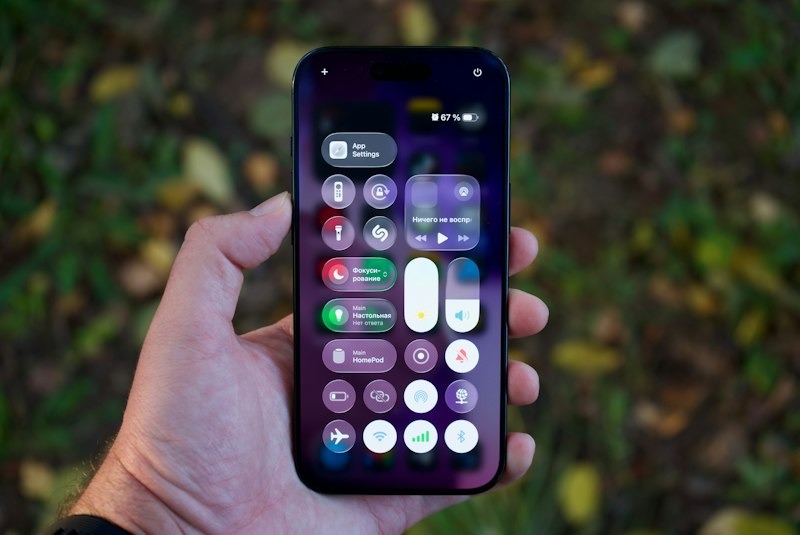
- Open Control Center by swiping down from the top-right corner (or up from the bottom on Home button models).
- Touch and hold the Brightness slider.
- Tap the Night Shift button to turn it on or off.
This works well for a one-off evening. Still, you must remember to do it every night.
Schedule Night Shift in Settings
A schedule removes the daily chore. Go to Settings > Display & Brightness > Night Shift and turn on Scheduled.
- Sunset to Sunrise: the default option. It uses your clock and location to find sunset.
- Custom Schedule: set your own start and end times, such as 9:00 PM to 7:00 AM.
- Color Temperature: drag the slider toward More Warm for a stronger effect.
As a result, the filter switches on without any taps. For most people, this is the easiest way to turn off blue light on iPhone every night.
Use a Red Color Filter
If you want a stronger color change than Night Shift provides, you can apply a red tint through your iPhone’s accessibility settings for how to turn off the blue light on iPhone
- Open Settings > Accessibility > Display & Text Size > Color Filters.
- Turn on Color Filters and select Color Tint.
- Adjust the Hue slider until the screen appears red.
- Increase Intensity to make the tint stronger.
A red tint changes how the screen displays colors, so images and videos will no longer look natural. It also isn’t a scientifically validated guarantee that all blue-light emission has stopped.
Keep in mind that Night Shift may override certain Color Filter effects. If the red tint disappears when Night Shift activates, review your display settings rather than assuming both filters will remain active together.
Dim the Screen With Reduce White Point
Sometimes brightness, not color, is the real problem. Reduce White Point lowers the intensity of bright colors below the normal minimum.
Find it in Settings > Accessibility > Display & Text Size, then set the slider between 25% and 100%. Pair it with Night Shift for a soft, dim screen in a dark room.
2. Can You Turn Off Blue Light on iPhone Permanently?
If you’re searching for how to turn off blue light on iPhone permanently, the answer depends on whether you want a warmer display all day or want to stop Night Shift from changing your screen colors.
To keep your screen warmer throughout the day:
Night Shift doesn’t provide a dedicated always-on setting. You can create a custom schedule covering most of the day, although the feature may still switch off briefly.
Alternatively, use Settings > Accessibility > Display & Text Size > Color Filters > Color Tint to apply a persistent color tint. Remember that Night Shift may interfere with certain filter effects.
To stop your screen from looking yellow:
- Turn off Night Shift and disable its schedule under Settings > Display & Brightness > Night Shift.
- Turn off Color Filters under Accessibility.
- Disable True Tone under Display & Brightness if the screen still looks unusually warm.
For easier access to Color Filters, go to Settings > Accessibility > Accessibility Shortcut and select Color Filters. You can then use the Side button or Home button shortcut, depending on your iPhone model.
>>>Read more: How to Turn Off Incognito Mode on iPhone: Safari and Chrome
3. Night Shift vs Dark Mode vs True Tone: What’s the Difference?
Finding out how to turn off the blue light on iPhone meaning touching these settings, which sit close together in the menus, so people mix them up. However, only some of them actually change screen color and how to turn off blue light on iPhone.
| Setting | Effect on screen light | Best for |
| Night Shift | Shifts screen colors toward warmer tones, reducing some blue output | Warmer evening display |
| Dark Mode | Changes supported interfaces to dark backgrounds and can reduce emitted light, especially on OLED screens | Comfortable viewing in dim conditions |
| True Tone | Adjusts screen color and intensity to ambient lighting | More natural-looking screen colors |
| Color Filters | Applies a chosen tint; a strong red tint changes the displayed color spectrum | Users who prefer a strongly tinted display |
| Reduce White Point | Reduces the intensity of bright colors without specifically filtering blue light | Dimming a bright screen |
Night Shift and Color Filters primarily change the screen’s color appearance, while Dark Mode and Reduce White Point can help reduce visual brightness. True Tone adjusts colors according to the surrounding light.
None of these features should be treated as guaranteed protection against eye damage.
4. Why Does Your iPhone Screen Still Look Yellow?
A yellow screen during the day usually means a setting is still on. So, after you know how to turn off the blue light on iPhone, check software first before blaming the display.
| Cause | Sign | Fix |
| Night Shift schedule | Tint appears at a set time | Edit or turn off Scheduled |
| True Tone | Warm tint under indoor lights | Turn off True Tone in Display & Brightness |
| Color Filters | Tint stays all day | Turn off Color Filters in Accessibility |
| Possible display or software issue | Tint persists after disabling Night Shift, True Tone, and Color Filters | Restart the iPhone, check for iOS updates, and seek Apple Support if the problem continues |
If the yellow tint remains after checking these settings, restart your iPhone and install any available iOS updates. A persistent or uneven discoloration may need further investigation, especially if it appeared after a drop or display repair.
Contact Apple Support if the screen still looks abnormal or how to turn off the blue light on iPhone does not work as you expected. A hardware problem is possible, but it shouldn’t be assumed from the tint alone.
5. Does Blocking Blue Light Really Help Your Eyes or Sleep?
Is it good to turn off the blue light on an iPhone? A warmer or dimmer screen may feel more comfortable, particularly at night. However, blue-light filtering isn’t proven to prevent eye damage.
Is Night Shift Better for Your Eyes?
The American Academy of Ophthalmology states that blue light from ordinary screen use has not been shown to damage human eyes.
Digital eye strain is more closely associated with prolonged focusing and reduced blinking. To manage discomfort, try the 20-20-20 rule: every 20 minutes, look at something 20 feet away for at least 20 seconds.
Does Night Shift Improve Sleep?
Blue light can influence the body’s sleep-wake cycle, but research hasn’t consistently shown that Night Shift alone improves sleep.
A 2021 Brigham Young University study found no significant overall sleep advantage for people using Night Shift compared with those using an unfiltered phone.
Reducing screen time before bed may be more useful than relying on a color filter alone. If you prefer Night Shift, use it for viewing comfort rather than expecting it to guarantee better sleep.
6. FAQs
Is Night Shift the Same as Dark Mode?
No. Night Shift warms the colors of the whole screen. Dark Mode only switches backgrounds from white to black. You can use both together for the most comfortable nighttime view.
Why Is Night Shift Greyed Out?
Some accessibility settings, including Invert Colors, Grayscale, and Increase Contrast, can turn off Night Shift. Turn these off and check again. Also, Night Shift needs an iPhone 5s or later.
Which Setting Blocks the Most Blue Light?
A strong red Color Tint can change the screen’s color output more dramatically than Night Shift. However, Apple does not specify an exact percentage of blue light removed by either setting.
Night Shift is generally more practical for everyday use because it preserves more natural screen colors.
Conclusion
Knowing how to turn off blue light on iPhone starts with understanding what each display setting actually changes. Night Shift makes the screen warmer, while Color Filters offer stronger color adjustments. Reduce White Point can help when the display feels too bright.
These settings may improve comfort, but they aren’t proven to prevent eye damage or guarantee better sleep. For nighttime use, consider reducing screen time before bed rather than relying on filters alone.