Incorrect autofill information can slow down online forms, cause delivery errors, or create payment issues. If your old address keeps appearing automatically, it is important to know how to change autofill address on iPhone properly.
Autofill details are connected to your contact card, Safari settings, and sometimes Apple Pay. This guide explains where your address is stored and how to update it correctly so future forms and checkout pages reflect the right information.
1. How Autofill Address Works on iPhone
Autofill on iPhone is designed to automatically insert your saved personal information into online forms. This includes your name, phone number, email, and address. When you visit a website in Safari and tap an address field, your device suggests stored details to help you complete the form faster.
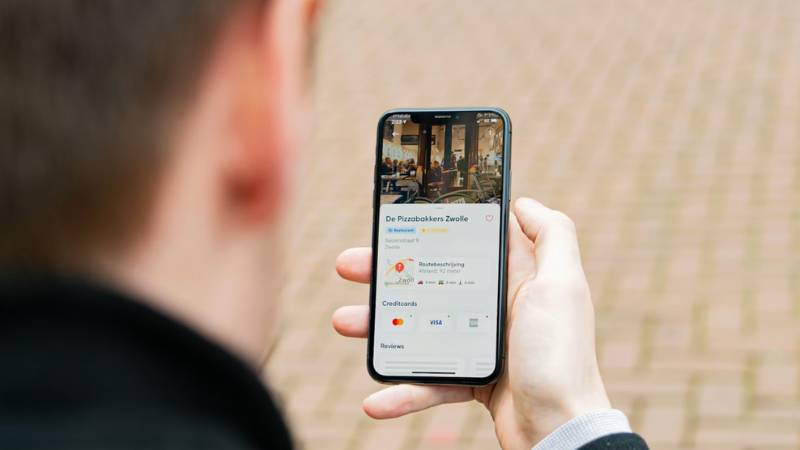
If you are trying to understand how to change autofill address on iPhone, it is important to know that Autofill pulls data from specific sources inside your device. Updating the correct location ensures your new address appears consistently across websites and apps.
Autofill does not randomly generate information. It uses data saved in your contact card, Safari settings, and payment details linked to Apple Pay.
2. Where Your Autofill Address Is Stored
Your autofill address may be stored in more than one place. If changes do not appear immediately, you may need to update multiple sections.
Contact Card (My Info)
The primary source for Autofill is your personal contact card, often labeled as My Card. This card contains your default name, phone number, email, and home address.
Safari and other apps rely on this contact entry to fill in forms. If your address is outdated here, it will continue to appear automatically when filling out online fields.
Safari Autofill Settings
Safari includes its own Autofill configuration under Settings. Inside this section, you can choose which contact card Safari uses for personal information.
If Safari is linked to the wrong contact card, updating your address in Contacts alone may not fix the issue. You must confirm that the correct “My Info” contact is selected.
Apple Pay Shipping Information
When making purchases with Apple Pay, your shipping address may be stored separately under Wallet settings.
Even if you update your contact card, Apple Pay might still use an old shipping address saved in payment settings. This can cause confusion during checkout.
To fully resolve how to change autofill address on iPhone, you should review all three areas to ensure your updated address is reflected everywhere.
>>> Read more: How to Factory Reset iPhone Safely: Complete Guide for Every Model
3. How to Change Autofill Address in Contacts
The main step in how to change autofill address on iPhone is updating your personal contact card. Since Autofill pulls information from “My Card,” correcting it here ensures forms use the right address.
Open Contacts App
Unlock your iPhone and open the Contacts app. You can also access Contacts through the Phone app by tapping the Contacts tab at the bottom.
Tap “My Card”
At the top of the contact list, you should see your name labeled as My Card. Tap on it to open your personal contact details.
If you do not see “My Card,” scroll to the top and confirm that one contact is set as your personal card in Settings.
Edit Address Field
Tap Edit in the top-right corner. Scroll down to the address section. You may see labels such as Home, Work, or Other.
Update the street, city, state, and ZIP code carefully. Make sure there are no spelling errors, as Autofill will use this exact information on websites.
Save Changes
After editing, tap Done in the top-right corner. Your updated address is now saved and will be used for Safari Autofill and other apps connected to your contact card.
This step resolves most issues related to how to change autofill address on iPhone.
4. How to Change Autofill Address in Safari
If your updated address does not appear automatically, Safari may be linked to the wrong contact card. You should confirm that Safari is using the correct “My Info” contact.
Go to Settings
Open the Settings app on your iPhone.
Tap Safari
Scroll down and tap Safari. This section contains browsing and Autofill options.
Select Autofill
Inside Safari settings, tap Autofill. You will see options for using contact info and credit cards.
Update “My Info” Contact
Tap My Info and confirm that your personal contact card is selected. If the wrong contact is listed, choose the correct one.
Once updated, Safari will pull address information from the selected contact card. This completes the Safari portion of how to change autofill address on iPhone.
5. How to Update Shipping Address for Apple Pay
Even after updating your contact card, Apple Pay may still use an older shipping address during checkout. To fully complete how to change autofill address on iPhone, you should also verify your Wallet settings.
Open Settings
Unlock your iPhone and open the Settings app.
Tap Wallet & Apple Pay
Scroll down and tap Wallet & Apple Pay. This section manages payment cards, billing details, and shipping information used for Apple Pay transactions.
Update Default Shipping Address
Under the Transaction Defaults section, tap Shipping Address. Select your updated address from the list or add a new one if necessary.
If you add a new address, enter all required fields carefully and confirm it is set as the default option.
After updating this section, Apple Pay will use the correct shipping address during purchases.
6. Why Autofill Address Is Not Updating
Sometimes, even after editing your address, the old information still appears. This usually happens because the data is stored in multiple locations.
Common reasons include:
- Safari is linked to the wrong “My Info” contact.
- Apple Pay has a separate default shipping address.
- iCloud contacts have not finished syncing.
- You edited a different contact instead of your personal card.
To fix this, double-check all sections discussed above and restart your device if changes do not appear immediately. Confirm that iCloud Contacts syncing is enabled under Settings > Your Name > iCloud.
Carefully reviewing each storage location ensures your updated address is reflected consistently across forms and payment pages.
7. Conclusion
After reading this guide on how to change autofill address on iPhone, you should now know exactly where your address information is stored and how to update it correctly. Whether the issue comes from your contact card, Safari Autofill settings, or Apple Pay shipping details, checking each section ensures your new address appears consistently. Taking a few minutes to update the right settings helps prevent delivery errors and saves time when filling out online forms in the future.
You can follow Botlanta for more practical tech tips, device troubleshooting guides, and easy step-by-step solutions to help you get the most out of your smartphone.
8. FAQs
Why does my old address keep appearing in Safari?
Safari may still be connected to an outdated contact card. Review the “My Info” setting in Safari Autofill and confirm it is linked to your updated personal contact.
Do I need to update both Contacts and Apple Pay?
Yes. Contact information controls general Autofill, while Apple Pay may store a separate shipping address. Updating both ensures consistency.
Will restarting my iPhone help refresh Autofill?
Restarting can help if syncing delays are causing issues, especially if you use iCloud Contacts.
Can apps other than Safari use the same Autofill address?
Yes. Many apps pull information from your main contact card, which is why updating it properly is essential.