How to change location on iPhone sounds straightforward until different types of “location” start overlapping. Maybe a weather app shows the wrong city. A delivery service thinks you are somewhere else. Or perhaps you need a different Apple region while traveling.
This guide explains what each type means, how to adjust settings properly, and what changes are actually possible.
1. Understanding What “Location” Means on iPhone First
Before learning how to change location on iPhone, it helps to understand that iPhone does not rely on one universal location system. Different settings control different types of locations. Changing one may not affect another.
GPS Location
GPS location uses:
- Satellites
- Wi-Fi networks
- Bluetooth signals
- Cellular towers
- Device sensors
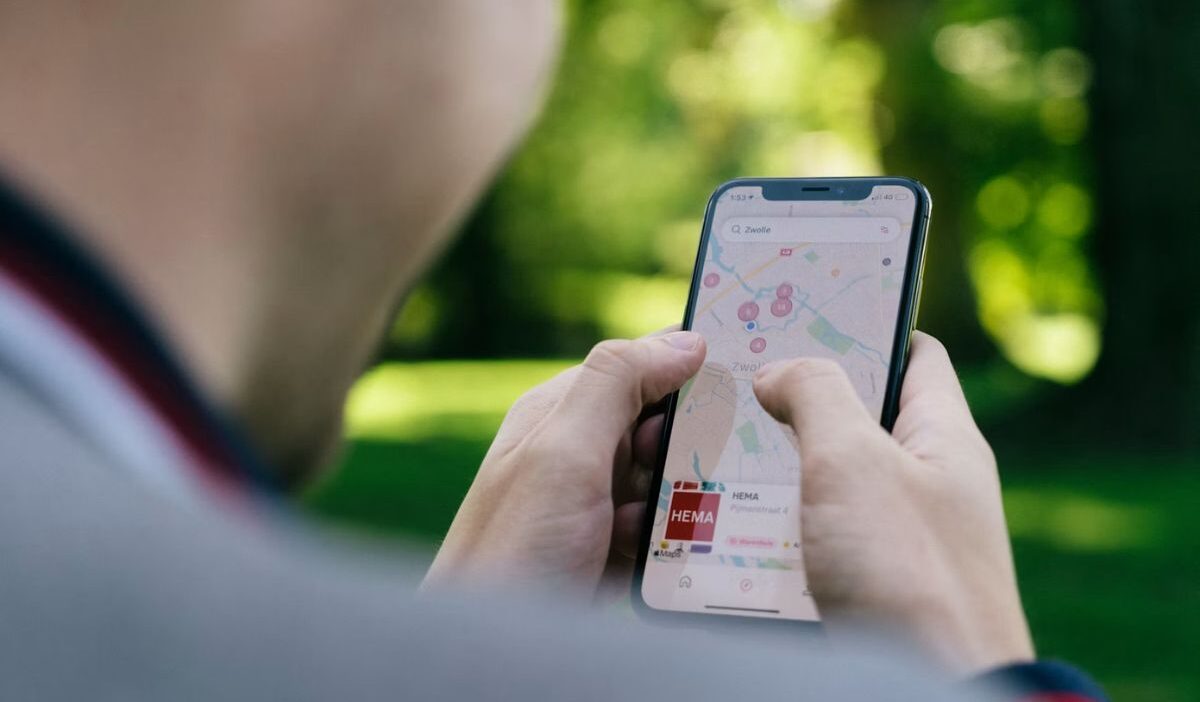
This determines physical positioning for apps such as:
- Maps
- Weather
- Ride-sharing services
- Delivery apps
GPS location updates are continuously based on movement.
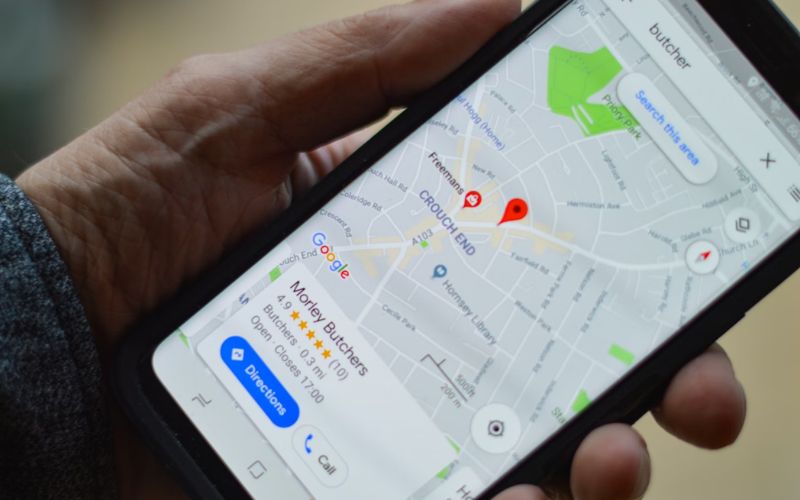
App Location Permissions
Apps do not automatically receive location access.
Permissions determine:
- Which apps access location
- When access occurs
- Whether the location remains precise or approximate
This explains why one app may show your city correctly while another appears inaccurate.
Apple ID Region
Apple ID region influences:
- App Store availability
- Subscription options
- Payment methods
- Regional content
Changing Apple ID region usually does not change GPS location, which partly explains why how to change location on iPhone often involves different settings depending on the type of location you want to modify.
Find My Location
Find My controls the location shared with:
- Family members
- Friends
- Shared devices
Users with multiple Apple devices may choose which device reports location.
VPN Location
VPNs primarily change IP-based location.
This may affect:
- Streaming content
- Websites
- Regional search results
However, GPS apps often continue using real device location.
>>> Read more: How to Share Location on iPhone: 5 Quick Method Must Know
2. How to Change Location On iPhone Using Location Services
Location Services controls whether apps access GPS information. Adjusting these settings often solves issues involving incorrect locations, privacy concerns, or apps tracking more data than expected.
Step 1: Open Location Services Settings
Open: Settings -> Privacy & Security -> Location Services
At the top of the screen, you will see: Location Services: ON / OFF
This setting acts as the main control for location access across apps, which makes how to change location on iPhone easier when adjusting permissions rather than GPS itself.
Step 2: Turn Location Services On or Off
Toggle: Location Services
Turning ON: Allows supported apps to access GPS information.
Turning OFF: Prevents most apps from using location data entirely.
However:
Disabling location services may affect:
- Maps navigation
- Weather updates
- Ride-sharing apps
- Delivery tracking
- Find My features
Step 3: Adjust Permissions for Individual Apps
Instead of disabling everything, users often prefer changing access app by app, which partly explains why how to change location on iPhone usually means adjusting permissions for specific applications.
- The app cannot access the location.
- Ask Next Time, Or When I share permission requests appear again later.
- While using the app location access works only during active use.
- Always app accesses location continuously when permitted.
Step 4: Enable or Disable Precise Location
Some apps display:
Precise Location
This controls whether apps receive:
- Exact location
- Approximate area only
Turning ON: Improves accuracy for:
- Navigation
- Ride-sharing
- Delivery apps
Turning OFF: Provides approximate location for increased privacy. The choice depends on whether accuracy or privacy matters more.
Step 5: Test Whether Changes Worked
After updating settings, open the affected app and verify whether the location behaves correctly.
For example:
- Check Maps’ accuracy
- Refresh Weather
- Open delivery apps
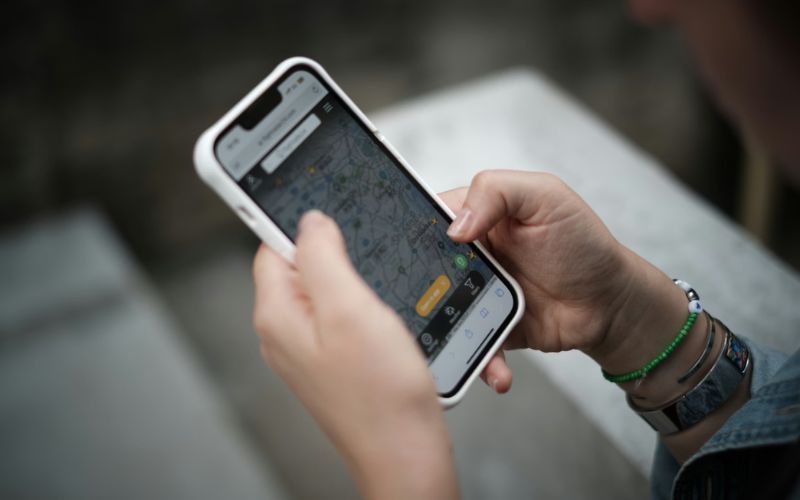
3. Changing Location On iPhone For Specific Apps
Sometimes only one app displays the wrong location, which partly explains why changing the location on iPhone often comes down to adjusting app permissions rather than changing device settings entirely.
Follow: Settings -> Privacy & Security -> Location Services -> Choose App
Then adjust:
- Allow access level
- Precise Location
- Background permissions
4. Adjusting Location on iPhone for Maps Accuracy
If Maps shows the wrong location, try these fixes:
Fix 1: Refresh the GPS signal
Turn Airplane Mode ON -> wait 10 seconds -> OFF, then reopen Maps.
Fix 2: Enable precise location
Open Settings -> Privacy & Security -> Location Services -> Maps -> turn on Precise Location
Fix 3: Check app permissions
Open: Settings -> Privacy & Security -> Location Services -> MapsChoose: While Using App or Always
Fix 4: Restart your iPhone
Restarting sometimes refreshes GPS and improves accuracy. These steps often fix inaccurate Maps locations without changing GPS settings directly.
5. Using VPN To Change Location On iPhone
VPNs change IP-based location, not necessarily GPS location.
A VPN may affect:
- Browsing region
- Streaming availability
- Website localization
However, GPS-dependent apps often continue using actual location. This explains why how to change location on iPhone through VPN produces mixed results.
How to Use a VPN on iPhone
- Install the VPN application
- Open the app and select the region
- Connect to the preferred country
- Verify IP location changed
How to Change Location on iPhone Without VPN. Possible alternatives include:
- Changing app permissions
- Updating Apple ID region
- Adjusting Find My location
- Using supported developer tools for testing purposes
However, most methods do not truly alter GPS positioning for everyday use.
>>> Read more: How to Turn Off Location on iPhone: Easy Ways For Privacy
6. FAQs
Why is my iPhone location wrong?
Possible causes include weak GPS signals, disabled precise location, outdated permissions, or software issues. Restarting the device or resetting location settings sometimes helps.
Can I fake my location on my iPhone?
Partially, depending on what “location” means. VPNs may alter IP location, while app permissions and developer tools influence certain behaviors. GPS location is harder to change reliably for ordinary users.
How do I change my location for Find My iPhone?
Open: Find My -> Me -> Use This iPhone as My Location. This changes the device used for shared location.
Does VPN change iPhone GPS location?
No. VPNs mainly change IP-based location, affecting websites, streaming services, or search results rather than actual GPS positioning.
Conclusion
Learning how to change location on iPhone becomes easier once you separate GPS, app permissions, Apple settings, Find My location, and VPN-based location.
Most confusion happens because users try adjusting one system while another controls the result.