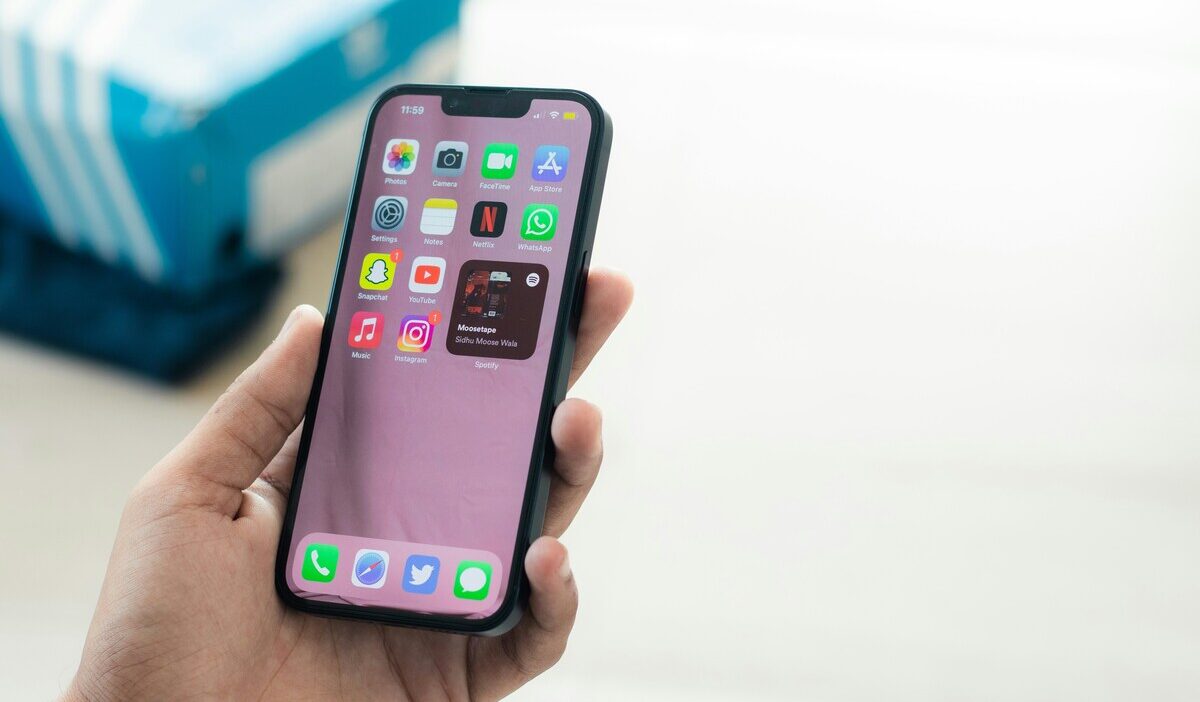
How to get rid of other storage on iPhone starts with understanding what that storage actually is. On newer iPhones, you may see System Data in iPhone Storage, while Finder or the Apple Devices app can still group some cached content under Other. Either way, there is no single trash button that wipes the category clean.
That is because much of this space belongs to files iOS creates and manages behind the scenes. You can trim some of it, but the better goal is to find what is actually eating your storage before swinging at every cache in sight.
1. What Counts as Other Storage (System Data) on iPhone
Think of Other or System Data as the miscellaneous drawer of iPhone storage. Apple says this area can include items such as:
- Siri voices
- Fonts and dictionaries
- System logs and caches
- Spotlight indexes
- Keychain and CloudKit data
- Other temporary or system-managed files
Apple also notes that Finder and the Apple Devices app may classify cached music, video, and photos as Other.
But not everything people call “cache” belongs there. Apps, Messages, Mail, Photos, and Media have their own storage categories, so deleting a large app or old message attachment may free plenty of space without moving the System Data number much.
The operating system itself is also separate, and its size varies by iPhone model and software version. There is no reliable 6 GB, 8 GB, or 10 GB target that every iPhone should match.
That is why the number alone does not tell the whole story.
2. When Should You Worry About System Data?
System Data naturally moves up and down. Your iPhone builds temporary files while you browse, stream, update apps, search content, and use the device, then iOS removes some cached files automatically when it needs more room.
Instead of chasing a “perfect” System Data number, look for practical warning signs:
- Your iPhone repeatedly shows Storage Almost Full
- You cannot install apps, take photos, or download updates
- System Data keeps growing while available storage becomes very low
- Storage remains unusually full even after removing large files you no longer need
Go to Settings > General > iPhone Storage first. Apple displays your available space, app usage, and storage recommendations there.
If you still have plenty of free space and the phone works normally, a larger System Data figure is not automatically a problem. If space is genuinely tight, start with the least disruptive cleanup.
3. How to Get Rid of Other Storage on iPhone
There is no direct way to erase all System Data, so work from the places where you actually have control.
Clear Safari’s cache:
Browsing can build up history, cookies, and website data over time. So, here is how to get rid of other storage on iPhone for Safari cache:
- Go to Settings > Apps > Safari
- Tap Clear History and Website Data
- Choose the timeframe
- Confirm Clear History
Apple confirms that this clears Safari history, cache, cookies, and other website data. Be aware that removing website data may sign you out of some sites.
It can free some space, but do not expect every gigabyte removed here to disappear directly from System Data.
Review apps using a lot of storage
Next, go back to:
Settings > General > iPhone Storage
Tap large apps to see how much space they use.
If an app has built up a lot of local data, you have a few options:
- Delete content from inside the app if it provides that option
- Offload App to remove the app itself while keeping its documents and data
- Delete App to remove both the app and its related data, then reinstall it if needed
Apple distinguishes those two options clearly: offloading keeps documents and data, while deleting removes them.
So if the data itself is the problem, offloading may not move the needle.
Clean up old Messages
Messages and their attachments can quietly become storage hogs, even though they belong to the Messages category rather than System Data.
Go to:
Settings > Apps > Messages > Keep Messages
Then choose 30 Days, 1 Year, or Forever.
Choosing a shorter period automatically removes conversations and attachments once they pass that age. If you use Messages in iCloud, those deletions also sync to your other devices using Messages in iCloud.
This may not shrink System Data specifically, but it can free the storage you were trying to find the answer for how to get rid of other storage on iPhone in the first place.
Let iOS manage temporary files
You do not need to force restart an iPhone to “flush” System Data.
Apple says iOS automatically removes cached and temporary files when storage is needed.
A normal restart is fine if the phone is behaving strangely, but a force restart is meant for an unresponsive iPhone, not routine storage maintenance.
In other words, do not keep shaking the tree when iOS is already designed to drop temporary files on its own.
>>> Read more: How to Check iPhone Storage: See What Is Taking Up Space
4. Advanced Cleanup: Backup and Reset
If storage remains abnormally full after normal cleanup, a backup and erase can be considered as a last resort, not the first line of attack of how to get rid of other storage on iPhone.
Before doing anything:
- Make a current backup to iCloud or a computer
- Make sure important photos, files, and account information are safely stored
- Update iOS if an update is available
- Confirm that ordinary storage cleanup has not solved the problem
If you still decide to erase the phone, go to:
Settings > General > Transfer or Reset iPhone > Erase All Content and Settings
You can then restore from your backup.
An erase may remove temporary or corrupted local data, but it is not a guaranteed permanent fix for System Data. Restoring your apps and content can cause caches and system files to build again.
For that reason, a factory reset is more like rebuilding the room than taking out the trash. It makes sense only when the storage problem is severe enough to justify the extra work.
>>> Read more: How to Restore iPhone From Backup: Complete Guide for iCloud and iTunes for 2026
5. FAQ
Q1. How do I clear Other storage on my iPhone?
There is no single button to clear all Other or System Data. Start with Settings > General > iPhone Storage, then clear unnecessary Safari data and review apps or downloads using large amounts of space.
Q2. How do I get rid of Other in Apple storage?
Some Other/System Data is managed automatically by iOS and cannot be manually deleted. Focus on removable content first rather than trying to force the category down to a specific number.
Q3. How do I remove others from phone storage?
On iPhone, Other or System Data includes system-managed files such as caches, logs, indexes, and other resources. You can reduce some contributing data, but part of the category is necessary for iOS and cannot be removed.
Conclusion
Understanding how to get rid of other storage on iPhone is really about separating storage you control from storage iOS manages for you. Safari data, oversized apps, old messages, and downloads can be cleaned up, while caches, indexes, and other system files will naturally come and go.
So do not judge the health of your iPhone by one System Data number alone. The more useful measure is whether you have enough free space for the things you actually want to keep and do.