If you have ever removed an app from your Home Screen or accidentally swiped it out of sight, knowing how to unhide apps on iPhone can save you a lot of searching.
Apps do not get deleted when you hide them; they are still on your device, just tucked away.
There are a few reasons an app might disappear from view: you may have moved it to the App Library, hidden an entire Home Screen page, or restricted it through Screen Time.
This guide covers every scenario so you can find hidden apps on iPhone, no matter how they got there.
How to Unhide Apps on iPhone If You Removed Apps From Your Home Screen
When you remove an app from your Home Screen, iOS does not delete it. Instead, the app moves to the App Library or stays installed in the background. Here are the three fastest ways to get it back.
Find Them in the App Library
The App Library is a built-in screen that holds every app installed on your iPhone, organized into automatic categories. To open it, swipe left past all your Home Screen pages until you reach it.
Once inside, you can scroll through folders or use the search bar at the top to type the app name. When you find the app, press and hold its icon, then tap Add to Home Screen to move it back to your main view.
Search Using Spotlight
Spotlight search is one of the quickest ways to find hidden apps on iPhone without opening any menus. Swipe down from the middle of any Home Screen to open Spotlight.
Type the name of the app in the search bar. It will appear in the results even if it is not visible on any Home Screen page. Tap the icon to open the app directly, or long-press it to add it back to your Home Screen.
Restore From a Hidden Home Screen Page
iOS lets you hide entire Home Screen pages, which can make multiple apps disappear at once.
To check if a page was hidden, press and hold an empty area of your Home Screen until the icons start to jiggle.
Tap the row of dots at the bottom of the screen. You will see small previews of all your Home Screen pages. Pages with a filled circle below them are visible; pages with an empty circle are hidden.
Tap the empty circle next to any page you want to restore, then tap Done. All apps on that page will reappear on your Home Screen, that how to unhide apps on iPhone
If Apps Were Hidden Using iPhone Features
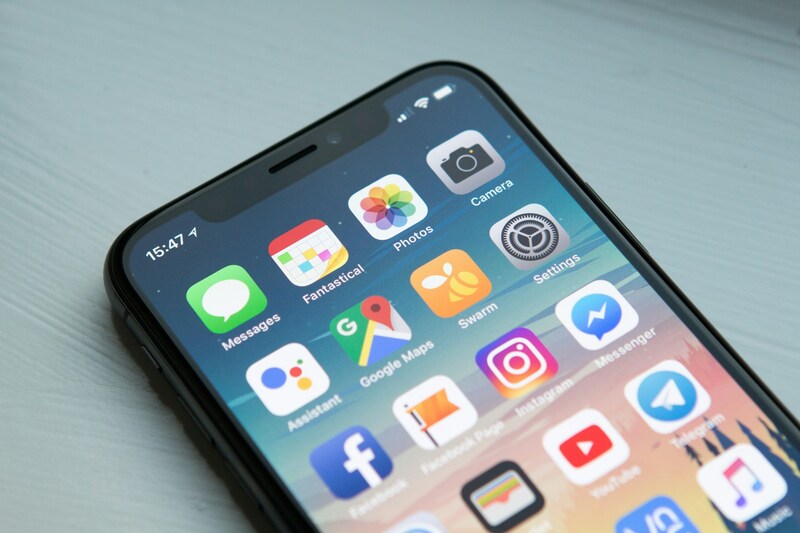
Some apps disappear not because they were moved, but because an iPhone feature is actively hiding them. The two most common causes are Screen Time restrictions and hidden App Store purchases.
Apps Restricted by Screen Time
Screen Time restrictions can hide or block specific apps entirely. If an app icon is missing and the methods above did not work, Screen Time is a likely reason.
To check, go to Settings > Screen Time > Content & Privacy Restrictions. Make sure the toggle is on, then tap Allowed Apps. Any app that is toggled off will not appear on your Home Screen or in search results.
Turn the toggle on for the app you want to restore. According to Apple Support, you may need a Screen Time passcode to make this change if one was set up by another person.
>>> Read more: How to Unblock a Number on iPhone: Quick and Easy Steps for 2026
Apps Hidden in App Store Purchase History
If you hid an app from your App Store purchase history, it will not appear in your purchased list, but it can still be reinstalled, or in other words, how to unhide apps on iPhone. Open the App Store and tap your profile icon in the top-right corner, then tap Purchased.
Hidden purchases are not visible here by default. To unhide them, go to Settings > [Your Name] > Media & Purchases > View Account. Scroll down and tap Hidden Purchases. Find the app and tap the cloud icon to reinstall it. In addition, it will reappear in your regular purchase history.
FAQs
Why can I not find an app on my iPhone home screen?
The most common reasons are that the app was removed from the Home Screen and moved to the App Library, a Home Screen page was hidden, or Screen Time restrictions are blocking it. Check the App Library first by swiping left past all your pages, then try Spotlight search to confirm the app is still installed.
How do I unhide apps hidden by Screen Time?
Go to Settings > Screen Time > Content & Privacy Restrictions > Allowed Apps and turn on the toggle for the app you want to restore. If a Screen Time passcode is active and you did not set it yourself, you will need the passcode to make changes.
Can you hide apps on iPhone without deleting them?
Yes. You can remove an app from your Home Screen by holding it and selecting Remove from Home Screen. The app moves to the App Library and stays fully installed. You can also hide an entire Home Screen page, or use Screen Time to restrict access – neither method deletes the app.
How do I see all apps installed on my iPhone?
The App Library shows every app installed on your device. Swipe left past all your Home Screen pages to open it. You can also use Spotlight search to find a specific app quickly.
For a full list including hidden App Store purchases, check Settings > [Your Name] > Media & Purchases > View Account > Hidden Purchases.
Conclusion
There are several ways of how to unhide apps on iPhone, and the right method depends on how the app ended up hidden in the first place.
For apps removed from the Home Screen, the App Library and Spotlight search are your fastest options.
For apps blocked by restrictions or missing from your purchase history, the fixes are a few taps deeper in Settings.
Either way, no app is gone for good, you just need to know where iOS keeps them.