How to update apps on iPhone usually becomes a question when an app suddenly stops working smoothly or misses features others seem to have. You open an app expecting it to run normally, but instead it crashes, loads slowly, or looks outdated.
So you start looking for a quick way to fix it without wasting time.
Let’s walk through the exact steps so you can keep your apps updated and running properly.
1. Why Updating Apps on iPhone Actually Matters
Updating apps is not just a routine action. It is essential to know how to update apps on iPhone since each update directly affects how your iPhone performs, how secure your data is, and how smoothly apps function in daily use.
- Improves performance and stability
App updates fix bugs and optimize how the app runs. When issues are resolved, apps become faster, smoother, and less likely to crash during use.
- Enhances security and data protection
Updates often include security patches that close vulnerabilities. Without these updates, your personal data may be exposed to risks that have already been fixed in newer versions.
- Adds new features and a better experience
Developers regularly introduce improvements that make apps easier and more efficient to use. This means you gain access to new tools, updated designs, and better functionality.
- Ensures compatibility with the iOS system
As iOS evolves, apps must update to stay compatible. Without updates, apps may stop working properly or fail to open after system changes.
2. How to Update Apps on iPhone Manually
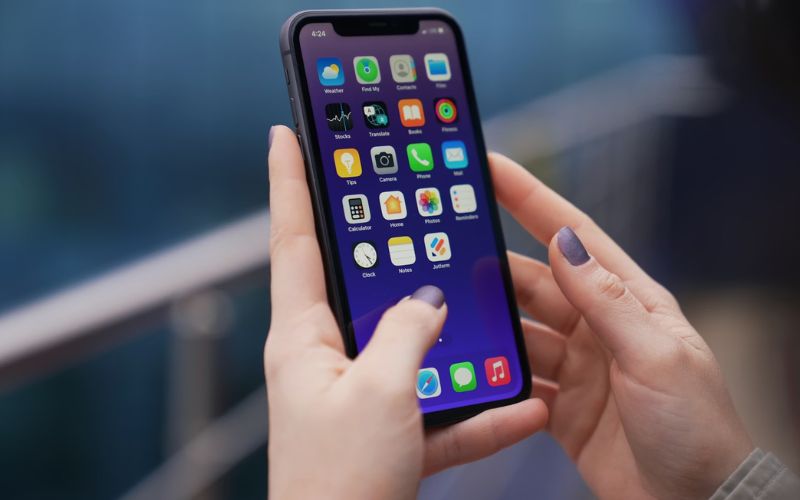
You can update the apps manually by choice to update only the ones that you find most needed for your usage
Step-by-Step to Update Individual Apps
The steps for updating the app are generally as follows:
Step 1: Open the App Store
Tap the App Store icon on your home screen to access the platform where all app downloads and updates are managed.
Step 2: Tap your profile icon
Look at the top right corner and tap your profile picture or icon. This opens your account page, where Apple groups all pending updates and recent activity in one place.
Step 3: Scroll to available updates
Move down the screen until you reach the updates section. Here, you will see a list of apps that have new versions ready to install, along with brief details about what has changed.
Step 4: Tap “Update” next to an app
Press the “Update” button beside the app you want. This action starts downloading and installing the latest version, which is a key step in how to update apps on iPhone manually.
Step 5: Monitor the update process
A loading circle will appear while the update is in progress. You can stay on the screen or leave the App Store, and the process will continue in the background.
Step 6: Wait for completion and reopen the app
Once finished, the “Update” button will change to “Open.” You can tap it to launch the updated app and confirm everything is working properly.
>>> Read more: How to Change Home Address on iPhone: The Complete and Easy Guide That Actually Works 2026
How to Update All Apps at Once
A more convenient way to save time and do it one time only í to use the update all at once feature. You can do it as follows:
Step 1: Launch the App Store
Tap the App Store icon, then select your profile picture in the top right corner. This takes you to the account page, where all pending updates are listed, which is the central place for how to update apps on iPhone efficiently.
Step 2: Scroll to the updates section
Move down until you see the list of apps with available updates. Each app will show a brief note about improvements, helping you understand what changes are included.
Step 3: Tap “Update All”
Press the “Update All” button to start updating every app at once. This saves time compared to updating each app individually and ensures your entire system stays current.
Step 4: Monitor the download and installation process
Your iPhone will begin downloading multiple updates, usually prioritizing them automatically. You can continue using your phone while updates run in the background.
Step 5: Wait for all apps to finish updating
Once completed, the update buttons will change to “Open.”
3. How to Update Apps on iPhone Automatically
Updating can feel slow and unnecessary at times, even though it plays an important role in keeping your device running well.
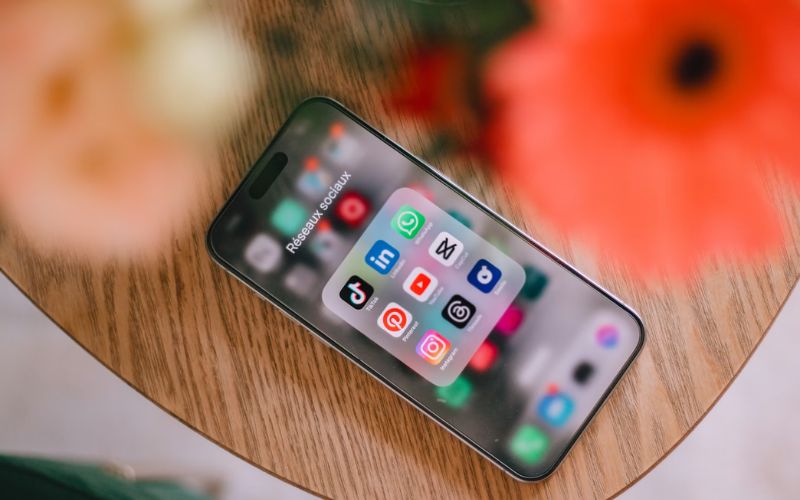
The good news is that you can set updates to happen automatically, saving you time and effort.
You can also choose to update manually when needed, so you stay in control while making sure your device stays up to date and runs smoothly with the latest apps.
Step 1: Open Settings
Begin by opening the Settings app on your iPhone. This is where you control system behavior, including how updates run in the background.
Step 2: Scroll Down and Tap App Store
Scroll down until you find “App Store” and tap it. This section manages how apps are downloaded, installed, and updated automatically.
Step 3: Turn On App Updates
Find the “App Updates” toggle under Automatic Downloads and turn it on. Once enabled, your iPhone will automatically install updates without requiring manual action.
Step 4: Enable Automatic Downloads (Optional)
Make sure “Automatic Downloads” is also turned on. This allows your device to handle updates in the background without needing you to open the App Store.
Step 5: Check Wi-Fi and Power Conditions
Your iPhone usually updates apps when connected to Wi-Fi and sometimes while charging. This ensures updates do not interrupt your normal usage or consume too much battery.
Step 6: Verify Updates Are Working
After enabling the feature, check the App Store occasionally to confirm apps are updating automatically. This helps ensure your setup for how to update apps on iPhone is working as expected.
>>> Read more: How to Rotate Screen on iPhone: Quick Fixes That Actually Work Instantly 2026
4. Common Reasons Apps Won’t Update on iPhone
If your apps are not updating as expected, it usually comes down to a few common reasons behind the issue.
- Poor Internet connection
Slow or unstable networks can interrupt downloads. When the connection drops or fluctuates, your iPhone may pause, fail, or repeatedly restart the update process, making it difficult to complete how to update apps on iPhone successfully.
- Not enough storage space
Updates require free space to install properly. If your device is nearly full, the system cannot download or unpack update files, which causes the update to fail or not start at all.
- Apple ID or App Store issues
Sign-in problems can block updates. If your Apple ID is not properly authenticated or there is a syncing error, the App Store may prevent downloads until the account is verified again.
- System restrictions or settings conflicts
Certain settings may prevent updates from running. Features like Screen Time restrictions, disabled background updates, or incorrect App Store settings can stop updates even when everything else seems normal.
5. How to Fix App Update Problems Quickly
Once you know what might be causing the issue, you can go through a few quick fixes to get your apps updating again.
Restart your iPhone
Restarting your device helps clear temporary system glitches that may block updates. When background processes conflict, updates can fail or get stuck.
Check storage and free up space
Go to Settings and review your storage usage. If your iPhone is nearly full, updates may not download or install properly. Delete unused apps, photos, or files to create enough space so how to update apps on iPhone can proceed smoothly.
Sign out and back into Apple ID
If there is a problem with your Apple ID, updates may be blocked. Sign out of your Apple ID in Settings, then sign back in to refresh the connection with the App Store.
Update iOS software if needed
An outdated iOS version can cause compatibility problems with newer app updates. Go to Settings and check for system updates, then install the latest version if available. Keeping iOS current ensures how to update apps on iPhone works without errors or conflicts.
6. FAQs
How to update apps on iPhone without Wi-Fi?
You can use mobile data if allowed in settings. However, large updates may still require Wi-Fi depending on system rules.
Why are my apps not updating automatically?
Automatic updates may be turned off, or your device may not be connected to Wi-Fi or power.
Do app updates take up storage?
Yes, updates require temporary space during installation, but they may optimize storage after completion.
Should I update all apps regularly?
Yes, regular updates improve performance, fix bugs, and enhance security.
Conclusion
Keeping your apps updated is one of the simplest ways to maintain performance and security on your device. Once you understand how to update apps on iPhone, the process becomes quick and routine.
Take a moment to check your updates, enable automatic settings if needed, and fix any issues early. Staying updated helps your iPhone run smoothly and avoids unnecessary problems over time.