How to make a sticker on iPhone is the kind of question that comes up the moment you see someone send a sticker that feels personal and a little more expressive than a regular emoji. It might come from a photo, a reaction, or a small detail that somehow says more than words.
That is when curiosity kicks in, and you start wondering how something so simple can feel so custom and unique.
Let’s walk through how you can turn your own photos into stickers and start using them in your conversations.
1. How to Make a Sticker on iPhone From a Photo
Let’s start with the fun part, turning a simple photo into a sticker you can actually use in your chats.
Step 1: Open photos
Open the Photos app and browse your gallery. Choose an image where the subject stands out clearly from the background for better results.
Step 2: Select a photo
Tap on the photo you want to use. A clear subject helps the system detect edges more accurately.
Step 3: Press and hold the subject
Press and hold the main subject in the photo. Your iPhone will automatically lift it from the background using built-in image recognition.
Step 4: Tap add sticker
Once the subject is highlighted, tap “Add Sticker.” This saves it to your sticker collection, completing the process of how to make a sticker on iPhone directly from a photo.
2. How to Make a Sticker on iPhone Using Live Photos
If you want your stickers to feel a bit more lively, you can also create them using Live Photos.
Step 1: Open photos
Go to the Photos app and locate your Live Photos. These images include motion, which adds a dynamic effect.
Step 2: Select a live photo
Choose a Live Photo where the subject moves slightly. This helps create more expressive stickers.
Step 3: Press and hold the subject
Press and hold the subject just like with a regular photo. The system isolates the subject while preserving motion.
Step 4: Tap add sticker
Tap “Add Sticker” to save it. This creates a more animated version, showing how to make a sticker on iPhone can go beyond static images.
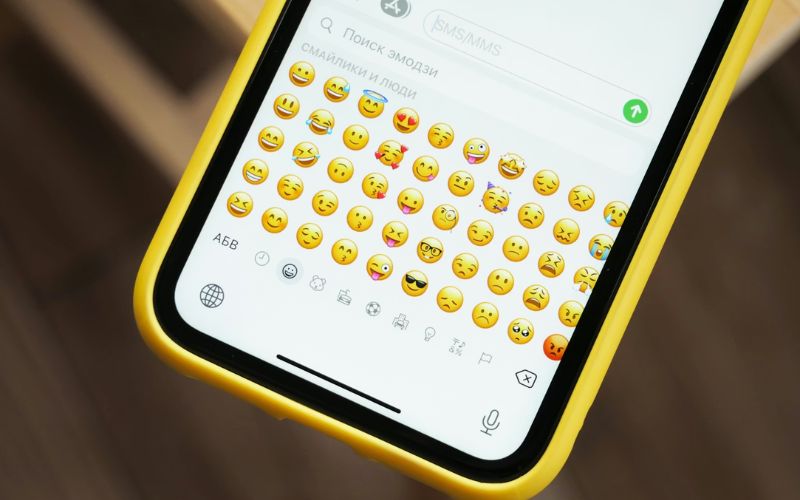
3. How to Add and Use Stickers in Messages
Once you have learned how to make a sticker on iPhone, the next step is learning how to add them and start using them in your messages.
Step 1: Open messages
Open the Messages app on your iPhone and make sure you are using iMessage, not regular SMS. Stickers work best within iMessage conversations where full features are available.
Step 2: Open a conversation
Tap into any existing chat or start a new one. This is where you will send your sticker, just like sending a normal message or image.
Step 3: Tap the apps icon
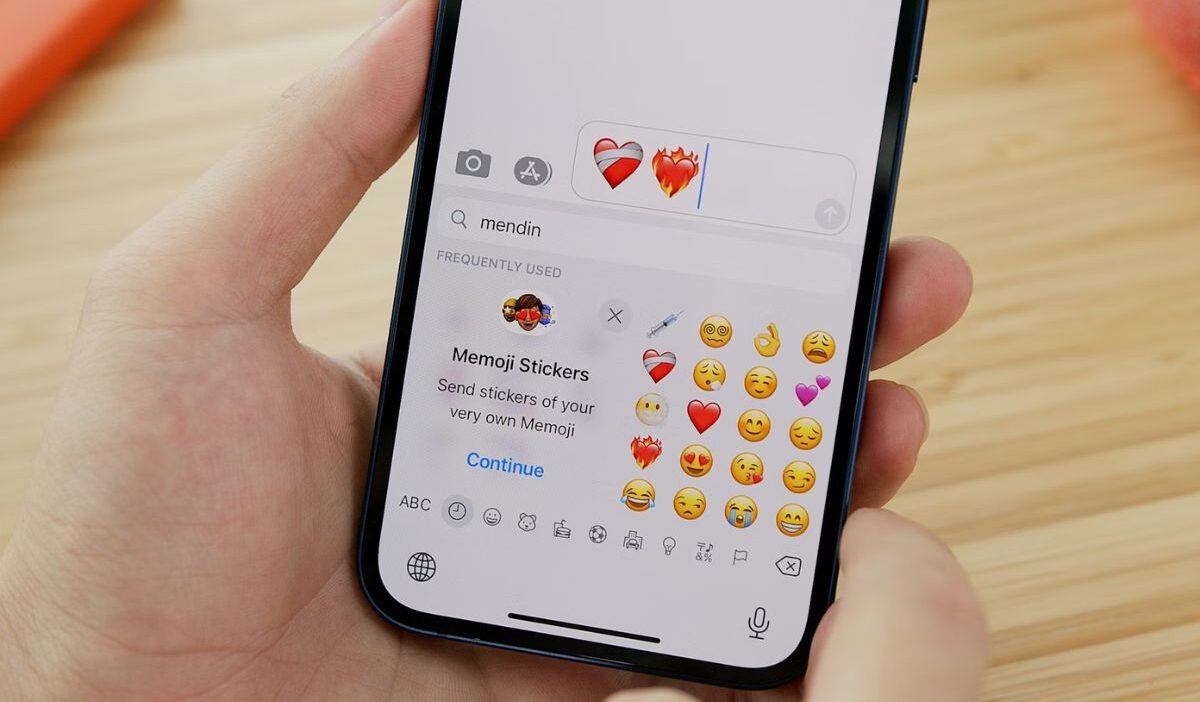
Find the “+” or Apps icon beside the text field, then tap on it. This opens a panel with additional features, including your sticker library.
Step 4: Open the stickers section
Scroll through the available options and select the stickers section. Here, you will see all the stickers you have created or saved.
Step 5: Select a sticker
Tap on a sticker to preview it. You can also drag and drop it onto a message bubble if you want to react in a more interactive way.
Step 6: Send the sticker
Tap the sticker or press send to share it in the conversation. This completes the process of using how to make a sticker on iPhone in real messaging situations.
>>> Read more: How to Remove People From Pictures on iPhone: The Ultimate Step-by-Step Guide That Actually Works 2026
4. How to Edit and Customize Stickers on iPhone
If you want your stickers to feel more personal, you can edit and customize them to match your style.
Step 1: Open messages
Launch the Messages app and go into any conversation. This is where your sticker collection is accessible for editing.
Step 2: Access stickers
Tap the Apps icon and open your sticker library. All your saved stickers will appear here, ready for customization.
Step 3: Press and hold a sticker
Press and hold the sticker you want to edit. This action brings up additional options, including editing features.
Step 4: Tap edit effect
Select “Edit Effect” from the menu. This allows you to change how the sticker looks without needing to recreate it.
Step 5: Choose a style
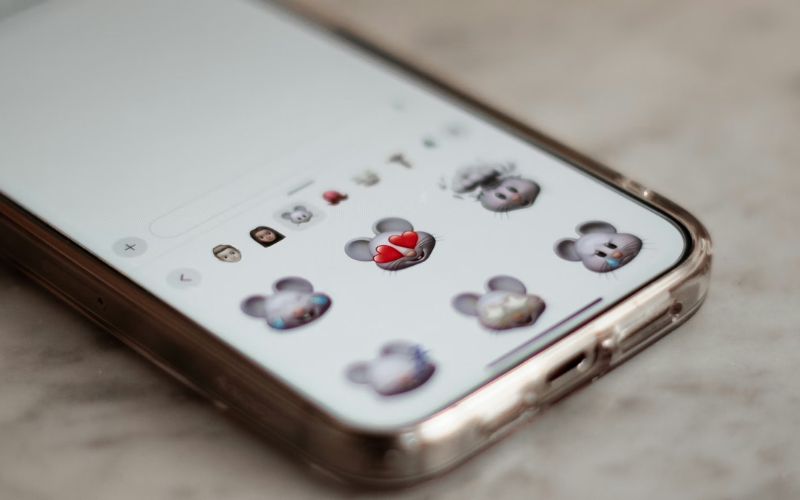
Pick from different styles such as outline, comic, puffy, or shiny. Each style changes the visual appearance and makes the sticker more expressive.
Step 6: Save changes
Confirm your selection to apply the effect. Your updated sticker will now appear in your collection, showing how to make a sticker on iPhone also includes personalization beyond the initial creation.
5. Tips to Create Better Stickers on iPhone
Before you start creating more, it helps to know a few simple tips that can make your stickers look cleaner and more expressive.
- Use clear subjects
Photos with simple backgrounds work best. When the subject stands out clearly, your iPhone can detect edges more accurately and create a cleaner sticker. Busy or cluttered backgrounds can confuse the system and lead to uneven cutouts.
- Focus on lighting
Bright images improve detection accuracy. Good lighting helps your phone recognize details like edges, shadows, and shapes more precisely. Dark or low-light photos may result in blurry or incomplete stickers.
- Choose expressive moments
Emotion makes stickers more engaging. A smile, reaction, or unique pose adds personality and makes the sticker feel more natural in conversations. These small details turn a simple image into something more meaningful.
- Experiment with effects
Different styles can change how the sticker feels. Trying options like outline or comic effects can enhance visibility and make your sticker stand out. Small adjustments in style can completely change the mood and impact of your sticker.
6. FAQs
How to make a sticker on an iPhone without apps?
You can create stickers directly in the Photos app without installing anything extra. Just open a photo, press and hold the subject, then tap “Add Sticker” when it appears.
Can I create animated stickers on my iPhone?
Yes, you can create animated-style stickers by using Live Photos. When you press and hold the subject in a Live Photo, your iPhone keeps subtle motion in the sticker.
Where do my stickers go after creating them?
After creating a sticker, it is automatically saved in the Messages app under the sticker section. You can access it anytime by opening a conversation and tapping the Apps icon.
Conclusion
Learning how to make a sticker on iPhone gives you a simple way to turn everyday photos into something creative and personal. The process is quick, but the impact is noticeable in how you communicate.
Try creating a few stickers from your own photos, experiment with effects, and use them in conversations. Once you start, it becomes an easy habit that makes your messages more expressive and engaging.