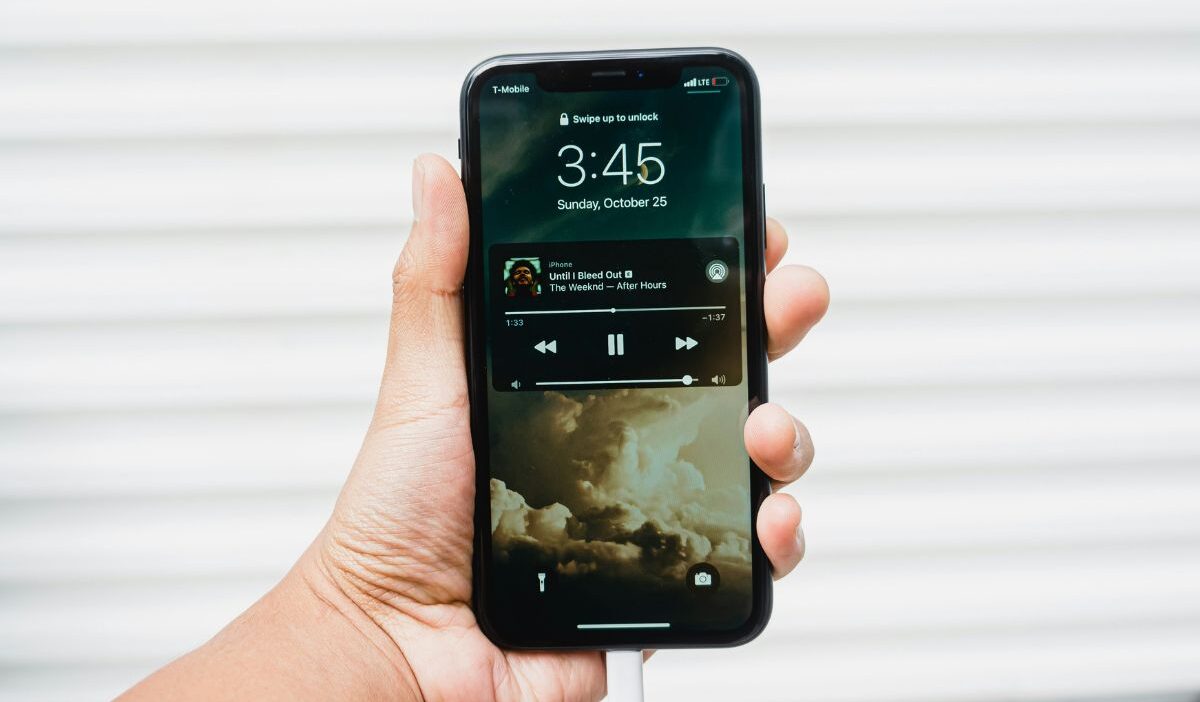
Disabling the lock screen on your iPhone can make device access faster and more convenient for certain tasks, especially when you frequently use your phone throughout the day.
For detailed instructions and expert tips on customizing your iPhone experience, refer to the full guide on Botlanta to learn how to turn off lock screen iPhone safely and effectively.
1. How to Turn Off Lock Screen on iPhone?
Disabling the lock screen on an iPhone is not as straightforward as some users might hope. Understanding Apple’s design limitations and available alternatives helps you manage your device efficiently while maintaining security.
You Can’t Fully Disable the Lock Screen
Apple does not allow users to completely turn off the lock screen on iPhones for security reasons. The lock screen protects personal data, prevents unauthorized access, and ensures that notifications and sensitive content remain private.
Even if you want instant access to your device, iOS requires some form of authentication, such as Face ID, Touch ID, or a passcode. This design choice prioritizes user safety and helps prevent accidental changes or security breaches, making it impossible to fully disable the lock screen.
What You Can Do Instead
While you cannot remove the lock screen entirely, there are ways to minimize its impact on daily use. Adjusting auto-lock settings allows the screen to stay active longer, reducing how often you need to unlock your iPhone.
You can also enable features like Face ID or Touch ID for faster access, or use guided access to keep the device unlocked temporarily for specific apps. These alternatives offer convenience while maintaining a level of security that Apple considers essential for all iPhone users.
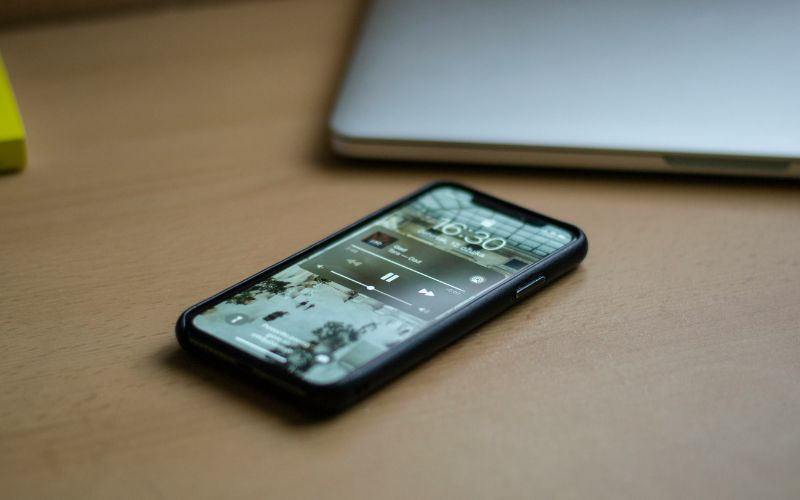
2. How to Stop Your iPhone Screen From Locking Automatically
If you want your iPhone screen to stay on longer without constantly unlocking it, adjusting the auto-lock settings is the most effective solution.
This method is especially helpful if you’re learning how to turn off lock screen iPhone, as it allows you to control how long your screen remains active, improving convenience while still keeping essential security features intact.
Open Settings and Tap Display & Brightness
First, unlock your iPhone and open the Settings app, which contains all device customization options.
Scroll down and tap on Display & Brightness to access screen and display-related settings. This section allows you to modify brightness, text size, and auto-lock duration, providing a central location to manage how your iPhone behaves when idle.
Select Auto-Lock
Within the Display & Brightness menu, locate and tap on Auto-Lock. This option controls how long your iPhone waits before locking the screen automatically. By accessing Auto-Lock, you can choose a timing that suits your usage habits, whether you want a short duration for security or a longer period for convenience.
Choose “Never”
After opening the Auto-Lock settings, scroll through the available options and select “Never” to prevent your iPhone screen from locking automatically.
Choosing this setting ensures that your screen remains on until you manually lock it, which is useful during extended reading, presentations, or app usage.
Keep in mind that leaving the screen on indefinitely may impact battery life, so consider your usage patterns before selecting this option.
>>> Also read: How to Print Pictures From iPhone: Easy Methods at Home or in Store 2026
3. How to Remove Passcode and Lock Screen Security
Removing your iPhone passcode can make accessing your device faster, but it also reduces the level of security protecting your personal data.
Understanding the correct steps ensures that you can disable the passcode safely without causing issues with your device or apps.
Go to Face ID & Passcode Settings
To begin, open the Settings app on your iPhone and scroll down to locate Face ID & Passcode (or Touch ID & Passcode on older models).
This section manages all security settings related to unlocking your device, including passcodes and biometric options. Accessing this menu is the first step to modifying or removing your lock screen security while keeping your device under control.
Enter Your Current Passcode
Once you open the Face ID & Passcode settings, the iPhone will prompt you to enter your current passcode.
This verification step ensures that only the authorized user can make changes to security settings. Entering the correct passcode confirms your identity and allows you to proceed safely with removing the lock screen protection.
Tap Turn Passcode Off
After verifying your identity, scroll down and tap the option labeled Turn Passcode Off. The iPhone will prompt you to confirm this action, warning you that disabling the passcode reduces security.
Confirming this step removes the lock screen passcode, allowing you to access your device without entering a code or using biometric authentication, though your device will now be more vulnerable to unauthorized access.
4. How to Customize Lock Screen Instead of Turning It Off
Customizing your iPhone lock screen allows you to personalize your device while keeping essential security features intact.
By adjusting widgets, notifications, and focus settings, you can make your lock screen more functional and suited to your daily needs without fully disabling it.
Change Lock Screen Widgets
You can add or modify widgets on your lock screen to access important information quickly.
Open the Settings app, go to Lock Screen, and tap Customize to select the widgets you want to display, such as calendar events, weather, or shortcuts.
Changing lock screen widgets provides immediate access to relevant data without unlocking your iPhone, making your device more convenient while maintaining security.
Adjust Notifications on Lock Screen
Managing notifications on your lock screen helps reduce distractions and control what content is visible.
Navigate to Settings > Notifications, and select which apps can show alerts on the lock screen, choosing between banners, previews, or none.
Adjusting these settings ensures that sensitive information remains private while still allowing you to see critical updates at a glance.
Use Focus Modes
Focus modes allow you to control how notifications appear on your lock screen during specific activities like work, sleep, or personal time.
By going to Settings > Focus, you can customize which notifications and apps are allowed, ensuring that only relevant alerts appear when the screen is locked.
Using Focus modes makes the lock screen more functional and tailored to your routine without compromising device security.
5. FAQs About Turning Off Lock Screen on iPhone
Turning off the lock screen on an iPhone can make device access faster, but it often raises questions about security and functionality. Understanding the limitations and best practices ensures you manage your iPhone safely and efficiently.

Can I completely disable the lock screen on iPhone?
No, Apple does not allow users to fully disable the lock screen on iPhones. The lock screen is a core security feature designed to protect your personal data and prevent unauthorized access. While you can reduce its frequency using Auto-Lock or remove the passcode, some form of lock screen or authentication will always remain on the device.
Is it safe to turn off the passcode?
Turning off the passcode can make your iPhone more convenient to access, but it significantly reduces security.
Without a passcode, anyone can access your messages, apps, and sensitive information if your phone is lost or stolen. It is generally recommended to keep a passcode, Face ID, or Touch ID enabled to protect your data while maintaining convenience.
Why is Auto-Lock not working?
The Auto-Lock feature may also fail if certain apps, like video players or navigational tools, are currently running on your iPhone. Also, if you have enabled the Low Power Mode or Screen Time feature, it may affect the Auto-Lock feature. To resolve the issue, you should check the Auto-Lock feature under the Settings app, then Display & Brightness, then Auto-Lock.
Final Words
Turning off or customizing the lock screen on your iPhone can make device access faster and more convenient, but it’s important to balance ease of use with security.
If you’re exploring how to turn off lock screen iPhone, adjusting settings like Auto-Lock, passcode options, and lock screen widgets can help tailor your device to suit your daily needs without compromising safety.