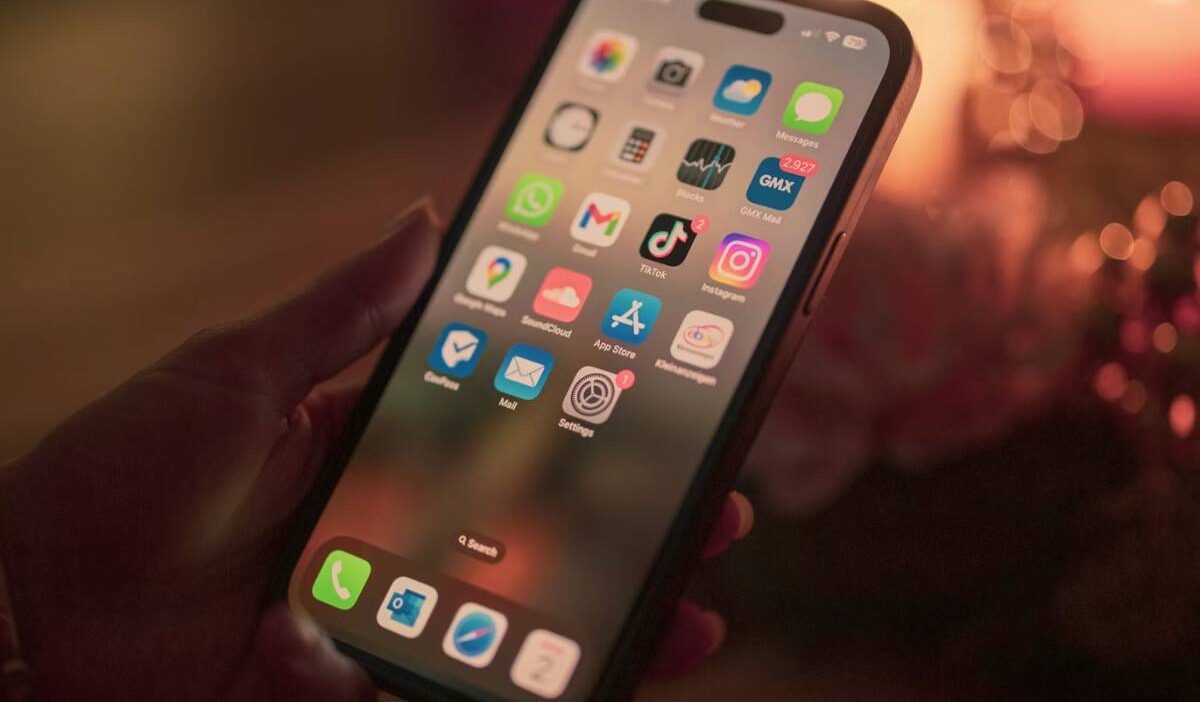
If you use your iPhone every day, the Home Screen becomes more than just a grid of apps. It is the space where you access tools, check updates, and organize your digital life. Knowing how to change home screen on iPhone allows you to personalize that space so it works the way you prefer.
From rearranging apps and creating folders to adding widgets and updating wallpaper, iOS offers multiple ways to customize your layout. Whether you want a cleaner look, faster access to essential apps, or a more aesthetic design, this guide explains exactly how to adjust your Home Screen step by step.
1. What You Can Actually Change on the iPhone Home Screen
Before learning how to change home screen on iPhone in detail, it helps to understand what elements are customizable. Apple does not allow full system redesigns, but you still have meaningful control over layout and appearance.
On the iPhone Home Screen, you can:
- Rearrange app positions
- Create and rename folders
- Add, remove, and stack widgets
- Change wallpaper and visual effects
- Hide entire app pages
- Choose which apps appear on each screen
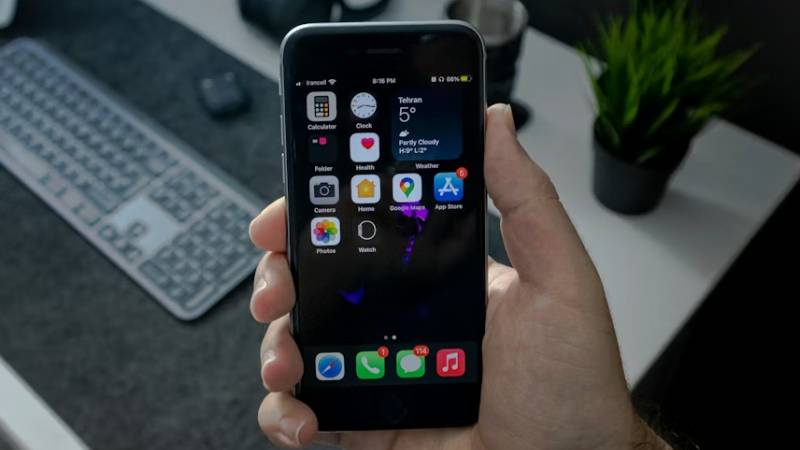
However, some elements remain fixed. For example, app icon shapes and overall grid spacing cannot be modified without third-party tools. Knowing these limits prevents frustration while customizing your layout.
Once you understand what can be adjusted, the next step is organizing your apps efficiently.
2. How to Rearrange Apps on iPhone Home Screen
Rearranging apps is the foundation of how to change home screen on iPhone. Whether you want a minimalist layout or quick access to frequently used apps, organizing your icons makes daily navigation smoother.
Enter Jiggle Mode
To start rearranging apps, press and hold any empty area on the Home Screen.
After a moment, the app icons begin to shake. This is called Jiggle Mode. You will also see small minus icons appear on apps that can be removed from the Home Screen.
You can also enter Jiggle Mode by pressing and holding an app icon, then selecting Edit Home Screen.
Drag and Move Apps
While in Jiggle Mode, press and hold an app icon.
Drag it to a new position on the screen. Other apps automatically shift to make space.
This allows you to:
- Place frequently used apps on the first page
- Move less-used apps to later pages
- Create a visually balanced layout
Organizing apps intentionally improves efficiency and reduces unnecessary scrolling.
Create Folders
If your screen feels crowded, creating folders helps simplify the layout.
Drag one app on top of another. A folder will automatically be created.
You can then:
- Rename the folder
- Add more apps into it
- Move the entire folder to a different page
Folders are especially useful for grouping apps by category such as Social, Work, Finance, or Entertainment.
Move Apps Between Pages
To move an app to another page, drag it to the edge of the screen while in Jiggle Mode.
Hold it there briefly until the next page appears.
You can repeat this process to organize apps across multiple pages.
Learning how to change home screen on iPhone becomes much easier once you understand how Jiggle Mode works and how flexible app placement can be.
>>> Also read: How to Change Autofill Address on iPhone Easily and Fix Wrong Address Issues 2026
3. How to Add and Customize Widgets
Widgets transform your layout from a simple grid of icons into an interactive dashboard. If you want to fully understand how to change home screen on iPhone, learning how to use widgets is essential. They allow you to see information at a glance without opening apps.
Press and Hold the Screen
Press and hold any empty area of the Home Screen until the icons enter Jiggle Mode.
Once in edit mode, you will see a “+” icon appear in the top corner of the screen.
Tap the “+” Icon
Tap the “+” icon to open the widget gallery.
Here, you can browse available widgets from Apple apps such as Weather, Calendar, Clock, Battery, and Notes, as well as supported third-party apps.
Tap a widget to preview how it looks on your screen.
Choose Widget Size
Many widgets offer multiple size options.
You can swipe left or right to select between small, medium, or large versions.
- Small widgets take up the space of one app block
- Medium widgets stretch across a wider portion of the screen
- Large widgets provide more detailed information
Choose the size that best fits your layout and tap Add Widget.
Stack Multiple Widgets
To save space, you can stack widgets on top of each other.
Drag one widget onto another widget of the same size. This creates a stack.
You can swipe vertically on the stack to switch between widgets. Smart Stacks also automatically rotate based on usage patterns and time of day.
Using widgets effectively is one of the most powerful ways to personalize how to change home screen on iPhone.
4. How to Change Home Screen Wallpaper
Wallpaper plays a major role in the overall feel of your Home Screen. Changing it can dramatically refresh your device’s appearance.
Open Settings
Open the Settings app from your Home Screen.
Tap Wallpaper
Scroll down and tap Wallpaper. You will see your current Lock Screen and Home Screen images displayed.
Choose Lock Screen or Home Screen
Tap Customize under the Home Screen preview if you want to change only the Home Screen wallpaper. You can also create a new wallpaper pair if you prefer different images for Lock Screen and Home Screen.
Adjust Blur or Color Effects
After selecting an image, you can apply blur effects or adjust color styling depending on your iOS version. The blur option softens the background slightly, making app icons easier to read.
Once finished, tap Done to save changes.
Updating wallpaper is a simple yet effective step when learning how to change home screen on iPhone to match your personal style.
Conclusion
Understanding how to change home screen on iPhone gives you full control over how your device looks and functions. From rearranging apps and creating folders to adding widgets and updating wallpaper, small adjustments can significantly improve usability and visual appeal.
With a thoughtful layout, your Home Screen becomes more organized, efficient, and tailored to your daily routine.
FAQs
Can I hide apps without deleting them?
Yes. You can remove apps from the Home Screen while keeping them in the App Library. Press and hold the app, then choose Remove App > Remove from Home Screen.
Why can’t I move certain apps?
Some default system apps may have limited customization depending on your iOS version, but most apps can be rearranged freely.
Can I have different Home Screens for Focus modes?
Yes. iOS allows you to assign specific Home Screen pages to different Focus modes for better productivity control.
Do widgets affect battery life?
Widgets update periodically in the background. While they use some battery, the impact is generally minimal for most users.