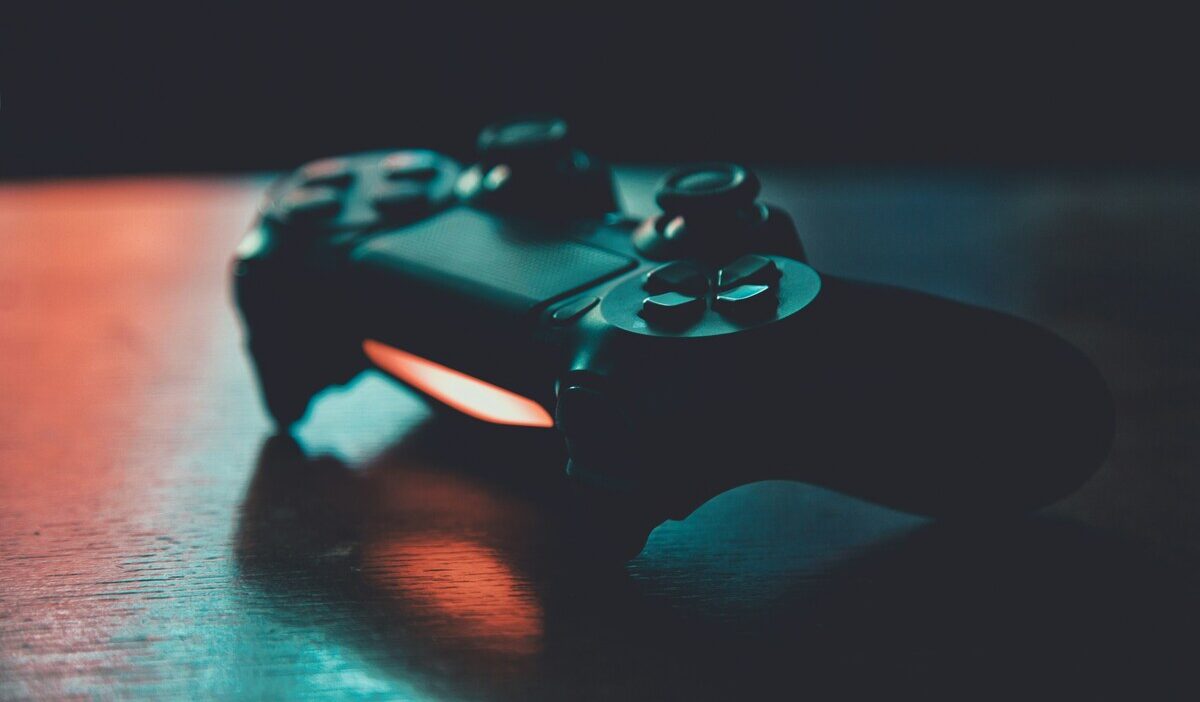
How to connect PS4 controller to iPhone is simple once the DualShock 4 is in Bluetooth pairing mode. You can connect it wirelessly through Bluetooth or, on supported setups, directly with a USB cable that carries both data and power. Apple officially supports DualShock 4 controllers on iPhone for compatible games and apps.
Before starting, make sure the controller is charged and the game you want to play supports external controllers. The steps below cover both connection methods and the most common fixes if pairing does not work.
1. What You Need Before Connecting
A DualShock controller can connect to a supported iPhone, but not every game accepts controller input.
Before pairing, make sure you have:
- A supported iPhone running current iOS
- A charged DualShock 4 wireless controller
- Bluetooth enabled for wireless pairing
- A USB cable that supports data and charging if you want a wired connection
- A game or app that supports external controllers
Apple recommends checking the App Store page for the controller icon, which indicates that the game supports a controller on that Apple device.
2. How to Connect PS4 Controller to iPhone via Bluetooth
Bluetooth is the most common way to connect a PS4 controller to iPhone and does not require a cable after pairing.
Follow these steps:
- Make sure the controller is turned off.
- Disconnect any USB cable attached to the controller.
- Press and hold the PS button and Share button at the same time.
- Keep holding them until the light bar starts flashing.
- On the iPhone, open Settings > Bluetooth.
- Make sure Bluetooth is turned on.
- Tap DUALSHOCK 4 Wireless Controller when it appears under nearby devices.
- Wait for the controller to connect.
Apple uses the same PS + Share button combination for putting DualShock 4 into pairing mode.
Once paired, the controller can reconnect automatically when it is turned on and available to the iPhone.
3. Connect PS4 Controller to iPhone via USB
A DualShock 4 can also connect directly to a supported iPhone with a compatible USB cable.
Apple says PlayStation DualShock 4 controllers can pair and connect automatically when connected directly to an Apple device with a USB cable that supports both data and charging.
Follow these steps:
- Connect the DualShock 4 to the iPhone using the appropriate USB cable or adapter.
- Make sure the cable supports data transfer, not charging only.
- Wait for the controller to connect automatically.
- Open a controller-supported game and test the buttons.
If the controller does not connect over USB, update the iPhone software and try again. You can also fall back to Bluetooth pairing.
>>> Read more: How to Connect AirPods: Quick Fix When Pairing Fails
4. Make Sure the Game Supports Your PS4 Controller
A successful Bluetooth or USB connection does not guarantee that every game will respond to the controller.
To check support:
- Open the game’s page in the App Store.
- Look for the controller icon or controller-support information.
- Open the game and check its own settings for controller options.
- On iPhone, go to Settings > General > Game Controller to view available controller settings and customization options.
Some games support full controller input, while others support only certain menus or gameplay modes.
5. Tips for a Better Gaming Experience With Your Controller
Once the DualShock 4 is connected, a few adjustments can make gameplay more comfortable:
- Customize controls. Go to Settings > General > Game Controller, select the controller, and adjust available button mappings.
- Keep the controller charged. A charged controller is less likely to disconnect unexpectedly during a long session.
- Reduce interference. If Bluetooth feels unstable, move away from other active wireless devices and keep the controller reasonably close to the iPhone.
- Use a wired connection when convenient. A USB connection can be useful when Bluetooth pairing is unavailable or unreliable.
- Check the game itself. Some connection problems are actually game-support issues rather than controller problems.
>>> Read more: How to Connect PS5 Controller to iPhone and Start Playing in Minutes
6. Why Is the PS4 Controller Not Connecting to iPhone?
Most connection problems come from pairing mode, an existing connection to another device, an unsupported cable, or a game that does not support controllers.
| Issue | What It Means | Quick Fix |
| Controller doesn’t appear in Bluetooth list | Not actually in pairing mode | Turn it off, disconnect USB, then hold PS + Share until the light bar flashes |
| Controller pairs but won’t connect | It may still be paired with another device or Bluetooth may need refreshing | Turn Bluetooth off and back on, then retry pairing |
| USB connection does not work | Cable may support charging only | Use a USB cable that supports both data and charging |
| Controller connects but game does not respond | Game may not support controllers | Check the App Store page for controller support |
| Connection keeps dropping | Wireless interference or low controller battery may be involved | Charge the controller and move closer to the iPhone |
If Bluetooth pairing repeatedly fails, Apple also recommends forgetting the controller from Bluetooth settings and pairing it again.
7. FAQ
Q1. How do you put a PS4 controller in pairing mode?
Turn the controller off, disconnect any USB cable, then press and hold the PS and Share buttons together until the light bar flashes.
Q2. Why is my PS4 controller not working on my iPhone?
The controller may not be in pairing mode, it may still be connected to another device, the cable may not support data, or the game may not support controllers. Check the connection first, then confirm the game supports external controller input.
Q3. Can I connect a PS4 controller to a mobile phone?
Yes. DualShock 4 controllers can connect to supported iPhones via Bluetooth, and Apple also supports compatible wired connections. They can also be used with supported iPad, Apple TV, and other devices.
Conclusion
Once you know how to connect PS4 controller to iPhone, Bluetooth is usually the easiest option, while USB gives you another path when a wired setup is more convenient. The key is getting the controller into pairing mode correctly and making sure the game itself supports controller input.
A successful connection is only half the setup. The smoother experience comes from matching the controller with games that are actually designed to use it.