How to adjust alarm volume on iPhone starts with knowing which alarm setting your device is actually using. Regular Clock alarms follow the Ringtone and Alerts level, while Sleep Schedule alarms have a separate volume control that can stay low even when other sounds seem loud.
That difference is often why an alarm sounds quieter than expected. Check the right setting below, then run a quick test alarm before bedtime so you know it will be loud enough when it matters.
1. How to Adjust Alarm Volume on iPhone
Regular alarms created in the Clock app use the Ringtone and Alerts level under Settings > Sounds & Haptics. You can also adjust this level with the side buttons when Change with Buttons is enabled and media is not currently playing.
Sleep Schedule wake-up alarms are different and have a separate volume slider inside their alarm options.
Adjust the Ringtone and Alerts Slider
Follow these steps:
- Open Settings on your iPhone
- Tap Sounds and Haptics
- Under Ringtone and Alert Volume, drag the slider left to lower or right to raise
- A preview tone plays as you drag so you can hear the level in real time
- Release the slider when the volume sounds right
This setting controls regular alarms created in the Clock app, but it does not control the separate wake-up alarm associated with a Sleep Schedule.
Stop the Volume Buttons from Changing Your Alarm
If your regular iPhone alarm volume changes unexpectedly, check whether Change with Buttons is enabled.
When this setting is on, the side buttons can adjust the Ringtone and Alerts level when media is not playing. While you are actively watching a video, listening to music, or using another media app, those buttons normally control media volume instead.
To keep your regular alarm level fixed:
- Open Settings.
- Tap Sounds & Haptics.
- Turn off Change with Buttons.
The side buttons will continue to control media volume, but they will no longer change the Ringtone and Alerts level. You can still adjust that level manually with the slider in Settings.
Adjust Volume for a Sleep Schedule Alarm
A wake-up alarm connected to a Sleep Schedule has its own volume control.
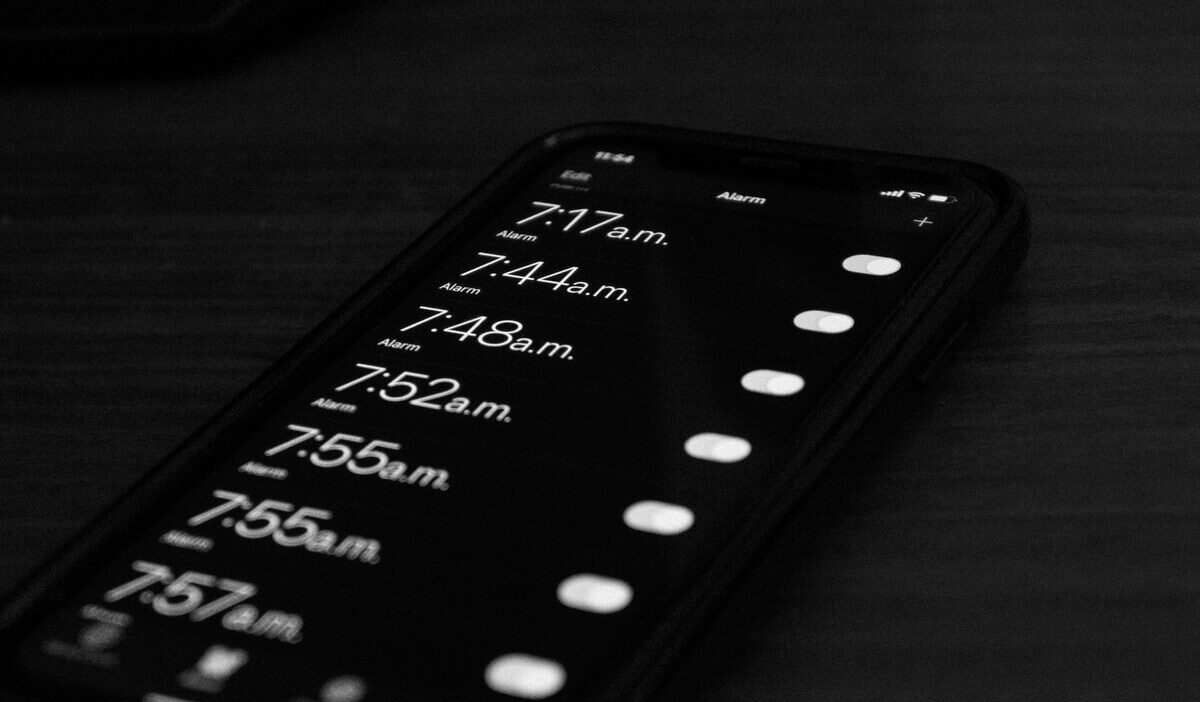
- Open the Clock app.
- Tap Alarms.
- Tap Change beside the wake-up alarm.
- Scroll down to Alarm Options.
- Make sure the alarm is turned on.
- Drag the Alarm volume slider.
- Tap Done.
- Choose Change Next Alarm Only or Change This Schedule.
Adjusting Ringtone and Alerts in Settings does not replace this separate wake-up alarm setting.
>>> Read more: How to Change Alarm Sound on iPhone and Replace Default Apple Tones
2. Why Is My Alarm So Quiet iPhone?
A quiet alarm is almost always caused by one of four settings, not a hardware problem. Check each one in order and test the alarm after each fix.
The most common reason an iPhone alarm is too quiet is that the Ringtone and Alerts slider was accidentally lowered, often by pressing a volume button while Change with Buttons was on.
Other causes include the alarm sound being set to None, Attention Aware Features dimming alerts, or Bluetooth routing audio to another device.
| Cause | What to Check | Fix |
| Ringtone and Alerts is too low | Regular Clock alarms sound quieter than expected | Go to Settings > Sounds & Haptics and raise the Ringtone and Alerts slider |
| Change with Buttons is enabled | The ringer and alert level changed after using the side buttons when media was not playing | Turn off Change with Buttons |
| The alarm sound is set to None | The alarm vibrates but has no audible tone | Open Clock > Alarms, edit the alarm, tap Sound, and choose an audible sound |
| Sleep Schedule volume is low | A regular alarm sounds normal, but the wake-up alarm is quiet | Open Clock > Alarms > Change and raise Alarm volume under Alarm Options |
| Attention Aware lowers some alerts | The volume becomes quieter while you are looking at a Face ID iPhone | Test with Attention Aware Features turned off under Settings > Face ID & Passcode |
| Speaker output is weak | Music, ringtones, and alarms all sound unusually quiet or distorted | Remove anything blocking the speaker, restart the iPhone, and seek service if all audio remains weak |
Note: Do Not Disturb, other Focus modes, and Silent mode do not silence Clock alarms. Connected headphones also do not prevent the alarm from playing through the built-in iPhone speaker.
3. How To Fix It If the Alarm Is Still Too Quiet After Adjusting?
If the slider is already at maximum and the alarm still feels too quiet, check these additional causes.
| Issue | What It Means | Quick Fix |
| Alarm vibrates, but no sound plays | Sound is set to None while a haptic is selected | Edit the alarm, tap Sound, and choose an audible tone |
| Regular alarms remain quiet | Ringtone and Alerts is low | Raise the slider under Settings > Sounds & Haptics |
| Sleep Schedule alarm remains quiet | It uses its own volume setting | Open Clock > Alarms > Change and adjust Alarm volume |
| Alarm is quiet only when looking at the screen | Attention Aware may be lowering an alert | Temporarily turn off Attention Aware Features and test again |
| All sounds from the iPhone are weak | The speaker may be obstructed or experiencing a problem | Remove obstructions, restart the iPhone, and contact Apple Support if the issue continues |
>>> Read more: How to Unlock iPhone Passcode Without Computer: 3 Easy Methods
4. FAQ
Q1. Do the volume buttons on the side of my iPhone change the alarm volume?
They can change the volume of regular Clock alarms when Change with Buttons is enabled and media is not playing. While you are watching a video or listening to audio, the buttons normally adjust media volume instead. Sleep Schedule alarms use a separate volume slider.
Q2. Why does my iPhone alarm volume keep changing overnight?
Change with Buttons may allow the physical buttons to alter the Ringtone and Alerts level when media is not playing. Turn the option off to keep regular alarm volume fixed, then separately check the volume of any Sleep Schedule wake-up alarm.
Q3. Does Do Not Disturb or the Silent switch silence my iPhone alarm?
No. Regular Clock alarms still sound when Silent mode, Do Not Disturb, or another Focus is enabled. However, the alarm plays at its configured volume, not automatically at maximum volume.
Final Words
Once you know how to adjust alarm volume on iPhone, the most important step is choosing the correct control. Regular Clock alarms use Ringtone and Alerts, while Sleep Schedule wake-up alarms have their own volume slider.
Set the appropriate level, choose an audible alarm sound, and run a short test before relying on it overnight. Turning off Change with Buttons can also prevent the volume of regular alarms from being changed accidentally.