
How to mute calls on iPhone becomes useful when someone keeps calling during a meeting, but blocking them feels unnecessary. Maybe you’re expecting an important update and want to silence other callers without missing the one person you need to hear from.
Fortunately, iPhone offers several ways to control interruptions without blocking anyone. The challenge is choosing the right feature, since muting a call and silencing incoming notifications work differently. Which option fits your situation best?
1. Which iPhone Call Muting Option Do You Need?
“Mute” means different things. Some people want the caller to stop hearing them, while others want silence. So, before you learn how to mute calls on iPhone, match your goal to a tool.
| Your goal | Best option | How long it lasts |
|---|---|---|
| Stop the caller hearing you | Mute button during a call | Until you tap it again |
| Stop one ringing call | Side or volume button | That call only |
| Quiet every call and alert | Silent mode | Until you turn it off |
| Avoid numbers not in Contacts | Silence unknown callers | Until you change it |
| Quiet certain people or hours | Focus | Manual or on a schedule |
In short, the first two options handle one moment. Meanwhile, the last three change how your iPhone treats future calls.
2. How to Mute Calls on iPhone?
Each method takes under a minute. Now, let’s look at how to mute calls on iPhone for each situation.
Mute Your Microphone During a Call
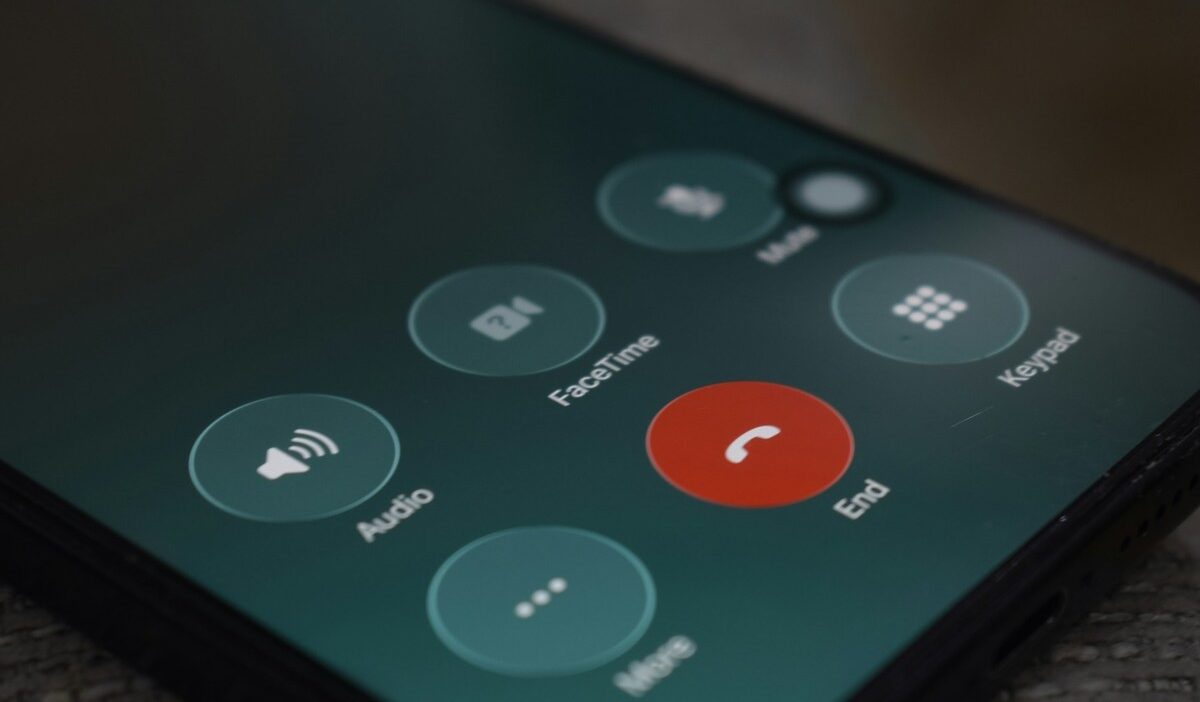
Tap Mute on the call screen. The other person can no longer hear you, but you still hear them. Tap it again to talk.
This suits a noisy room or a quick side chat. However, Mute does not hold the call, so remember to unmute.
Silence an Incoming Call Without Rejecting It
Press the side button once or either volume button while your iPhone is ringing. This silences the incoming call without rejecting it.
You can still answer before the call goes to voicemail.
To decline the call instead, press the side button twice quickly. This is useful when you don’t want to answer but prefer not to reject the caller immediately.
Turn On Silent Mode for Incoming Calls
Silent Mode stops ordinary ringtones and notification sounds without blocking incoming calls.
How you enable it depends on your iPhone:
- Models with a Ring/Silent switch: Flip the switch toward the back until orange appears.
- Models with an Action button: Press and hold it if assigned to Silent Mode.
- Supported models: Use the Silent Mode control in Control Center or under Settings > Sounds & Haptics.
Your iPhone may still vibrate. To stop vibrations for calls and alerts while Silent Mode is on, go to Settings > Sounds & Haptics > Haptics > Don’t Play in Silent Mode.
Remember that alarms and certain emergency alerts may still make sounds.

Silence Unknown Callers
This option quiets numbers that are not saved in your Contacts. Open Settings > Apps > Phone, scroll to Screen Unknown Callers, and choose one setting:
- Never: unsaved numbers ring like normal calls.
- Ask Reason for Calling: the caller must explain why they are calling before your phone rings.
- Silence: unsaved numbers go straight to voicemail without ringing.
FaceTime has its own switch under Settings > Apps > FaceTime > Silence Unknown Callers. First, save important numbers, such as your doctor. Otherwise, their calls get silenced too.
>>>Read more: How to Turn Off Amber Alerts on iPhone Without Missing Real Emergencies
Mute Selected Callers or Schedule Quiet Hours With Focus
Focus lets you silence selected contacts without blocking them.
- Open Settings > Focus.
- Choose an existing Focus or create a new one.
- Tap People > Silence Notifications From.
- Add the contacts you want to silence.
- Tap Add Schedule if you want the Focus to activate automatically.
Before relying on the setting, review these exceptions:
- Allow Calls From Silenced People: Turn this off if you want selected contacts’ calls silenced.
- Allow Repeated Calls: Repeated calls within three minutes may come through.
- Emergency Bypass: Designated contacts can bypass silencing settings.
Focus is useful when you want fewer interruptions while keeping important contacts reachable.
3. How Can You Silence Spam Calls Without Blocking Every Unknown Number?
Silencing all unfamiliar numbers can also prevent important calls from doctors, delivery drivers, or businesses from ringing.
Fortunately, your iPhone offers several options:
- Ask Reason for Calling: Go to Settings > Apps > Phone > Screen Unknown Callers and select this option. Unknown callers are asked to identify themselves before your phone rings.
- Spam filtering: Under Call Filtering, enable Spam. Calls identified by your carrier as potential spam or fraud are silenced and sent to voicemail.
- Unknown Callers list: Enable Unknown Callers under Call Filtering to move unfamiliar callers into a separate call-history list. This organizes calls but doesn’t automatically silence them.
- Caller ID apps: Manage supported identification apps under Call Blocking & Identification.
These features depend on your iOS version, region, and carrier.
Note: Call screening doesn’t work while roaming and is disabled for 24 hours after you call emergency services.
4. What’s the Difference Between Muting and Blocking Calls?
Both muting and blocking can reduce unwanted interruptions, but they work differently.
For this comparison, muting means silencing incoming calls through features such as Focus.
| Feature | Muting | Blocking |
|---|---|---|
| Phone rings | Usually silenced | No |
| Caller gets notified | No | No |
| Messages get through | Yes, but alerts may be silenced | No |
| Caller can leave voicemail | Yes | Yes, generally without notifying you |
| Can you reverse it? | Yes, by changing the setting | Yes, by unblocking |
Muting is useful when you still want someone to contact you without interrupting your day.
Blocking is more appropriate for unwanted contact or persistent spam.
Remember that blocking doesn’t necessarily prevent someone from leaving voicemail. Apple confirms that blocked callers may leave messages without triggering a notification.
5. Why Does Your iPhone Still Ring When Calls Are Muted?
If calls keep ringing after you enable a silencing feature, another setting may be allowing them through.
| Problem | What to check |
|---|---|
| Calls ring during a Focus | Allowed callers, repeated calls, and silenced-contact exceptions |
| Unknown numbers still ring | Confirm Screen Unknown Callers is set to Silence |
| One person always rings | Check Emergency Bypass in their contact settings |
| Calls ring on Mac or iPad | Review Calls on Other Devices in Phone settings |
| Silent mode does nothing | Check the Ring/Silent switch or Action button assignment |
If your phone only vibrates, review Settings > Sounds & Haptics > Haptics.
Silent Mode and Focus may still permit certain important alerts, so an unexpected sound doesn’t always mean the feature has stopped working.
6. FAQs
Does the Caller Know You Silenced Their Call?
No. Silencing an incoming call doesn’t notify the caller. They may hear ringing or reach voicemail, depending on the network and call handling. Declining a call can send it to voicemail sooner.
Does Muting Stop Message Notifications Too?
It depends. Silent Mode mutes ordinary message sounds, while Focus can silence selected notifications. Muting your microphone or screening unknown callers doesn’t automatically silence message alerts.
Do Muted Calls Work the Same on FaceTime Audio?
Mostly yes. You can mute your microphone during a FaceTime Audio call. However, FaceTime has separate unknown-caller silencing settings under Settings > Apps > FaceTime.
Will Silent Mode Mute Emergency Alerts?
Not always. Depending on your region and alert settings, emergency alerts may still make sounds even when Silent Mode is enabled.
Conclusion
Knowing how to mute calls on iPhone gives you more control over interruptions without cutting people off completely. Whether you want to quiet one incoming call or silence specific contacts, the right feature depends on who you still need to hear from.
Silent Mode works well for general quiet time, while Focus provides more control over individual callers. Choose the setting that fits your routine, and you can enjoy fewer interruptions while staying available for the conversations that matter.