
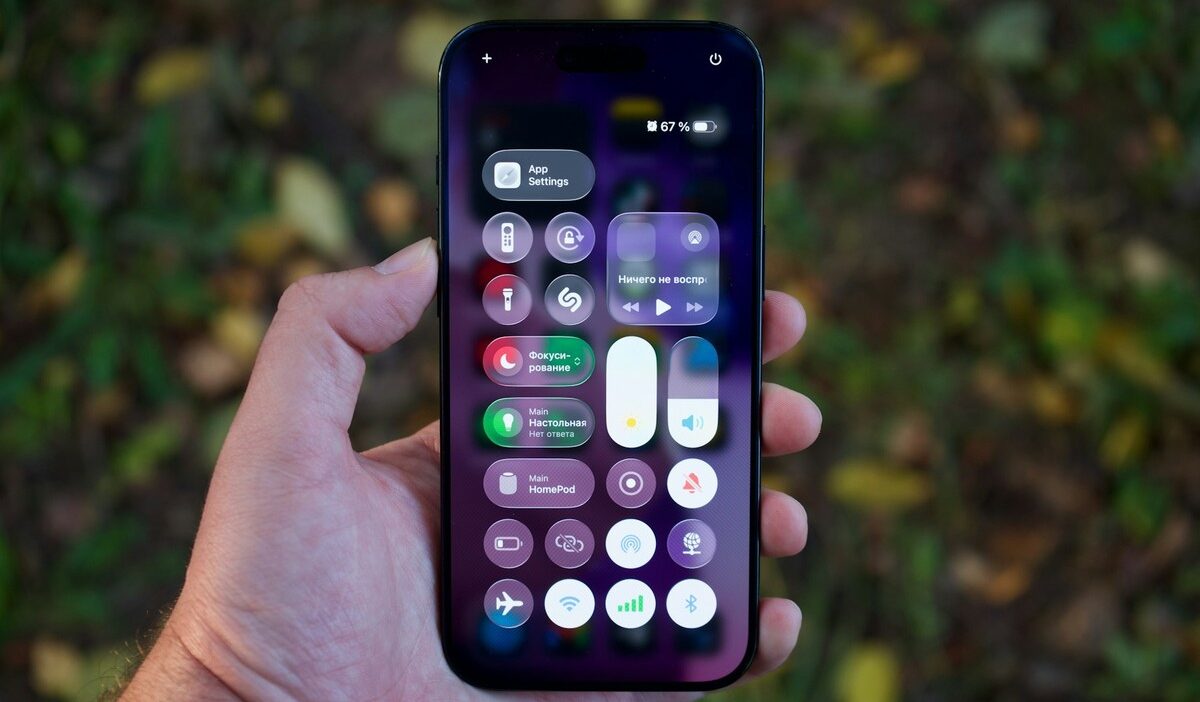
How to turn off 5G might be worth learning if your phone keeps switching networks, your internet feels unreliable, or your battery isn’t lasting as long as expected. After all, what’s the point of having faster mobile data if your connection keeps interrupting what you’re doing?
Switching to LTE may help in some situations, and you don’t need to turn off cellular service to try it. Here’s where to find the setting on iPhone, Samsung, and Pixel, plus what to check if the option isn’t available.
1. How to Turn Off 5G on iPhone?
Apple doesn’t provide a separate 5G on/off switch. Instead, you can select LTE in your cellular settings to stop your iPhone from connecting to 5G networks.
Here’s how to turn off 5G on iPhone:
- Open Settings.
- Tap Cellular > Cellular Data Options (or Mobile Data > Mobile Data Options).
- If you’re using Dual SIM, select the line you want to change. The menu order may vary.
- Tap Voice & Data.
- Select LTE.
Your iPhone will now use LTE instead of 5G, even where 5G coverage is available.
To enable 5G again, return to Voice & Data and select 5G Auto or 5G On.
These options are available on supported 5G-capable iPhones, including iPhone 12 models and later and the iPhone SE (3rd generation). Older models without 5G support don’t need this setting.
If your goal is to improve battery life, consider trying 5G Auto first. Apple’s Smart Data mode automatically switches to LTE when 5G doesn’t provide a noticeably better experience.
Choose LTE if you specifically want to disable 5G, and test whether the change improves your connection or battery performance.
2. Can You Turn Off 5G on Android Phones?
Many Android phones let you disable 5G by choosing an LTE network mode. However, the available settings depend on your phone model, software version, and carrier. Some providers may hide the option entirely.
Turn Off 5G on a Samsung Galaxy Phone
Samsung hides the option under network mode.
- Open Settings > Connections > Mobile networks.
- If you use two SIMs, pick the right one.
- Tap Network mode.
- Choose LTE/3G/2G (auto connect).
To undo it, choose 5G/LTE/3G/2G (auto connect). Menu labels vary slightly by model and software version.
Turn Off 5G on a Google Pixel
Pixels use a “preferred network type” list.
- Open Settings > Network & internet > SIMs.
- Select your carrier.
- Tap Preferred network type.
- Choose LTE.
Google lists 5G (recommended) as the default. Available choices depend on your carrier.
If you don’t see Preferred network type or an LTE option, your carrier may control the available network settings. Avoid changing hidden service-menu options without guidance, as incorrect network configurations can interfere with cellular connectivity.
3. What Is the Difference Between 5G On, 5G Auto, and LTE?
Before changing your network settings, it helps to understand how each option works.
On supported iPhones, you’ll generally find three choices:
| Mode | What it does | Best for |
|---|---|---|
| 5G On | Uses 5G whenever it’s available, which may reduce battery life | People who want 5G whenever supported |
| 5G Auto | Automatically switches to LTE when 5G doesn’t offer a noticeably better experience | Everyday use and balanced battery performance |
| LTE | Disables 5G and uses LTE even where 5G is available | Testing whether LTE works better in your area |
For most people, 5G Auto is a sensible starting point because it manages the connection automatically.
However, if your phone repeatedly struggles in an area with inconsistent 5G coverage, you may prefer to test LTE.
Android phones can use different network-mode labels, including combinations of 5G, LTE, and older network technologies. The available choices depend on the device and carrier.
4. Is Turning Off 5G Worth It for Battery Life or Signal?
Sometimes. Switching to LTE may help if your phone frequently searches for 5G coverage or switches between networks.
However, the results depend on your device, carrier, and local signal conditions. LTE doesn’t automatically provide a stronger connection or longer battery life.
Consider testing LTE when:
- 5G coverage is inconsistent: Your mobile internet frequently slows down or disconnects in the same location.
- Battery life is a concern: Your phone spends long periods connected to weak cellular signals.
- You don’t need maximum speeds: Most of your activities involve messaging, browsing, or occasional streaming.
Keep 5G enabled if it provides a reliable, faster connection for your everyday activities.
If you’re unsure, try LTE for a day and compare your battery usage and connection quality with 5G Auto.
For iPhone users, Low Power Mode is another option for reducing battery consumption, although it doesn’t behave exactly like selecting LTE manually.

Low Power Mode also limits 5G on iPhones, so it is another quick way to save battery.
5. Does Turning Off 5G Actually Save Mobile Data?
Not necessarily. Switching from 5G to LTE doesn’t automatically reduce how much data your apps consume.
For example, downloading the same file usually uses approximately the same amount of data on either network.
However, some apps automatically increase video quality or load higher-quality content when faster connections are available. That can result in greater data consumption, depending on your settings and habits.
Which Settings Help Reduce Data Usage?
On iPhone, the Data Mode setting gives you more direct control over cellular data use.
| Setting | Effect on data |
|---|---|
| Allow More Data on 5G | Enables higher-quality streaming and certain data-intensive features over 5G |
| Standard | Allows automatic updates and background tasks while using standard quality settings for supported streaming and video calls |
| Low Data Mode | Helps reduce data usage by limiting background activity and pausing certain automatic updates |
To change the setting:
- Open Settings > Cellular > Cellular Data Options.
- Tap Data Mode.
- Choose Low Data Mode to help reduce cellular data consumption.
On Android, look for Data Saver in your network settings. This can limit certain background data activity.
If your main goal is to make a limited data allowance last longer, data-saving settings are more useful than simply disabling 5G.
>>>Read more: How to Turn Off Automatic App Updates on iPhone on Any iOS Version
6. Why Can’t You Turn Off 5G or Change the Network Mode?
If you can’t find an LTE option, the reason may be your phone’s hardware, software, or carrier configuration.
The LTE Option Is Missing
Start by checking these possibilities.
- Your phone doesn’t support 5G
Older devices, such as the iPhone 11 and iPhone SE (2nd generation), don’t support 5G. They won’t display the same 5G network-mode settings as newer models.
- Your carrier controls network choices
Some carriers restrict manual network selection or hide certain network-mode options. This is especially relevant on Android devices, where available settings can vary.
- Your SIM or cellular configuration needs checking
On an iPhone, 5G options depend on a supported device and cellular service configuration. If you use multiple lines, check the settings for the appropriate SIM or eSIM.
- Software or carrier settings need updating
Install available software and carrier settings updates, then restart your phone.
If the LTE option is still unavailable, contact your wireless provider to confirm whether manual network selection is supported.
The 5G Icon Still Appears
If you selected LTE but your phone continues showing 5G:
- Confirm that you changed the correct SIM or cellular line.
- Reopen the network settings to verify that LTE is still selected.
- Turn Airplane Mode on briefly, then turn it off.
- Restart the phone and check the connection again.
If the phone still doesn’t respect the selected network mode, contact your carrier.
Keep in mind: Seeing a 5G icon while using 5G Auto is not necessarily an error. Apple notes that the icon can reflect the carrier’s network configuration and, in rare cases, may appear even without active 5G coverage.
That behavior is different from a phone continuing to use 5G after you’ve deliberately selected LTE.
7. FAQs
Does Turning Off 5G Affect Phone Calls?
Usually not. Most modern carriers support voice calls over LTE, allowing you to make and receive calls after switching off 5G. However, calling capability depends on your carrier and device. If calls stop working, restore your previous network setting and contact your provider.
Which iPhones Support 5G?
Apple’s iPhone 12 series and later numbered models support 5G, as does the iPhone SE (3rd generation). Actual 5G service requires a compatible carrier and plan. Older models, including the iPhone 11 and iPhone SE (2nd generation), support LTE but not 5G.
Does Low Power Mode Turn Off 5G?
Usually, but not in every situation. Apple says Low Power Mode disables 5G on most supported iPhones. However, iPhone 12 and iPhone 13 models can still use 5G for activities such as video streaming and large downloads. Selecting LTE is the more direct way to disable 5G.
Will Airplane Mode Turn Off 5G Only?
No. Airplane Mode turns off cellular entirely, so you lose calls, texts, and mobile data. Use the LTE setting if you only want to leave 5G.
Conclusion
Knowing how to turn off 5G gives you more control over your phone’s cellular connection. While 5G offers faster speeds in many areas, LTE may be a useful alternative when coverage is inconsistent or you’re trying to manage battery performance.
You don’t have to stick with one network setting forever. By understanding your phone’s options and how they affect everyday use, you can choose the connection that works best for you with greater confidence.