
How to get phone out of SOS mode usually comes down to a short list of connectivity fixes, since the label itself just means the phone has lost its normal connection to your specific carrier, not that anything is broken beyond repair. Working through a few settings in order clears it up in the vast majority of cases.
This guide covers what SOS Only actually means, the fastest fixes to try first, what to do if the problem sticks around, and how to avoid accidentally triggering Emergency SOS in the process.
1. What Does SOS Only Mean on an iPhone?
When SOS or SOS Only appears in the status bar, your iPhone is not connected to your normal cellular network. Where supported, the phone may still be able to place an emergency call through another available carrier network.
Apple currently lists this SOS Only status as available in Australia, Canada, and the United States. On supported iPhone models, satellite emergency features may also be available when cellular and Wi-Fi service are unavailable.
SOS Only vs. Emergency SOS
SOS Only is a network status. It appears when normal cellular service from your carrier is unavailable.
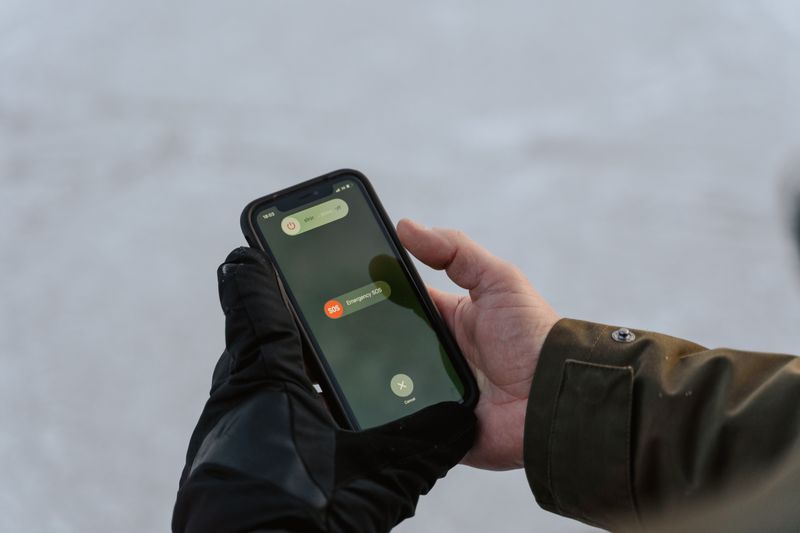
Emergency SOS is a separate safety feature used to contact emergency services. Depending on your settings, it can be triggered by holding the side button and either volume button or by quickly pressing the side button five times.
Seeing SOS Only in the status bar does not mean an emergency call has already been placed.
What You Can Still Do While SOS Only Is Showing
Regular cellular service through your normal carrier may be unavailable, but internet-based apps such as iMessage, FaceTime, email, and messaging apps can still work when the iPhone has a Wi-Fi connection.
Wi-Fi Calling may also let you make and receive phone calls when cellular service is unavailable, but your carrier must support it and the feature must be enabled on your iPhone.
2. How to Get Phone Out of SOS Mode
A short sequence of steps resolves SOS Only in most situations, and working through them in order avoids skipping past an easy fix in favor of a more drastic one.
Step 1: Toggle Airplane Mode On and Off
Open Settings, turn Airplane Mode on, and leave it on for at least 15 seconds. Then turn it off and give the iPhone a moment to reconnect to your carrier.
Step 2: Restart Your iPhone
If cellular service does not return, restart the iPhone. A restart can clear a temporary connection problem and give the device another chance to register with the cellular network.
Step 3: Check Your Cellular Line and SIM
For a physical SIM, make sure the card and tray are seated correctly. If the SIM appears damaged or does not fit properly, contact your carrier rather than repeatedly removing it.
For an eSIM, go to Settings -> Cellular, confirm that the correct line still appears, and make sure it is turned on.
Before making larger changes, also check whether your carrier is experiencing an outage and whether your account is active and in good standing.
3. Check Your Cellular Connection Before Resetting Anything
Before moving on to more involved fixes, it is worth confirming the problem is not simply a carrier outage affecting the whole area rather than just one phone.
Checking a carrier’s outage map, or asking someone nearby on the same carrier whether they have a signal, can save a fair amount of time spent resetting settings that were never actually the problem.
If SOS Only appears while traveling internationally, check whether your plan supports roaming and whether Data Roaming is enabled under Settings -> Cellular -> Cellular Data Options. If the problem continues, contact your carrier to confirm that international service is active on your line.

4. What to Do If Your iPhone Stays in SOS Mode
When the basic fixes above do not resolve it, a few more involved steps usually finish the job.
Update iOS and Carrier Settings
Open Settings, then General, then Software Update, to install any pending iOS update.
Separately, opening Settings, then General, then About can sometimes prompt a carrier settings update automatically, which updates the specific network configurations your carrier requires and occasionally fixes connectivity issues introduced by a recent carrier-side change.
Reset Network Settings
Go to Settings -> General -> Transfer or Reset iPhone -> Reset -> Reset Network Settings.
This removes saved Wi-Fi networks and passwords and resets cellular, VPN, and APN settings. It does not erase your photos, apps, or other personal content. Because this is a broader reset, use it after simpler connection checks fail.
Contact Your Carrier
If the problem continues, contact your carrier. Ask them to verify that your account is active, your plan is correctly provisioned, there is no outage in your area, and your SIM or eSIM is working properly.
5. What Happens If You Accidentally Trigger Emergency SOS?
Emergency SOS is separate from the SOS Only network status. Depending on your settings, holding the side button with either volume button or quickly pressing the side button five times can start an emergency-call countdown.
If you accidentally trigger the countdown, stop the action before the call connects. If the emergency call has already gone through, do not immediately hang up. Wait for the responder and explain that the call was accidental.
>>>Read more: How to Turn Off Pop Up Blocker on iPhone with Simple Methods
6. How to Prevent Accidental Emergency SOS Calls
Go to Settings -> Emergency SOS and review the available trigger options.
You can turn off Call with Hold and Release if holding the side and volume buttons is causing accidental calls. You can also turn off Call with 5 Presses if repeated side-button presses are being triggered unintentionally.
Keep at least one emergency-call method that you are comfortable using so you can still reach emergency services quickly when needed.
7. FAQs
These quick answers cover what people usually wonder the first time they see SOS Only appear.
Does being in SOS mode mean I accidentally called 911?
No. SOS Only is simply a connection status indicating your carrier’s network is unreachable while emergency calling remains available. It does not mean a call was placed, and no call happens unless Emergency SOS is manually triggered separately.
Can I still receive texts while stuck in SOS mode?
iMessage can still work over Wi-Fi. SMS availability depends on your carrier and settings. If your carrier supports SMS through Wi-Fi Calling and Wi-Fi Calling is enabled, some carrier texts may also work without a normal cellular connection.
Why does SOS mode happen more when traveling abroad?
Your iPhone may show SOS Only abroad if roaming is disabled, your plan does not support the available network, or your carrier cannot connect to a local partner. Check Data Roaming and contact your carrier if service does not return.
Will restarting my phone cancel an SOS call in progress?
If Emergency SOS has already connected a call, restarting the phone would end that call, though doing so intentionally to cancel an emergency call in progress is not recommended. Staying on the line and explaining the situation to the dispatcher is the safer and recommended approach instead.
Conclusion
How to get phone out of SOS mode comes down to working through a short list of connectivity fixes, starting with a restart or toggling Airplane Mode, before moving on to a network reset or contacting the carrier directly.
Understanding that SOS Only reflects a lost carrier connection rather than an active emergency call removes most of the initial worry, and knowing how to prevent accidental Emergency SOS triggers helps avoid a separate, unrelated problem from happening down the line.