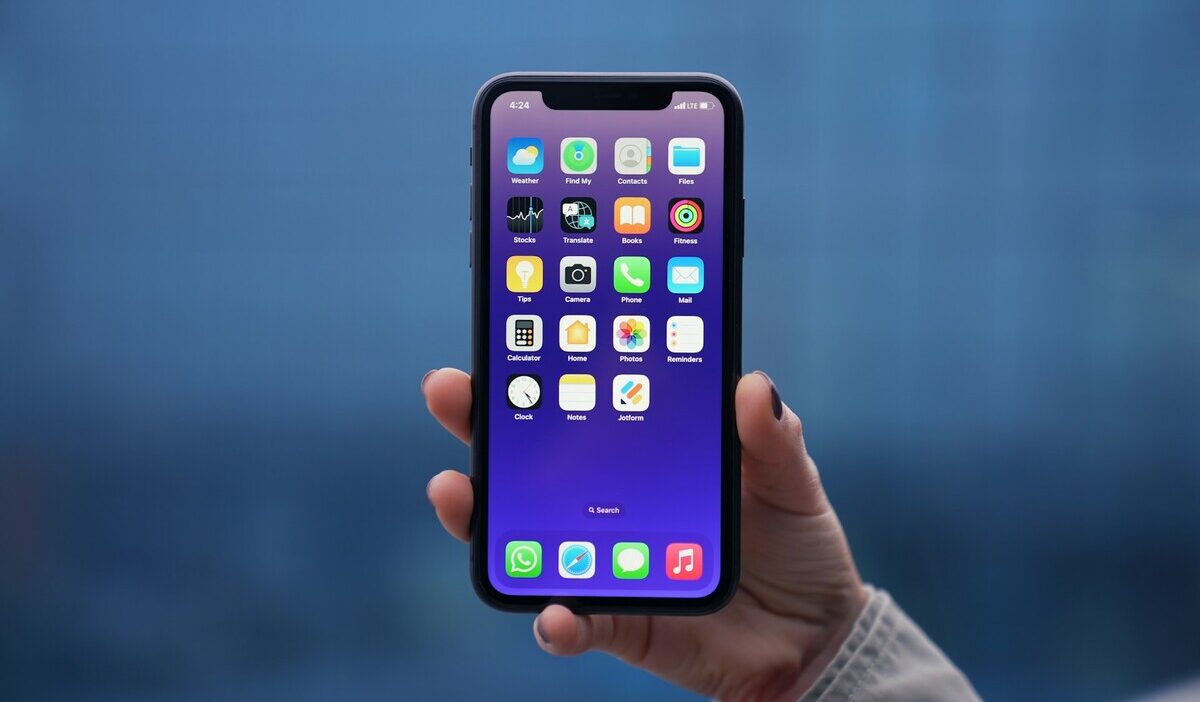
How to make iPhone black and white is easier than it sounds, and you do not need to edit photos or install another app to do it. iPhone has a built-in grayscale filter that removes color from the display while leaving your photos, videos, and other files unchanged underneath.
Think of it as placing a black-and-white lens over the screen rather than permanently changing what is stored on your phone. Once you know where the setting lives, you can turn grayscale on in seconds and decide whether it is useful for reducing visual distractions or simply changing how your screen feels.
1. How to Make iPhone Black and White Using Grayscale
Apple built this feature into Accessibility settings, originally designed for vision-related needs, though plenty of people now use it for reasons that have nothing to do with accessibility at all.
Step 1: Open Accessibility Settings
Open the Settings app, then tap Accessibility. This is the same menu that houses features like Voice Control and Display & Text Size, so it is worth remembering as a starting point for several other display-related tweaks beyond just grayscale.
Step 2: Turn On Color Filters
Scroll down to Display & Text Size, then tap Color Filters. Toggle the switch at the top to turn Color Filters on.
This step alone does not yet apply grayscale; it simply enables the filter system that grayscale and several other filters run through.
Step 3: Select Grayscale
With Color Filters turned on, tap Grayscale from the list of available filter types. The screen switches to black and white immediately, and the setting stays applied until manually turned off or automated to switch back, which is covered further down.
A few other filter types sit in the same menu, including options meant for color blindness, and it is worth knowing they exist even if grayscale is the one you came here for.
Switching between them costs nothing, so trying a different filter briefly before settling on grayscale is a reasonable way to confirm it is actually the effect you want.
2. What Happens When You Turn Your iPhone Screen Black and White?
Executing the series of how to make iPhone black and white changes what you see on the screen, not the underlying content itself.
That distinction matters because it is easy to assume a black-and-white display means your photos or videos have been permanently changed when, in reality, the filter only affects how they appear while it is active.
Photos and Screenshots Stay in Color
Photos and videos keep their original color information even while grayscale is turned on. Once the filter is disabled, they appear in color again.
In other words, grayscale changes the way your iPhone displays content rather than converting your media into black and white.
If you want a photo to be permanently monochrome, you will need to edit it separately in the Photos app or another image editor.
Everything Displayed on Screen Appears Grayscale
App icons, websites, videos, and every other visual element on the screen appear in shades of gray while the filter is active, with no exceptions for specific apps.
This is different from a dark mode setting, which changes an app’s actual color scheme, since grayscale sits on top of everything uniformly regardless of how an individual app was designed to look.
>>>Read more: How to Edit Videos on iPhone: A Complete Guide for Beginners and Creators
3. Why Some People Use Grayscale on iPhone
Grayscale is built into iPhone as an accessibility display option, but some people also use it as a simple way of how to make iPhone black and white to make their screen feel less visually demanding.
Removing color can make app icons, feeds, and notification badges feel less attention-grabbing, which may help some users become more intentional about how often they pick up their phone.
Reduce Visual Distractions
Bright app icons, photos, and notification badges naturally stand out more when color is present. Switching to grayscale removes much of that visual pull, making the screen feel calmer and less attention-grabbing.
Some research suggests that grayscale can reduce smartphone use for certain users, although the effect is not guaranteed and may vary from person to person.
Create a Less Stimulating Screen Experience
Without bright colors competing for attention, some people find their iPhone less visually engaging in grayscale. That extra bit of friction can make opening an app feel more deliberate rather than automatic.
Nothing is blocked or disabled. Every app still works normally, so grayscale acts more like a gentle nudge than a hard restriction.
4. How to Turn Grayscale On and Off Automatically
Manually toggling grayscale through Accessibility settings every time gets tedious quickly, so most people who use it regularly set up one of two automatic methods instead.
Use Shortcuts Automation
Open the Shortcuts app, tap Automation, then Create Personal Automation.
Choosing Time of Day lets grayscale turn on automatically in the evening and off again in the morning, while choosing App lets it activate whenever a specific app, such as a social media app, is opened.
This is the more flexible option, since it can be tied to a schedule, a location, or even a specific app rather than only a manual toggle.
Enable Accessibility Shortcut
If you switch between color and grayscale often, the Accessibility Shortcut is the most convenient built-in option.
Go to Settings > Accessibility > Accessibility Shortcut, then select Color Filters. After that, triple-click the side button on an iPhone with Face ID, or the Home button on an older model, to turn the feature on or off.
If Color Filters is the only accessibility feature assigned to the shortcut, the triple-click can toggle it directly. If you have several features assigned, a small menu appears so you can choose the one you want.
5. How to Quickly Switch Between Color and Grayscale
Once the shortcut is set up, switching between color and how to make iPhone black and white takes only a moment. For occasional use, this is usually more practical than relying on a schedule or automation.
Use the Side Button Shortcut
Once Color Filters is added to the Accessibility Shortcut menu as described above, triple-clicking the side or Home button brings up a quick toggle, or switches directly if only one accessibility feature is assigned to the shortcut.
This is the fastest manual option once it is set up, taking under two seconds to switch either direction.
Change Color Filter Settings Manually
Returning to Settings, then Accessibility, then Display & Text Size, then Color Filters, and toggling the switch at the top works the same way as the original setup steps.
This route takes longer than the button shortcut but does not require any prior setup, which makes it a reasonable fallback on a phone where the Accessibility Shortcut has not been configured yet.
6. FAQs
These quick answers cover what people usually wonder before or after knowing how to make iPhone black and white for the first time.
Does grayscale mode save battery life?
Not in any meaningful or predictable way. Grayscale changes the colors shown on the display, but it does not automatically make the screen darker.
If your goal is to extend battery life, lowering screen brightness, using Auto-Brightness, and reducing unnecessary screen-on time will usually make a bigger difference.
Can I set grayscale to turn on automatically at certain times?
Automation options can vary depending on the iOS version and which Shortcuts actions are available. For a simple and reliable option, add Color Filters to the Accessibility Shortcut so you can switch grayscale on or off quickly whenever you need it.
Will grayscale mode affect how photos are actually saved?
No. Photos, videos, and screenshots all save with their full original color data regardless of whether grayscale is active at the moment they are captured. The filter only changes how the screen displays content, not the files themselves.
Is there a quick shortcut to toggle grayscale on and off?
Yes, once Color Filters is added to the Accessibility Shortcut under Settings, then Accessibility. From there, a triple-click of the side or Home button toggles it instantly without needing to reopen the Settings app each time.
Conclusion
How to make iPhone black and white comes down to a short trip through Accessibility settings, and understanding that the change is purely visual matters just as much as the steps themselves.
Photos, screenshots, and every other stored file keep their original color no matter how long grayscale stays active, which makes it a low-risk feature to try for anyone curious about cutting down on phone distractions without permanently altering anything on the device.