How to check your phone number iPhone users may wonder when a new SIM, eSIM transfer, or recent activation leaves the number missing from the screen.
The fastest method usually takes only a few taps, but dual-SIM setups and incomplete carrier activation can make the result less obvious.
Start with the current Settings path below, then use the backup methods to confirm the right number without relying on guesswork.
1. How to Check Your Phone Number on iPhone
Three methods cover the standard ways to find the number. Start with Method 1 since it is the fastest, and use the others as backups if the number does not appear.
Method 1: Settings > Phone > My Number
Open Settings, tap Apps, then tap Phone. Look for the My Number field, which may display the phone number stored for your cellular line. On older iOS versions, you may find Phone directly in the main Settings list.
This is a fast method for how to check your own phone number on iPhone, but the field may be blank or show an outdated number if the carrier has not fully provisioned the SIM or eSIM. If the number does not appear correctly, use Method 2 or Method 3.
Method 2: Contacts App > My Card
Open the Contacts app and tap My Card near the top of the contact list. If a phone number has been saved to your personal contact card, it appears here.
Keep in mind that My Card contains information saved by you or suggested by the iPhone. It does not necessarily confirm the number currently assigned by your carrier.
If My Card is not set up, tap the Add (+) button and create a contact with your information. Return to the contact list, touch and hold the new contact, then tap Make This My Card.
Method 3: Check Each Line if You Use Dual SIM or eSIM
Go to Settings and tap Cellular or Mobile Data. Under SIMs, select each active line, such as Primary, Secondary, Personal, or Business.
The assigned phone number may appear in the line details. If it is blank, the eSIM may still be activating, or the carrier may not have added the number to the profile correctly.
U.S. iPhone 14 models and later use eSIM instead of a physical SIM. These devices can store multiple eSIM profiles, although only supported active lines can be used at the same time.
2. What to Do If Your Number Isn’t Showing Up
A blank My Number field is common after a new SIM installation, an eSIM transfer, or a carrier port. Several workarounds find the number when Settings does not display it.
Call or Text Another Phone
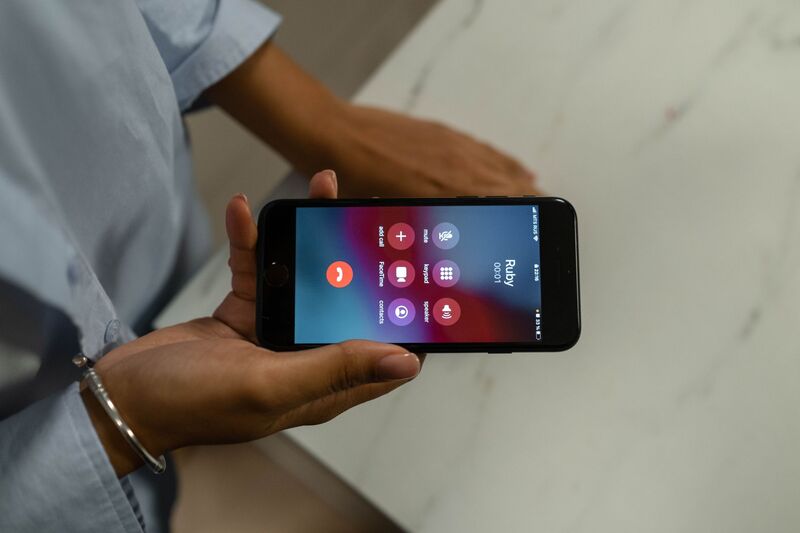
Place a call to another phone while Show My Caller ID is turned on. Your number should appear on the recipient’s screen.
You can also send an SMS text. However, an iMessage may show your Apple Account email instead when Messages is configured to start new conversations from that email address.
Ask a Friend to Check Their Caller ID
Call someone you trust and ask them to read the number displayed on their screen. This method will not work when Show My Caller ID is turned off because the recipient will see a hidden or private caller instead of your number.
Check Through a Mac or PC
Connect the iPhone to your computer and approve the Trust This Computer prompt if it appears.
On a Mac with macOS Catalina or later, open Finder and select the iPhone from the sidebar. On Windows, open the Apple Devices app or iTunes and select the iPhone.
Look below the device name and click Phone Number to view the number and cycle through other device identifiers when available.
Software or Carrier Issue
Restarting the iPhone may help if the number was previously displayed but has disappeared. Also check for a carrier settings update and confirm that the cellular line is active.
Do not reset network settings solely because the My Number field is blank. Reset Network Settings removes saved Wi-Fi networks and passwords, cellular settings, and previously used VPN and APN settings. Contact your carrier first if the number remains missing or incorrect.
3. Why Your iPhone Might Not Display Your Number
Several specific situations cause the My Number field to appear blank or incorrect.
- New SIM or eSIM activation: the carrier sometimes takes several hours after a new SIM is activated before the number is pushed to the device. Restarting the iPhone after activation often prompts the number to populate in Settings.
- Carrier port in progress: when a number is being transferred between carriers, the number may not appear during the transition period. Once the port completes, typically within a few hours to a day, the number appears normally.
- eSIM profile issue: on eSIM-only iPhones, if the eSIM profile was installed but not fully activated, the number may be missing from Settings. Contacting the carrier to confirm the eSIM is fully provisioned resolves this.
- Prepaid SIM without number registration: some prepaid SIM cards are activated without a number being assigned to the Settings field. The number still exists on the carrier’s system and appears as the caller ID on outgoing calls, even though it does not populate in the My Number field.
- Software glitch: a restart resolves most cases where the number was previously visible but disappeared. If restarting does not restore it, resetting network settings from Settings, General, Transfer or Reset iPhone, Reset, Reset Network Settings sometimes forces the carrier to repopulate the field.
>>>Read more: How to Unlock iPhone Passcode Without Computer: 3 Easy Methods
4. How to Save Your Number for Next Time
Once you confirm the correct number, add it to My Card for easier reference.
Open Contacts and tap My Card. Tap Edit and add the phone number. If My Card does not exist, create a new contact, return to the contact list, touch and hold the contact, and tap Make This My Card.
Remember to update My Card manually if you change your phone number or carrier because the saved contact information may not update automatically.
5. FAQs
Does This Work the Same Way for eSIM-Only iPhones?
Yes. You can still check Phone settings and My Card. However, if multiple eSIM lines are installed, go to Settings > Cellular and select each active line to identify its assigned number.
Why Does My iPhone Show My iMessage Email Instead of My Number?
Messages may be configured to start conversations from your Apple Account email. Go to Settings > Apps > Messages > Send & Receive, then select your phone number under Start New Conversations From. If the number is missing, confirm that the cellular line and iMessage activation are complete.
Can I Find My Number Without Cellular Service?
Possibly. A previously saved number may remain in My Card or the My Number field without an active connection. However, saved information can be outdated, so confirm it with your carrier before relying on it.
Will Guided Access or Screen Time Block Me From Seeing My Number?
Screen Time can restrict access to Settings depending on how Content and Privacy Restrictions are configured. If Settings is blocked or if the Phone section is restricted, the My Number field may not be accessible.
6. Conclusion
Not seeing your own number can be surprisingly frustrating, especially after changing carriers or setting up a new eSIM.
Fortunately, how to check your phone number iPhone usually comes down to checking Phone settings, My Card, or each active cellular line.
When those places disagree, treat the carrier’s account information as the final confirmation rather than relying on a number that may have been saved before the change.