How to hide caller ID on iPhone is useful when you want to make a call without showing your number, but the setting is not always obvious.
Some people want privacy for a one-time call, while others need caller ID hidden for every outgoing call. The right method depends on whether you use the iPhone setting, a carrier code like *67, or need to check why the option is missing.
Start here before placing the call so you know exactly what the other person may see.
1. How to Hide Caller ID for All Outgoing Calls
The iPhone has a built-in setting that suppresses the caller ID on every outgoing call until the setting is turned back on. The exact path can vary slightly by iOS version, but the setting is usually called Show My Caller ID.
Step 1: Open Settings and go to Phone. On newer iOS versions, open Settings > Apps > Phone. On some older iOS versions, go to Settings > Phone.
Step 2: Tap Show My Caller ID. Inside the Phone settings, locate the Show My Caller ID option. It sits in the Calls section, usually near the top of the menu. Tap it to open the toggle.
Step 3: Turn the toggle off. Tap the green toggle next to Show My Caller ID to turn it off. The toggle turns grey. From this point, every outgoing call from the iPhone will show as No Caller ID or Unknown to the recipient until the toggle is turned back on.
Step 4: Test with a call to confirm it worked. Call a second phone or ask someone to confirm what they see when the call comes in. If the setting took effect, they will see No Caller ID, Private Number, or Unknown, depending on their carrier and device.
2. How to Hide Your Number for Just One Call
When permanent caller ID hiding is not needed, a prefix code lets one call go out with a hidden number while the rest remain normal. This is the fastest option for occasional use.
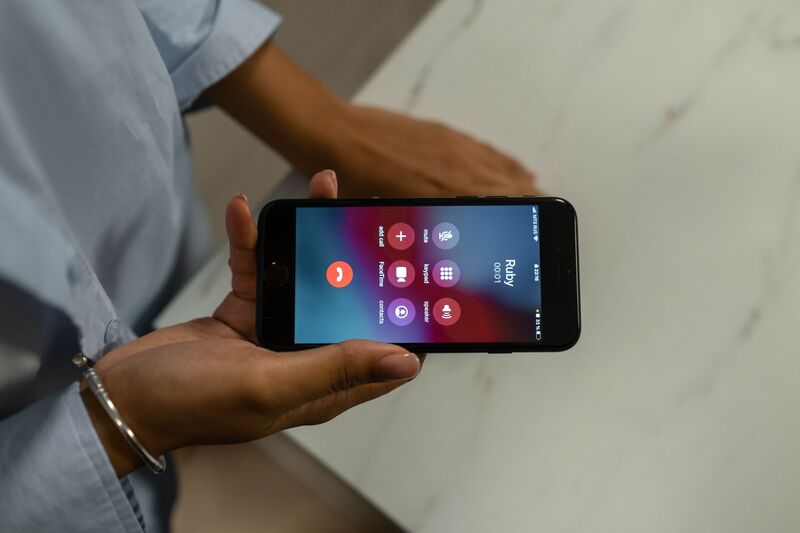
Dial *67 before the phone number. On the keypad, type *67 followed immediately by the full phone number, including the area code, for example *67-555-867-5309. Press call. The *67 code instructs the carrier to suppress the caller ID for that specific call only.
Does *67 work on iPhone? Yes. In the U.S., *67 works on many carriers, including major carriers, as a per-call caller ID block. Availability can vary by carrier, country, and number type. It is a carrier-level feature, not an operating system feature, so it functions regardless of the device.
The call connects normally, and only the caller ID is hidden. If Show My Caller ID is already turned off, *67 is usually unnecessary because your number is already hidden for outgoing calls.
Note: Caller ID blocking does not work for every number. Major carriers note that your number cannot be hidden when calling 911, and it may not be hidden when calling toll-free numbers.
On Android. Android also has a built-in caller ID setting for permanent hiding. Go to the Phone app, open the menu (three dots), go to Settings, then Calls or Supplementary Services, and look for Caller ID options. The exact path varies by manufacturer and Android version, but the option is available on most carriers.
3. What the Other Person Sees When Your Caller ID Is Hidden
The label shown to the recipient depends on their carrier and device, not on the caller’s choice of wording. There is no way to control the exact text that appears.
- No Caller ID: the most common label on iPhones in the US when receiving a hidden number call.
- Private Number: common on carriers in the UK and Australia, and on some US Android devices.
- Unknown: appears on some older devices and certain carrier configurations.
- Blocked: displayed on some Android phones when the number is actively suppressed.
The label does not indicate whether the number was hidden via the device setting, *67, or a third-party VOIP app. All methods produce the same general result on the recipient’s screen.
4. Hiding Caller ID vs. Blocking No Caller ID Calls
These two settings are often confused because they involve the same situation from opposite sides. Hiding caller ID is what the caller does. Blocking no caller ID calls is what the recipient does to stop hidden-number calls from getting through.
On iPhone, the setting that blocks calls from hidden numbers is found in Settings, Phone, Silence Unknown Callers. When turned on, calls from numbers not in the contacts list, including hidden-number calls, are silenced and sent to voicemail. Apple’s support page on Silence Unknown Callers explains exactly which calls are affected and the limitations of this feature.
The practical implication: if the goal is to reach someone who has this setting enabled, a hidden number call will not ring through. Unblocking caller ID for that specific call is the only way to reach them without first sending a message to whitelist the number.
>>>Read more: How to Set Up Face ID on iPhone: Avoid Common Setup Issues
5. When the iPhone Caller ID Setting Is Missing or Greyed Out
The Show My Caller ID toggle is sometimes missing from Settings or appears greyed out and unresponsive. Two causes account for most cases.
Carrier restriction. Some carriers disable the caller ID suppression feature for specific plan types or in certain regions. When the carrier does not support it, the setting either disappears or is greyed out and cannot be toggled.
Contact the carrier to confirm whether caller ID hiding is available on the plan. Using *67 still works in most cases even when the system-wide toggle is disabled, since *67 is processed at the carrier level separately.
MDM or restrictions. iPhones managed by an employer or school through Mobile Device Management may have the caller ID setting restricted by the organization.
On a personal iPhone, a Screen Time restriction set by a family account manager can also lock the setting. Check Screen Time settings under Settings, Screen Time, Content and Privacy Restrictions to see if phone settings are restricted.
6. FAQs
Can People Still Trace My Number After I Hide It?
Law enforcement can obtain hidden caller ID information through legal process from the carrier. Emergency services (911) always receive the caller’s number regardless of caller ID settings.
Why Does Show My Caller ID Keep Turning Itself Back On?
Some carriers reset caller ID settings after a network change, a SIM update, or a carrier settings update on the iPhone. Go to Settings, General, About, and if a carrier settings update is available, it may reset the toggle.
Will Hiding My Caller ID Stop Calls From Going Through to Businesses?
Some businesses use call screening systems that block calls from hidden numbers to reduce spam. If a business line does not answer a hidden-number call, dial the number again with caller ID visible by removing the Show My Caller ID restriction.
Should I Use a Second Number Instead of Hiding Caller ID?
For regular use, a second number app like Google Voice, Burner, or TextNow provides more flexibility than hiding caller ID. A second number shows a real number to the recipient (which helps with calls to businesses), can receive callbacks, and can be used consistently without the limitations of hidden-number blocking on the recipient’s end.
Conclusion
Knowing how to hide caller ID on iPhone gives you more control over when your number appears and when it stays private.
It does not make calls completely anonymous, and some recipients may block hidden numbers, but it can still be helpful when privacy matters.
Whether you use the iPhone setting or a one-call code, the key is understanding the limits before you dial, so the call works the way you expect.