How to delete contacts on iPhone usually becomes relevant when your address book starts feeling more like a storage list than a useful tool.
Over time, old numbers, duplicate entries, and outdated profiles can make it harder to find the people you actually need. Instead of scrolling through clutter, iPhone gives you several ways to remove unwanted contacts directly from your device or synced accounts.
Before you start clearing things out, it helps to understand where those contacts are stored and how deletion actually works across different services.
1. How to Delete Contacts on iPhone
If your contact list feels cluttered, learning how to delete contacts on iPhone can help keep it organized. The method depends on whether you’re removing a single contact or multiple entries.
How to delete a single contact
For most users, deleting one contact only takes a few seconds.
Step 1: Open the Contacts app
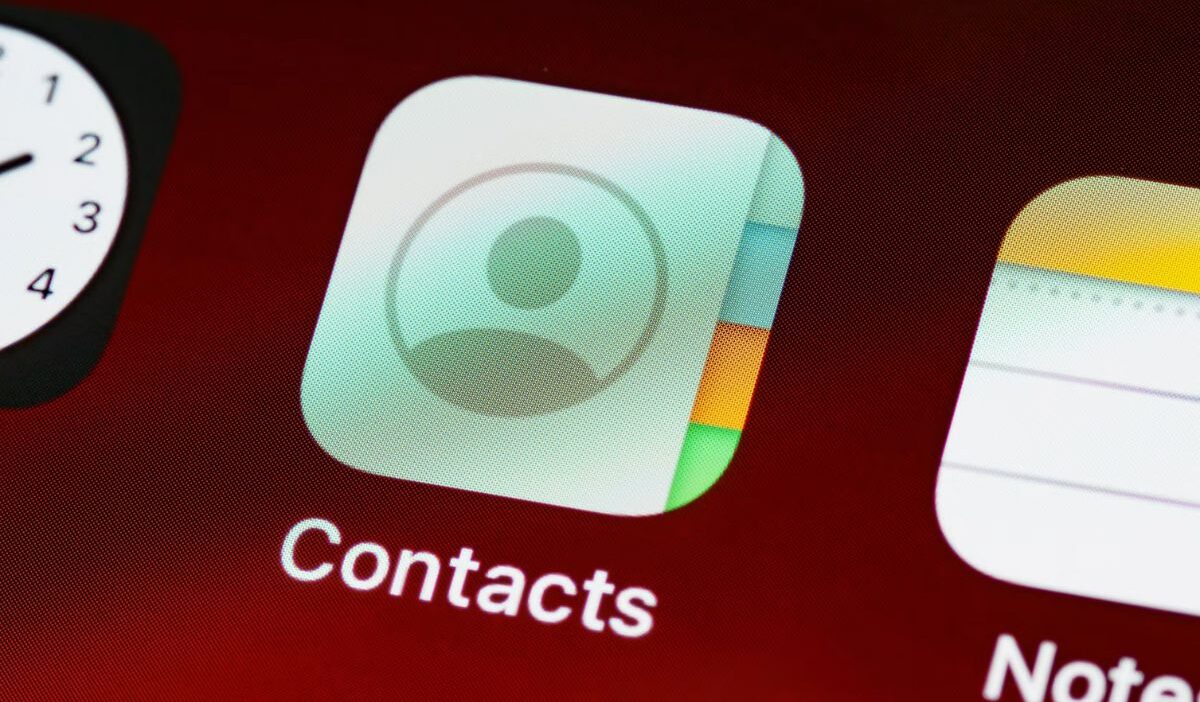
Launch the Contacts app, or open the Phone app and tap the Contacts section.
Step 2: Select the contact
Browse your contact list and tap the contact you want to remove.
Step 3: Edit contact details
Tap Edit in the upper-right corner of the screen. This opens the contact’s information page.
Step 4: Delete the contact
Scroll to the bottom and tap Delete Contact. Confirm the deletion when prompted. After you finish, the contact will no longer appear on your iPhone.
How to delete multiple contacts
If you’re trying to learn how to delete contacts on iPhone for dozens or hundreds of entries, using a bulk method can save time.
Step 1: Using contact management tools
Apple does not offer a built-in bulk delete option on iPhone. You can delete multiple contacts using iCloud.com or, in some cases, trusted third-party contact management apps.
Step 2: Deleting contacts through iCloud
You can also manage contacts through iCloud:
- Sign in to iCloud.com.
- Open Contacts.
- Select multiple entries.
- Delete the selected contacts.
Changes will sync to your iPhone automatically.
Step 3: Managing large contact lists
For example, someone who recently switched jobs may have dozens of outdated business contacts. Reviewing contacts in batches often makes cleanup easier.
Step 4: Choosing the right method
For a few contacts, the iPhone app works well. For large lists, iCloud or a contact management tool is usually faster.
2. When Contacts Are Synced From Other Accounts
Sometimes people follow the steps for how to delete contacts on iPhone only to see the contacts return later. This often happens because the contacts are synced from another account.
Removing contacts synced from iCloud
If contacts are stored in iCloud:
- Open Settings.
- Tap your Apple ID.
- Select iCloud.
- Tap Contacts.
If iCloud Contacts is enabled, deleting a contact on iCloud.com will remove it from all synced devices.
>>> Read more: How to Leave a Group Chat on iPhone: Fast Ways to Exit
Removing contacts from Gmail or other accounts
Many users sync contacts from:
- Gmail
- Outlook
- Yahoo
- Work accounts
To manage them:
- Open Settings.
- Select Apps > Contacts.
- Tap Contacts Accounts.
- Choose the account.
From there, you can disable contact syncing or manage contacts within that account.
Why deleted contacts sometimes reappear
This is one of the most common frustrations related to how to delete contacts on iPhone.
Contacts often reappear when:
- Another device syncs old data
- Cloud restores the contact
- Gmail or Outlook synchronization re-adds the entry
- Multiple accounts contain the same contact
Understanding where the contact is stored usually solves the problem.
3. How to Recover Deleted Contacts
Accidentally deleting the wrong person happens more often than people expect. Fortunately, there are several recovery options when discussing how to delete contacts on iPhone, but you need to reverse the process.
Step 1: Using iCloud recovery
Apple provides a contact restoration feature through iCloud. You can restore contacts from an earlier archive if they were previously synced.
Step 2: Restoring from a backup
If your iPhone was recently backed up:
- iCloud Backup
- Finderi
- Tunes backup
You may be able to recover a deleted contact by restoring a previous backup. But do note that restoring from a backup may replace your current contacts depending on the method used, especially with full device backups.
Step 3: Recovering recently deleted data
Contacts can sometimes be restored through iCloud’s contact recovery feature, which allows you to roll back to a previous state.
Step 4: Preventing future data loss
Before deleting large numbers of contacts:
- Create a backup
- Export contacts if possible
- Verify sync settings
These steps make recovery much easier if mistakes occur.
4. Managing a Large Contact List More Efficiently
Once you’ve mastered how to delete contacts on iPhone, a few maintenance habits can help keep your contact list organized.
Merge duplicate contacts
Duplicate entries often appear after syncing multiple accounts. Apple’s Contacts app may detect duplicates and suggest merging them automatically.
Remove outdated contacts
Review old contacts periodically. Removing outdated entries keeps searches faster and reduces clutter.
Organize contacts across multiple accounts
When learning how to delete contacts on iPhone, keep in mind that many people store contacts across multiple accounts, such as iCloud, Gmail, and Outlook.
- Personal iCloud accounts
- Work accounts
- Gmail accounts
Keeping these organized makes future contact management easier.
>>> Read more: How to Delete Messages on iPhone: Single Texts, Conversations, and More
5. FAQs
Why can’t I delete contacts on my iPhone?
The contact may be synced from iCloud, Gmail, Outlook, or another account that controls the data. In some cases, you’ll need to remove the contact from the source account rather than directly from the iPhone.
Will deleting a contact remove messages?
No. Deleting a contact removes the contact information but does not delete existing text messages, call history, or conversations.
Can I recover a deleted contact?
Yes. You may be able to restore the contact if it was previously synced with iCloud, Finder, iTunes, or another backup service.
Conclusion
Once you understand how to delete contacts on iPhone, managing your address book becomes less about cleaning and more about keeping things intentional.
Whether you remove a single outdated entry or organize contacts across multiple accounts, the real value comes from having a list that reflects your current needs.
With a few simple actions, your iPhone contacts can stay clear, relevant, and easier to navigate whenever you need them.