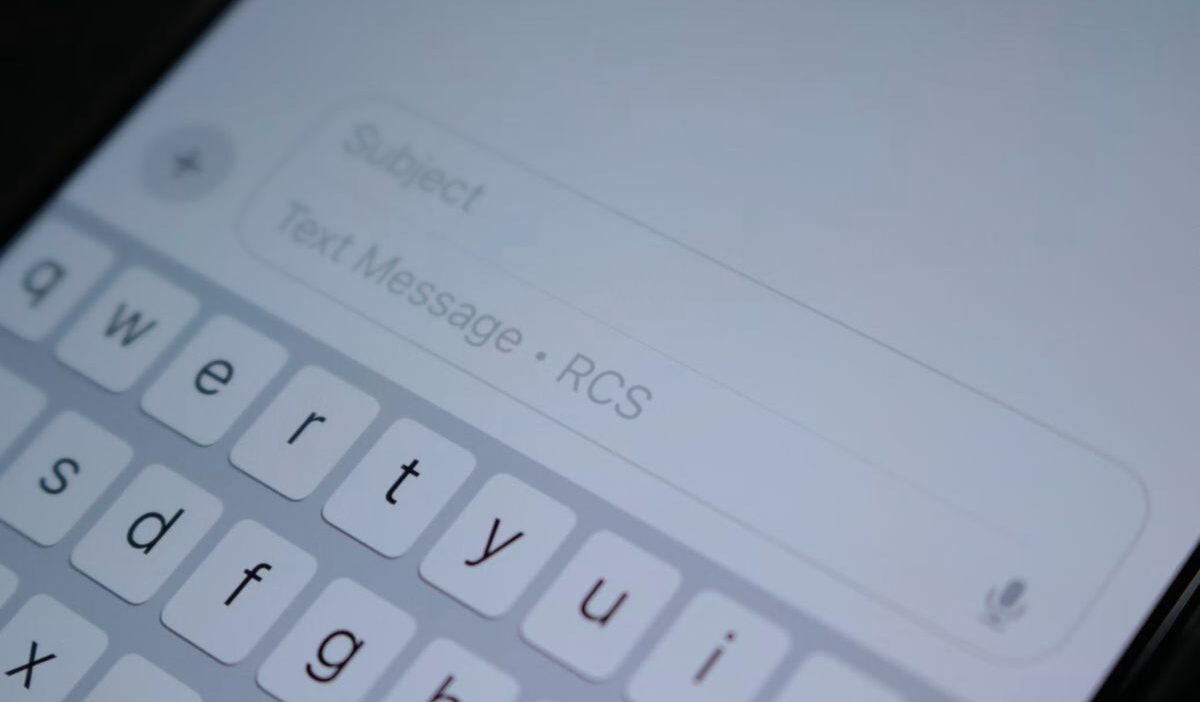
How to turn off RCS on iPhone is a common question for users who notice changes in their messaging experience or want more control over how their texts are sent.
However, RCS support on iPhone depends on both iOS version and carrier compatibility, which means the option to disable it may not appear on every device.
Before trying to change any settings, it’s important to understand how RCS works on iPhone and whether your carrier actually provides manual control over it.
1. Before You Turn Off RCS on iPhone
Before learning how to turn off RCS on iPhone, it’s helpful to understand why the option may or may not appear on your device.
Carrier support
RCS availability depends on carrier support. Even if your iPhone is compatible, the feature may not be available unless your carrier supports RCS messaging.
iOS requirements
RCS support is available only on newer iOS versions and requires carrier support to appear in settings. If your iPhone is running an older version of iOS, you may not see RCS-related settings.
Why the settings may not appear
Several factors can prevent the option from appearing:
- Unsupported carrier
- Outdated iOS version
- RCS is not yet enabled on the account
- Regional availability limitations
If you cannot find the setting, one of these factors is often the reason.
2. How to Turn Off RCS on iPhone
Before changing any settings, it’s important to understand that RCS availability on iPhone depends on your carrier and iOS version. In some cases, you may be able to disable it directly, while in others, the feature may not appear in Settings at all.
Step 1: Check if RCS is available on your device
Open Settings -> Apps -> Messages (or Settings -> Messages, depending on your iOS version).
Scroll through the options and look for RCS Messaging.
If you see this option, your carrier supports RCS, and it is enabled on your device.
Step 2: Disable RCS Messaging (if available)
If the RCS option appears, simply toggle RCS Messaging OFF.
Once disabled, your iPhone will stop using RCS features such as typing indicators and read receipts in supported conversations, and messages will fall back to SMS or MMS when needed.
Step 3: If you don’t see the RCS option
In many cases, there is no manual switch for RCS on iPhone.
If the setting does not appear in Messages, it means:
- Your carrier does not support RCS on iPhone, or
- RCS is managed automatically by your carrier and cannot be turned off manually, or
- The feature has not been enabled for your account or region yet
In these situations, there is no direct setting to disable RCS on your device.
Step 4: Confirm messaging behavior
After making changes (or if no option is available), you can confirm how messages are being sent by:
- Sending a test message to a supported contact
- Checking whether messages fall back to SMS/MMS
- Observing whether RCS features like read receipts or typing indicators are active
Important note
RCS does not affect iMessage. Conversations between Apple devices will continue using iMessage as usual, regardless of RCS settings.
>>> Read more: How to Know If Your iPhone Is Hacked: Warning Signs and Solutions
3. What Happens When You Turn Off RCS?
Before making changes, it’s worth understanding what happens after how to turn off RCS on iPhone is completed.
- SMS/MMS fallback
Messages that would normally use RCS will switch back to SMS or MMS when appropriate. This means messaging continues, but some advanced features may no longer be available.
- Read receipts
These features are only available in RCS conversations between compatible devices. After disabling RCS, these receipts generally stop appearing for RCS conversations.
- Typing indicators
Typing indicators are another RCS feature. Once RCS is disabled, recipients may no longer see when you’re actively composing a message.
- Effect on iMessage
RCS and iMessage are separate technologies. Turning off RCS does not disable iMessage, affect blue-bubble conversations, or change how Apple-to-Apple messaging works. For example, messages between two iPhones using iMessage continue functioning normally.
4. How to Fix Messaging Issues After Turning Off RCS
Most users experience no issues after following how to turn off RCS on iPhone, but a few troubleshooting steps can help if messages behave unexpectedly.
Restart your device
A restart refreshes messaging services and carrier connections. Turn the iPhone off and back on before testing messages again.
Check carrier settings
Carriers occasionally release configuration updates.
To check:
- Open Settings.
- Tap General.
- Select About.
If a carrier update is available, you’ll usually receive a prompt.
Update iOS
Software updates can fix messaging bugs and compatibility issues. Install the latest iOS version if one is available.
Reset messaging settings
If problems continue:
- Open Settings.
- Go to General.
- Select Transfer or Reset iPhone.
- Review available reset options carefully.
If you’re learning how to turn off RCS on iPhone, it is worth mentioning that you may try resetting network settings if messaging issues continue, as there is no dedicated reset option for Messages alone.
>>> Read more: Subscriptions on iPhone: How to View, Manage, and Cancel
5. FAQs
Why can’t I find the RCS setting on my iPhone?
The most common reasons are unsupported carriers, unsupported regions, outdated iOS versions, or accounts where RCS has not yet been enabled.
Does turning off RCS affect iMessage?
No. RCS and iMessage operate independently. Disabling RCS does not affect iMessage conversations.
Why do people turn off RCS on their iPhone?
Many people switch to SMS or turn off RCS to fix messaging problems, simplify texting, or improve device compatibility.
Does disabling RCS affect group chats?
Yes, in some cases. Group conversations that rely on RCS features may lose capabilities such as typing indicators or read receipts after RCS is turned off.
Can I turn RCS back on later?
Yes. You can return to the Messages settings and enable RCS again whenever the feature is available through your carrier and iOS version.
Conclusion
Understanding how to turn off RCS on iPhone is less about switching a simple setting and more about knowing how Apple and your carrier manage messaging features behind the scenes.
In some cases, you can disable RCS directly in Messages settings, while in others the feature runs automatically without a user toggle. Once you know which situation applies to your device, it becomes much easier to decide what steps you can actually take to adjust your messaging experience.