How to leave a group chat on iPhone is something many people search for after a conversation has served its purpose, but continues generating notifications long afterward.
Whether it’s an old event-planning thread, a completed work discussion, or a chat that’s simply become too active, leaving the conversation can help reduce distractions and keep Messages organized. However, the option isn’t available in every type of group chat.
Understanding how iPhone handles different conversations is the first step toward deciding whether you can leave the group or need an alternative solution.
1. Before Leaving a Group Chat on iPhone
Before learning how to leave a group chat on iPhone, it’s important to know what type of conversation you’re dealing with. Not every group chat supports the Leave Conversation feature.
iMessage group chats
iMessage group chats include only Apple users with iMessage enabled.
These groups typically allow participants to:
- Leave the conversation
- Add or remove members
- Rename the group
- Change the group photo
Messages appear in blue bubbles.
SMS and MMS group chats
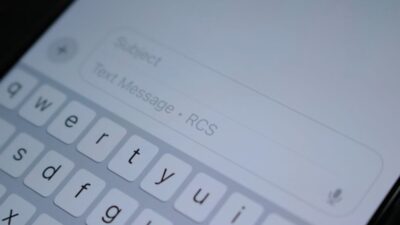
If the group includes Android users, the conversation may use RCS, MMS, or SMS depending on device and carrier support. Messages appear in green bubbles.
If you’re wondering how to leave a group chat on iPhone, the option may be unavailable in SMS/MMS groups because they use carrier messaging instead of iMessage.
2. How to Leave a Group Chat on iPhone
If the conversation meets Apple’s requirements, leaving a group chat on iPhone is a simple process that only takes a minute.
Open the Messages App
Begin by launching the Messages app on your iPhone. Scroll through your conversations or use the search bar to find the group chat you want to leave. Once you’ve located it, tap the conversation to open it.
Open the group information
At the top of the conversation, tap the group name or the row of participant icons. This will open the chat details page, where you can view everyone in the group, manage notifications, and access additional conversation settings before leaving the chat.
Find the leave option
Scroll down through the group details page.
If the conversation qualifies, you’ll see: Leave this Conversation
When learning how to leave a group chat on iPhone, you’ll usually find the Leave Conversation option near the bottom of the settings menu.
Confirm your decision
Tap Leave this Conversation. A confirmation prompt may appear asking whether you’re sure you want to exit the group. Once confirmed, you’ll stop receiving future messages from that conversation.
For example, if you were part of a temporary event planning group, leaving the chat can help reduce unnecessary notifications after the event ends.
>>> Read more: Update Email Password on iPhone: Easy Explanation
3. How to Mute a Group Chat Instead
Sometimes, leaving isn’t possible. In other situations, you may want to stay in the group while avoiding constant alerts. If you’re unable to use how to leave a group chat on iPhone, muting notifications can be a practical alternative.
To mute a group conversation:
- Open the group chat.
- Tap the group name.
- Scroll down.
- Enable Hide Alerts.
This allows messages to continue arriving without triggering notifications every time someone responds. The conversation remains accessible whenever you want to check it.
4. Common Problems and Solutions
Even when leaving a group chat on iPhone, certain issues can prevent the option from working as expected.
Leave conversation is grayed out
This usually happens when:
- The conversation is an SMS or MMS group.
- Too few participants remain in the chat.
- Not all members use iMessage.
In these situations, muting notifications may be the only option.
Group messages continue appearing
If messages still appear after leaving:
- Confirm that you left the correct conversation.
- Check whether a new group was created with the same participants.
- Restart the Messages app.
If you’re learning how to leave a group chat on iPhone, keep in mind that message delivery delays can sometimes make the group appear active even after you leave.
Notifications return unexpectedly
If alerts reappear after muting:
- Open group settings.
- Verify Hide Alerts remains enabled.
- Check Focus or notification settings.
Focus modes and notification settings may affect how alerts are delivered, even if Hide Alerts is enabled.
Changes are not syncing across devices
Remember that there may be some changes that may take a little time to sync across multiple Apple devices.
Make sure:
- iMessage is enabled on all devices.
- The same Apple ID is being used.
- Devices are connected to the internet.
Synchronization usually occurs automatically after a short period.
>>> Read more: How to Send Long Videos on iPhone Without Losing Quality
5. FAQs
What prevents me from leaving a group chat on iPhone?
The most common reason is that the conversation is an SMS or MMS group rather than an iMessage group. The Leave Conversation feature only works in eligible iMessage group chats.
Will everyone know if I leave a group chat?
Yes. In most iMessage groups, participants can see a notification indicating that you left the conversation.
Can I join a group chat after leaving?
Yes. Another participant can usually add you back if the group supports member management.
How many people do you need to leave an iMessage group?
The Leave Conversation option is typically available only when an iMessage group includes at least four participants. If the chat has three people or fewer after you leave, iPhone usually hides this option, preventing you from exiting the conversation directly.
Conclusion
Learning how to leave a group chat on iPhone is really about understanding the limits and options available within Messages.
While some conversations allow you to exit completely, others require a different approach, such as muting notifications or managing alerts more carefully.
Once you know how each group type works, it becomes much easier to control which conversations deserve your attention and which ones no longer need a place in your daily routine.